
You tap the screen and nothing happens. So you tap harder. That never helps, and everybody does it anyway.
Losing touch on a machine you chose for it is genuinely irritating, and I want to get you to the right answer rather than the usual one.
Somewhere in Settings your laptop now claims there is no pen or touch input available for this display, on a machine you bought specifically because it had one.
That is a rotten thing to lose. Worse, the usual advice can make it harder to get back.
So this page puts one test first, and it is a test almost nobody suggests.
1. Check whether Windows is even the problem
Restart the laptop and hold the key that opens your BIOS or firmware settings, usually F2, F10, Delete or Esc depending on who made it. Once you are in there, try touching the screen.
Reported by advisers on Microsoft's Q&A boards, more than once on the same thread: test the touchscreen in the BIOS to see whether it recognizes it and works.
This is the best test on the page because Windows is not running: no drivers, no updates, no settings. If touch works in the firmware and not in Windows, the hardware is fine and the fault is software.
If it does not work there either, do not write the laptop off on that alone, because that result is harder to read than it looks.
Not every firmware supports touch input, so a dead screen there proves nothing on its own. But one that DOES respond proves the panel and its wiring are alive, and that is worth a great deal.
2. Look for it under Human Interface Devices
Documented by Microsoft on its touchscreen page:
"Right-click on the Start menu and select Device Manager."
Then, in Microsoft's words, "select the arrow next to Human Interface Devices to expand it", which is where your touch device should be.
And: "right-click on HID-compliant touch screen and select either Enable device or Disable device depending on which action is desired."
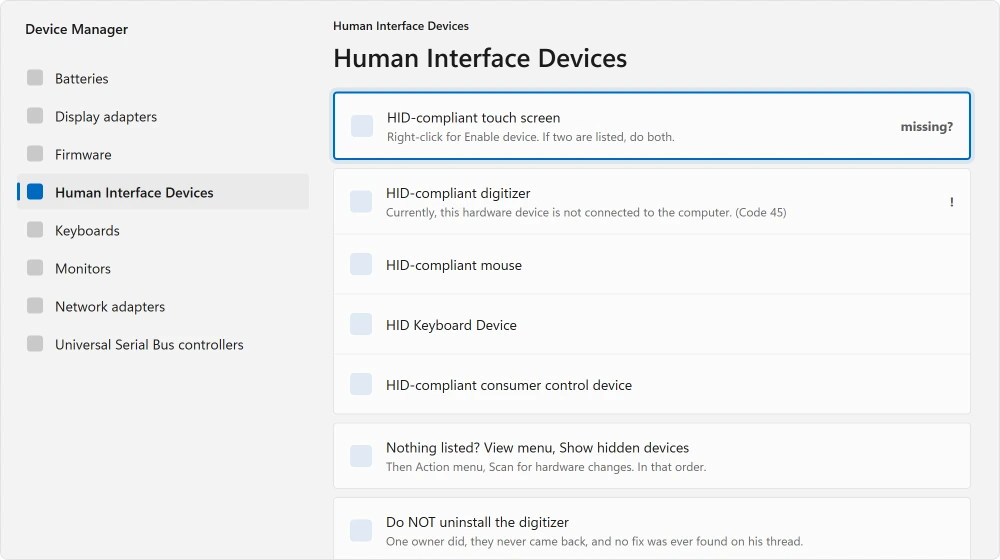
One detail from Microsoft that people miss: "If there are multiple HID-compliant touch screen devices listed, repeat the steps for each device."
Enabling one of two changes nothing. That is why some people report this step doing nothing.
3. If the entry is not there at all, show the hidden ones
A missing entry does not always mean a missing device. Windows hides some of them.
In Device Manager, open the View menu and choose Show hidden devices. Then look under Human Interface Devices again. Anything new?
Then open the Action menu and choose Scan for hardware changes. Watch what appears while you do it.
Ours, and marked as ours: do those two in that order. Scanning first, before hidden devices are visible, tells you nothing, because the thing you are looking for may already be listed and greyed out.
4. Read the device status, because Code 45 means something specific
Right-click whatever touch entry you do have and open Properties. Read the Device status box on the first tab. Actually read it, rather than skimming.
Reported by an owner on a Lenovo IdeaPad 3, whose status box said: "Currently, this hardware device is not connected to the computer. (Code 45)".
That message means Windows cannot see the hardware at all. Very different from a driver being wrong. It sends you back to step one, because a device Windows cannot see is not fixed by reinstalling its driver.
5. The step that made things worse, so do not take it
This is the warning I most wanted to put on this page: you will be told to uninstall the touch device in Device Manager and let Windows reinstall it. That works for many devices. On touchscreens it can leave you with nothing.
In the owner's words, after following exactly that advice:
"I think I may have exacerbated the problem because I uninstalled the HID-complaint digitizer drives (both)… the drivers were meant to reinstall themselves but unfortunately, that is not the case."
He then updated the BIOS, restarted, and reported: "I am still missing the HID-Touchscreen & HID-Digitizer".
When he tried to reinstall the manufacturer's driver packages, the installer told him they were "not needed" and there was "no device present".
Nobody on that thread ever confirmed a fix. It ran for four days across three advisers and ended unresolved.
Ours, and marked as ours: if you have a working touch entry, try Disable and then Enable before you ever try Uninstall. It achieves the same reset and it cannot leave you with an empty list.
6. Check the service that carries touch input
Touch reaches Windows through a service. A stopped service produces a screen that ignores you.
If the screen has other problems too, a screen that keeps going black starts elsewhere.
Press Windows + R, type services.msc, and find Human Interface Device Service. Its status should say Running. Its startup type will say Manual, and that is how Windows ships it, so leave that alone.
Stopped? Start it. Set to Disabled? Put it back to Manual. Windows starts this one on demand, so Automatic is not the goal.
7. Firmware and the maker's own drivers
Touchscreen support depends on the firmware exposing the panel properly. That is why this is worth doing, even though it feels like a long shot.
Get the current BIOS or firmware from your laptop maker's support page. Your exact model. Take their chipset and touchscreen driver packages while you are there.
Set your expectations from what happened above. The owner on that thread did the BIOS update and it changed nothing. It is worth doing, and it is not a likely answer on its own.
When it is the digitizer
The touch layer is a separate sheet bonded to the display, with its own ribbon cable. It can fail while the picture stays perfect. So a flawless screen that ignores you is not a contradiction.
And where the touchpad has stopped rather than the screen, a touchpad that is not responding is that one.
Ours, and marked as ours: the pattern that points here is touch that fails in the BIOS as well as in Windows, or touch that works in one part of the screen and not another.
Neither of those is a software fault, and no amount of driver work reaches either.
Status: written 22 August 2026. Microsoft documents the Device Manager route. Testing touch in the BIOS is adviser guidance, and one owner's uninstall left him with nothing.
Why does my laptop say no pen or touch input is available?
Windows cannot see a touch device. Check Device Manager under Human Interface Devices, with Show hidden devices turned on in the View menu.
If nothing appears even then, test touch in your BIOS before doing anything else, because that tells you whether the hardware is alive.
What does Code 45 mean on a touchscreen?
Windows is reporting that the hardware is not currently connected to the computer. It means the device is not being seen at all, rather than a driver being wrong.
Reinstalling drivers rarely helps with Code 45, and the BIOS test is the more useful next step.
Should I uninstall the HID-compliant touch screen driver?
Try Disable then Enable first. One owner uninstalled both his digitizer entries expecting Windows to reinstall them automatically, and they never came back.
His own words were that he may have made the problem worse, and the thread ended with no fix.
How do I know if my touchscreen is broken rather than a driver?
Test it in the BIOS, where Windows is not running. Touch that works there and not in Windows is a software fault.
Touch that fails in both, or works only on part of the screen, points at the digitizer layer or its cable rather than anything you can fix in settings.
The Short Version
- Testing touch in the BIOS takes Windows out of the picture in about two minutes.
- Microsoft's route is Device Manager, Human Interface Devices, HID-compliant touch screen.
- If two touch entries are listed, Microsoft says to enable both. One is not enough.
- Show hidden devices in the View menu before scanning for hardware changes.
- Code 45 means Windows cannot see the hardware, not that a driver is wrong.
- One owner uninstalled his digitizers, they never reinstalled, and no fix was ever found.
Where to Next
Restart into your BIOS and touch the screen before you open Device Manager. Two minutes there tells you whether this is a software problem worth chasing or a hardware one that is not.
If the screen has other problems as well, a screen that keeps going black and a black screen at startup both start elsewhere.
And if the touchpad has stopped rather than the screen, a touchpad that is not responding is that one.
If your touchscreen came back and I have not listed how, please say so in the comments. This is a topic where the threads mostly end without an answer.

Isaac Smith is the founder and editor of PC Glance, a website that covers computers, laptops, and technology. He is a tech enthusiast and a computer geek who loves to share his insights and help his readers make smart choices when buying tech gadgets or laptops. He is always curious and updated about the latest tech trends.