
Your screen blinks out. Two seconds of nothing, maybe a No Signal box, then everything is back exactly as it was. Three times an hour, or twice a day. And never when somebody else is watching.
You have almost certainly swapped the cable and updated the graphics driver already, because that is what everybody says. I want to send you somewhere else. The first question is how many screens you use.
That sounds like an odd place to start. It is the split that decides everything.
Two or more screens: start with the refresh rates
This is the finding, and three owners confirmed it independently on the same Microsoft thread.
When two monitors run at different refresh rates, Windows and the driver keep renegotiating between them, and on a lot of setups that negotiation drops the signal for a second or two.
Open Settings, then System, then Display, then Advanced display. Check each screen in turn, then set them all to the same rate. That usually means bringing the fast one down.
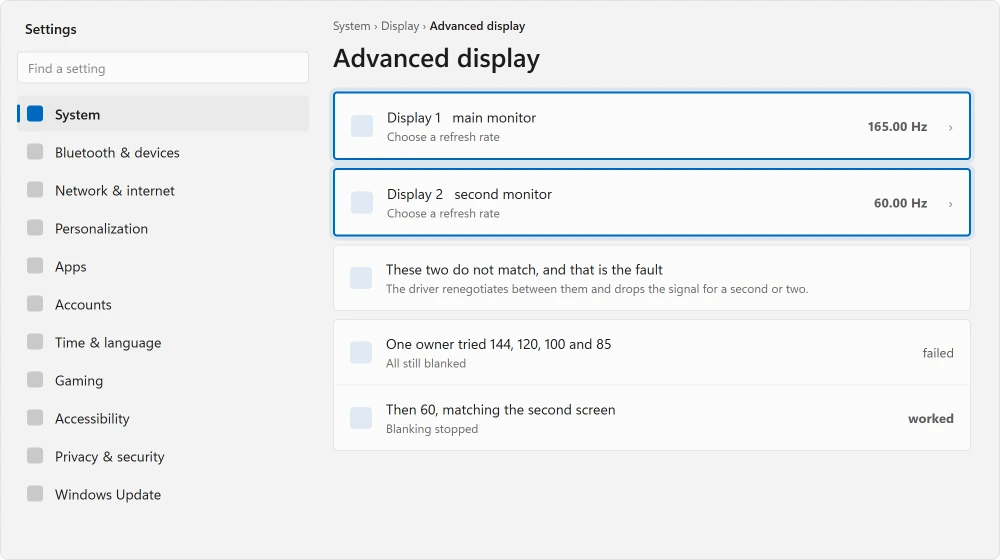
One owner, in his words: "I tried lowering my main display to 144Hz, 120Hz, 100Hz, 85Hz. and the problem only disappeared when set to 60Hz, which is the same refresh rate as the secondary display."
Read that carefully, because it changes what you go and do. The rate itself was not what mattered. Matching was.
A second owner went further: "I brought the 165hz monitor down to 144hz. This helped, but was still experiencing the flashing black screen less regularly. Next I turned off G-sync for both in the NVIDIA Control Panel. Haven't had the issues since."
A third, using a laptop with large TVs as displays: "Changing the refresh on my laptop for all displays, including on the laptop, to 60Hz resolved all issues."
He had the same fault in three different places, on a Samsung, an Amazon and a TCL screen.
Dropping a 165 Hz monitor to 60 Hz is a real loss if you play games, and it costs you something. Match at the highest rate both screens support before you settle for 60.
If matching helps but does not finish it
Turn off variable refresh rate on both screens. It is G-Sync on NVIDIA and FreeSync on AMD. Windows calls it Variable refresh rate in its own graphics settings.
That is the sequence the second owner described. People skip it because the feature sounds like it should help rather than hurt.
Ours, and marked as ours: turn it off on both monitors, not just the one that blanks. These settings are per-display and half-applying it is why some people report it did nothing.
The test that proves it is not your hardware
Before you spend money, there is a genuinely useful data point on that thread. If your picture tears across the middle instead, screen tearing is a different fault.
One owner tested the same physical setup on a different operating system: "On the same hardware with the same monitor, computer, cables and video card, but without windows (using linux) the problem is gone."
He had already ruled out four monitors, ten cables, the video card and the computer.
That is worth knowing, because it stops you buying things. If your fault behaves like this, it is a negotiation problem between Windows, the driver and two displays, not a dying component.
One screen only, and it is getting worse
Now the other half, and this one is less cheerful.
An owner posted in September 2025 with a laptop, an external monitor and an RTX 3050 Ti. His monitor went black and said No Signal at random.
He had already updated every driver, run DDU, run an SFC scan, bought a new HDMI cable, tried the Windows key plus Ctrl plus Shift plus B display reset, and disabled the Intel driver.
An Independent Advisor worked with him for six weeks. An in-place upgrade of Windows changed nothing.
Then the adviser read his crash dump and found the error sitting in nvlddmkm.sys, which is the NVIDIA display driver, and recommended a clean manual reinstall.
His reply: "I performed the clean installation as you suggested, but unfortunately, the issue returned about five minutes later."
And then it got worse. He started getting a blue screen carrying VIDEO_DXGKRNL_FATAL_ERROR.
That escalation is the tell. A blanking screen that turns into blue screens naming the graphics subsystem is not a settings problem, it is hardware failing, and no amount of driver work reaches it.
That thread never reached a fix. He could not afford a technician, and it ended there.
The middle ground: it happens under load
Does yours blank when a game starts, and never while you read email? Then look at power rather than displays.
A graphics card starved of clean power under load shuts itself off and restarts. That looks exactly like a signal drop. On a desktop it points at the power supply.
On a laptop it can point at a charger that is underrated for the machine.
Where the screen smears behind moving objects rather than blanking, screen ghosting covers that one.
Ours, and marked as ours: the pattern to watch is whether it ever happens at idle.
A fault that only ever appears under load is a power fault far more often than it is a driver fault, and that distinction saves you reinstalling drivers for a week.
The settings worth changing, and one worth knowing about
PCI Express link state power management. In Power Options, open your plan's advanced settings, find PCI Express, then Link State Power Management, and set it to Off.
It lets Windows power down parts of the bus, and on some machines that includes the path to your display.
Fast Startup, in the same Power Options screen under Choose what the power buttons do.
It reloads a saved state rather than initializing hardware, which is why some display faults survive a shutdown and vanish after a proper restart.
Both are adviser guidance rather than confirmed fixes, and they are labelled that way rather than dressed up. They cost nothing and a little battery life.
Status: written 22 August 2026. Three owners independently confirmed that matching refresh rates across monitors stopped the blanking, and one showed the same hardware behaving outside Windows.
Why does my screen go black for a few seconds and come back?
On a multi-monitor setup, most often because your screens are running at different refresh rates and the driver keeps renegotiating between them.
Set every display to the same rate. Three owners confirmed that fix independently, and one found matching mattered more than the rate itself.
Does G-Sync cause black screens?
It can. One owner matched his refresh rates, which helped but did not finish it, then turned G-Sync off for both monitors in the NVIDIA Control Panel and the blanking stopped entirely.
Turn it off on every display rather than only the one that blanks.
How do I know if my graphics card is failing?
Watch for escalation. A screen that blanks and recovers is ambiguous, but blanking that turns into blue screens naming the graphics subsystem, such as VIDEO_DXGKRNL_FATAL_ERROR, points at hardware.
One owner reached that stage after a clean driver install failed within five minutes.
Why does my screen only go black when I am gaming?
That pattern points at power rather than displays. A graphics card starved of power under load shuts down and restarts, which looks identical to a signal drop.
If it never happens at idle, look at the power supply on a desktop or the charger rating on a laptop.
The Short Version
- How many monitors you run decides which half of this page applies to you.
- Mismatched refresh rates across two screens make the driver renegotiate and drop the signal.
- One owner found matching mattered, not the rate: 144, 120, 100 and 85 all failed, 60 worked.
- Turn G-Sync or FreeSync off on every display, not only the one that blanks.
- The same hardware ran fine on Linux for one owner, which rules out buying new parts.
- Blanking that escalates to blue screens naming the graphics driver is failing hardware.
Where to Next
Open Advanced display settings and write down the refresh rate of each screen before you do anything else. If they differ, you have found the thing three separate people confirmed.
If your picture tears across the middle rather than blanking, screen tearing is a different fault.
If it smears behind moving objects, screen ghosting is that one.
And if the screen is black from the moment you press the power button, a black screen at startup starts somewhere else entirely.
Screen dimming or shifting color on a schedule rather than going black? that is a setting you already have.
If matching your refresh rates fixed it, tell me in the comments with your two monitors and their rates. That list would help people more than any setting I can describe.

Isaac Smith is the founder and editor of PC Glance, a website that covers computers, laptops, and technology. He is a tech enthusiast and a computer geek who loves to share his insights and help his readers make smart choices when buying tech gadgets or laptops. He is always curious and updated about the latest tech trends.