
You see the picture split across the middle for a split second, usually when something moves fast, with the top half a frame behind the bottom. It looks like your monitor is failing. Let me save you that worry, because it almost never is.
In most cases the fix is one dropdown Windows quietly left on the wrong setting.
The thirty-second check
Go to Settings, then System, then Display, then Advanced display.
Look at Choose a refresh rate.
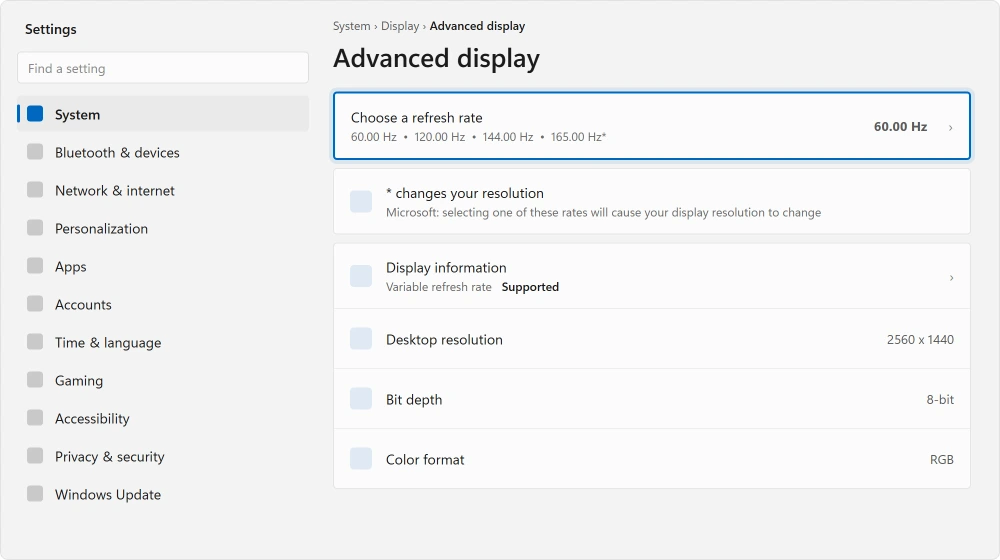
Now open that dropdown and see what else is in it. If your monitor offers 120, 144 or 165 and Windows is sitting on 60, you have found your problem.
Documented by Microsoft on its refresh rate page: "a higher refresh rate can improve your gaming experience by reducing motion blur and screen tearing."
Windows does not always pick the highest rate your monitor supports. Plenty of fast monitors run at 60 for years because nobody opened this dropdown.
The warning attached to that dropdown
One caution before you change anything, and it is Microsoft's own, clicked past by almost everyone.
Some rates in that list have an asterisk beside them. Microsoft: "Selecting one of these rates will cause your display resolution to change in order to achieve the selected refresh rate."
So a rate your monitor cannot manage at your current resolution will drop the resolution to reach it. Everything suddenly bigger and softer? That is what happened. Going back one step in the dropdown undoes it.
Pick the highest rate without an asterisk first.
Why tearing happens at all
One paragraph, and every remaining setting will make sense to you.
Your monitor redraws the whole screen a fixed number of times a second. Your graphics card produces frames at whatever rate it can manage, and that changes constantly.
When the card delivers a new frame partway through a redraw, you see part of the old frame and part of the new one at once. That join is the tear.
So tearing is a timing mismatch, not a failure. Every remaining fix is another way of getting the two back in step.
Turn on variable refresh rate
The modern answer, and it works by making the monitor wait for the card rather than the reverse.
Documented by Microsoft, the setting lives at Settings, System, Display, Graphics, then Change default graphics settings. Switch on Variable refresh rate.
Two conditions apply. Check both before you go hunting.
Your monitor has to support it. The Display information panel on that Advanced display page tells you whether yours does, so there is no guessing involved.
And it does not replace the setting inside your game. If a game offers its own V-Sync or frame limit, that still counts.
Optimizations for windowed games, and its limits
The other switch on that page gets recommended for tearing constantly. Its actual scope is much narrower.
Documented by Microsoft on its windowed games page: the feature "reduces frame latency and enables modern gaming features such as Auto HDR and variable refresh rate on supported displays."
Read that scope carefully. Microsoft states it applies to "DirectX 10 and DirectX 11 games running in windowed and borderless windowed modes".
So an older game in a window benefits. A modern full-screen game does not go through this path at all, and switching it on will do nothing for that case.
Ours, and marked as ours: switch it on anyway. It is free and it helps the games it covers. Simply do not count on it if your tearing happens in a modern full-screen title.
Cap the frame rate inside the game
The oldest fix of all, and still the most reliable once everything else is set correctly.
Does the game offer V-Sync? Turn it on. Does it let you cap the frame rate? Cap it at your refresh rate rather than leaving it unlimited.
An unlimited frame rate on a 60 Hz monitor means the card is finishing frames the monitor has no way to show, and every one of those lands mid-redraw. Capping it removes the mismatch at the source.
The cost is a slight increase in input lag. That matters in competitive games and is invisible in most others. If the machine is also struggling generally, start with why the whole machine feels heavy instead.
When it is the cable
Rule this out too, because it produces the same symptom and no setting will touch it.
A cable that cannot carry your resolution at your chosen refresh rate either refuses the rate outright or gives you an unstable picture. Older HDMI cables struggle at high refresh rates in particular.
If the refresh rate you want will not appear in the dropdown at all, suspect the cable before the monitor. Swapping it is cheap, and DisplayPort generally has more headroom than HDMI on a desktop monitor.
A monitor that keeps dropping out entirely is a different story, covered in a black screen at startup.
When it started after an update
Reported by an owner on the Microsoft Q&A boards, on a machine with Intel Arc integrated graphics, tearing under heavy graphics work.
They had rolled Windows back three months earlier, which helped, then updated again and the tearing returned.
The advice they were given was the same list as this page, plus a clean reinstall of the graphics driver from Intel directly rather than through Windows Update.
Nobody confirmed a fix there, and no follow-up was ever posted.
I mention it because the driver route deserves attention if your tearing arrived with an update, and because manufacturer drivers are often ahead of the ones Windows supplies.
Status: written 21 August 2026. Microsoft documents Optimizations for windowed games as covering DirectX 10 and 11 in windowed and borderless modes only, narrower than most advice suggests.
What causes screen tearing?
A timing mismatch. Your monitor redraws at a fixed rate while the graphics card produces frames at a variable one, so a new frame can land partway through a redraw and you see two frames at once. Nothing is broken.
Does a higher refresh rate stop screen tearing?
It reduces it, and Microsoft says as much. It is also the commonest fix, because Windows does not always select the highest rate your monitor supports and plenty of fast monitors run at 60 by default.
Should I turn on variable refresh rate in Windows?
Yes if your monitor supports it, which the Display information panel will tell you. It lets the monitor wait for the graphics card instead of redrawing on a fixed schedule, which is the cleanest answer to tearing.
Why did my resolution change when I changed refresh rate?
Because you picked a rate marked with an asterisk. Microsoft states that selecting one of those will change your resolution to achieve the rate. Choose the highest rate without an asterisk instead.
The Short Version
- Windows does not always use your monitor's highest refresh rate. Check the dropdown.
- Rates marked with an asterisk will change your resolution to reach them.
- Tearing is a timing mismatch, not a monitor fault.
- Variable refresh rate is the cleanest fix, and needs monitor support.
- Optimizations for windowed games covers DirectX 10 and 11 windowed only.
- A cable that cannot carry the rate keeps it out of the dropdown entirely.
Where to Next
If your dropdown only offers 60, the answer is upstream of Windows. Either the monitor genuinely is a 60 Hz panel, or the cable cannot carry more. Neither is something a setting will change.
And if the screen also goes dark at odd moments, a black screen at startup covers that separately.
If the tearing arrived alongside other symptoms, particularly a machine that has felt heavier lately, rule out a PC that has felt slower lately too. A graphics card fighting for resources produces frames unevenly.
For the other display setting people go looking for a download to get, Windows has had a blue light filter built in for years.
Refresh rate decides more than tearing. A game on a 60 Hz screen is capped at 60 frames whatever the hardware can do.
Say in the comments what rates your dropdown offers and which one you are on. That pair usually answers the whole question in one line, and it is what I would look at first.

Isaac Smith is the founder and editor of PC Glance, a website that covers computers, laptops, and technology. He is a tech enthusiast and a computer geek who loves to share his insights and help his readers make smart choices when buying tech gadgets or laptops. He is always curious and updated about the latest tech trends.