
An external keyboard connects through USB, its matching wireless receiver, or Bluetooth. Plug in a wired keyboard or receiver first; for Bluetooth, put it into pairing mode and add it in Windows or macOS settings.
Once it types, check the keyboard layout and shortcuts before installing extra software. You can set up optional controls, such as programmable keys or lighting, after ordinary typing works.
Choose the connection your keyboard supports
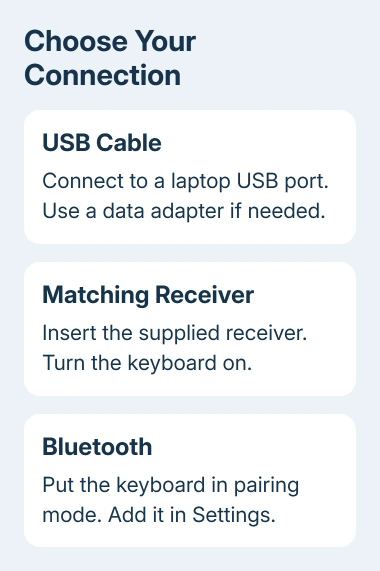
Look for a cable, a supplied USB receiver, or a Bluetooth symbol on the keyboard and its packaging. Some keyboards support several methods, with a switch or device-selection key that chooses the active one.
A charging socket doesn't necessarily support typing over the cable. Check its manual for a wired mode. Likewise, a wireless keyboard with a USB receiver isn't necessarily a Bluetooth keyboard.
If your keyboard switches between computers, select the device slot for this laptop. Switching to another slot later can make it seem disconnected because it's trying to reach a different paired device.
Keep the laptop's built-in controls within reach during setup. The built-in keyboard can stay enabled while you use an external one, and it makes finishing pairing or correcting a setting easier.
I'd make the first connection directly to the laptop. Once typing works, move the cable or receiver to your dock if that's the arrangement you prefer. That way, a dock problem won't get mixed up with the keyboard's initial setup.
Connect a USB cable or the matching receiver
For a wired keyboard, plug its USB connector into a suitable laptop port. If the connector and port differ, use a compatible data adapter, such as a USB-A keyboard through a USB-C adapter.
For a receiver keyboard, insert the receiver supplied for that keyboard, power up the keyboard and check the battery. Set its connection selector to the receiver mode if the model has one.
Give the system time to recognize the device, then open Notepad on Windows or TextEdit on a Mac. Click in a new document and type a few letters, numbers, and punctuation marks.
If nothing appears, try a different laptop port. Check both ends of a detachable cable and connect without a hub. Microsoft says to start with these keyboard connection checks.
If you've lost the receiver, ask the keyboard maker about a replacement. A spare receiver that fits the port isn't automatically compatible, and some supported replacements need the maker's pairing software.
For a Logitech model, the Logi keyboard setup guide explains the separate Bluetooth and supported receiver routes. Use the instructions that match your model, since receiver systems differ.
Pair through the Windows Bluetooth settings
Turn the keyboard on and start its pairing mode using the maker's instructions. A flashing light often means it's ready to pair, but the button and hold time vary, so don't use another model's timing.
On Windows 11:
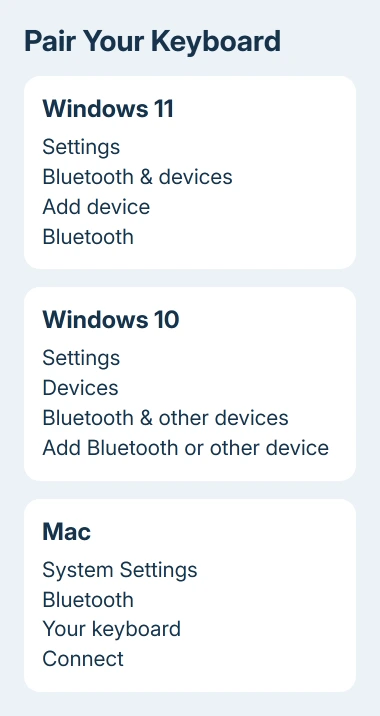
- Open Start > Settings > Bluetooth & devices.
- Turn Bluetooth on.
- Select Add device > Bluetooth.
- Select your keyboard when its name appears.
- Follow the pairing prompt. If a code is shown, type it on the external keyboard and press Enter when requested.
On Windows 10, open Start > Settings > Devices > Bluetooth & other devices. Turn Bluetooth on, select Add Bluetooth or other device > Bluetooth, and choose the keyboard.
Let pairing finish, then try typing in Notepad. If Windows can't find the device, check that the keyboard is still ready to pair and is using the slot for this laptop.
Some supported devices display a Swift Pair notification. Choosing Connect there can complete pairing without opening the full device list. If no notification appears, use the normal Settings route instead.
If there is no Bluetooth control, check whether that laptop has working Bluetooth support. A receiver connection and Bluetooth are different, so installing a receiver doesn't automatically add a Bluetooth radio to Windows.
Pair a Bluetooth keyboard with a MacBook
Put the keyboard into discoverable mode. Open Apple menu > System Settings > Bluetooth, find the keyboard in the device list, and click Connect.
Follow any prompt to accept the connection or type a code and press Enter. Then open TextEdit and confirm that the external keyboard can enter text.
On older macOS versions, the same Bluetooth controls are in System Preferences > Bluetooth. An Intel MacBook and an Apple silicon MacBook use the settings for their macOS version; they don't need different Bluetooth button sequences.
A compatible Magic Keyboard can pair by connecting its cable to the Mac and turning the keyboard on. Wait for the notification that it can be disconnected and used wirelessly. Other brands may use a different cable or pairing process.
If Keyboard Setup Assistant opens, follow its prompts to identify the keyboard type. ANSI, ISO, and JIS are different physical key layouts. The Mac is asking which arrangement you have; that screen doesn't mean the connection failed.
Fix a wrong layout after typing starts
Type a short line containing letters, numbers, and the punctuation you use. A keyboard that types the wrong symbol needs a layout check rather than another attempt to connect it.
On Windows, press Windows + Space to switch between installed input layouts. If none matches the physical keyboard, use the Windows keyboard language guide to add the right one rather than changing random keys.
On a Mac, check the typing language in the input menu. For shortcuts, open System Settings > Keyboard > Keyboard Shortcuts > Modifier Keys. Select your external keyboard if a device list appears, then check what each modifier key does.
Modifier keys include Control and Command. Change only the key assignments you want to use. Restore Defaults returns them to their original settings, which helps if an earlier change makes shortcuts behave unexpectedly.
Add optional features after the keyboard works
Install the keyboard maker's software only when you need a supported feature such as lighting, macros, or special keys. Download it from that maker for your exact model and operating system.
If typing still fails, try the keyboard on another computer and a working keyboard on this laptop. Ask the keyboard maker about a device that fails on both; ask the laptop maker about ports or Bluetooth that fail with several devices.
Give support the model, connection method, operating system, and whether direct connection worked. That gives them a clearer picture of what happened during setup.
The Short Version
Choose USB, the matching receiver, or Bluetooth, then confirm ordinary typing in a new document. Check layout and modifier keys next. Add optional keyboard software only for features the model supports.
Checked November 8, 2026.

Isaac Smith is the founder and editor of PC Glance, a website that covers computers, laptops, and technology. He is a tech enthusiast and a computer geek who loves to share his insights and help his readers make smart choices when buying tech gadgets or laptops. He is always curious and updated about the latest tech trends.