
Find My iPhone turns on in Settings > your name > Find My > Find My iPhone. Enable its main switch while the phone is still with you, then enable the two extra switches for offline and low-battery help.
Installing the Find My app isn't the activation step. The setting connects this iPhone to your Apple Account so you can look for it later from another device.
Turn on Find My for this iPhone
In Settings, select your name. Open Find My > Find My iPhone and enable the Find My iPhone switch. Check that the switch stays enabled when you leave the page and return.
If Settings asks you to sign in instead of showing your name, sign in to your own Apple Account first. Use the account you can access from another device if the phone is lost; the account controls which devices appear in Find My.
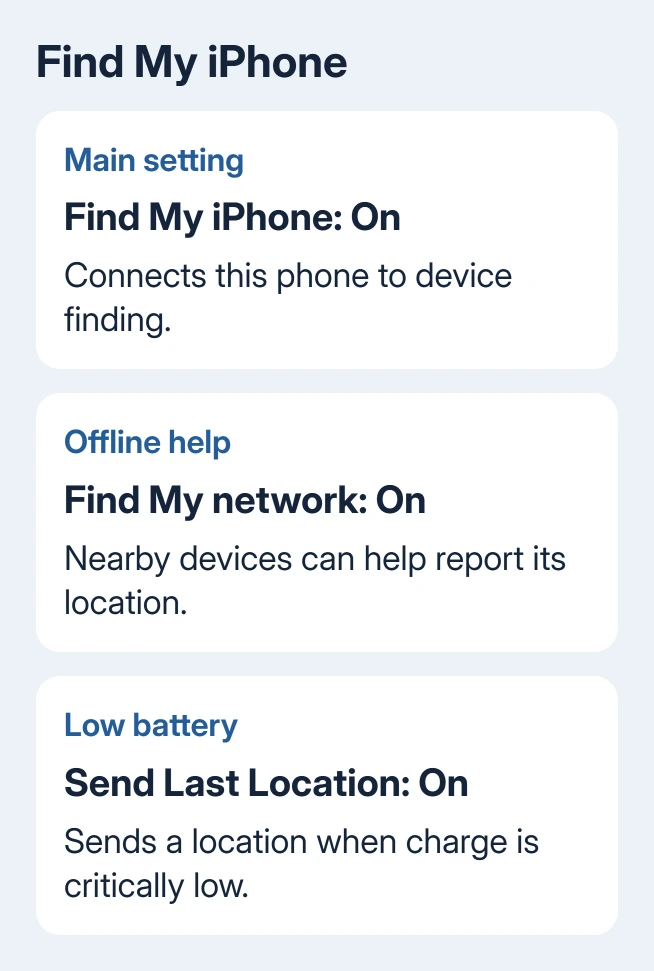
Apple's Find My setup guide lists this route for iPhone and iPad. Recent software calls the sign-in an Apple Account; older versions can still show Apple ID for the same account.
This setting is separate from letting friends see your location. Turning on the device-finding feature doesn't require sharing your location with another person. The next two switches also serve different jobs, so check them individually.
Add offline finding and the low-battery location
On the same page, turn Find My network on. Nearby Apple devices that participate in the network can help report your offline device's approximate location. Reports are anonymous and encrypted.
It doesn't make an offline phone connect to cellular service or Wi-Fi. A map can still show an older location while no newer report is available. Read the location's time instead of assuming the dot is a live position.
Next, turn on Send Last Location. When the battery becomes critically low, the iPhone sends its location automatically. This is useful when the battery runs out before you notice the phone is missing.
Find My network and Send Last Location aren't interchangeable. One helps locate an offline phone; the other sends its location when the battery is critically low. Enabling only one doesn't turn on the other.
Supported iPhones can remain findable for a limited time after shutdown with the network enabled. The findable-after-power-off explanation covers that model-dependent behavior. Don't switch the phone off just to complete setup.
I'd enable both switches now, before you put the phone away. Trying to make that choice after losing it is too late. Keep the main Find My iPhone switch enabled as well, since the extra options depend on device-finding being set up.
Check Location Services for a usable map position
Open Settings > Privacy & Security > Location Services and check that Location Services is enabled. On older iOS versions, the privacy menu is labeled Privacy without Security.
If the main location switch is off, the phone can't provide its normal location information. Turn it on before checking the map. The device's Find My switch and the phone's general location setting aren't the same control.
Return to Find My after making the change. Check the iPhone's entry rather than using a friend's shared location as the test. Seeing someone's location in People doesn't tell you whether this phone appears under Devices.
If the location remains old, connect the iPhone to the internet and leave it powered on while checking again. A current report is more useful than a device name alone, but poor reception can delay that report.
Confirm the iPhone appears under Devices
Open the Find My app and select Devices. Find this iPhone in the device list and tap it. Check the device name and location information, especially if the account has more than one iPhone.
To check that you can find it from another device, open Find My on another Apple device with the same account. Select Devices, choose this iPhone, and use Play Sound while it's nearby. The sound confirms you've selected the right phone.
Keep both devices connected during this check. A pending sound request from an offline phone isn't the same result as hearing it ring. Read the device's status and let it reconnect before retrying.
If the app icon is missing, use the Find My app restoration steps. Restoring the app gives you its controls again; it doesn't replace checking the Find My iPhone switch in Settings.
Give the phone a recognizable name if several devices are hard to tell apart. In Settings > General > About > Name, enter a name you'll recognize. Return to the device list and check which entry belongs to it.
Keep device finding separate from sharing with people
The People tab and Share My Location are for letting selected people see your location. They aren't the master controls for locating your own missing iPhone. Check Devices when that's the job you want to set up.
If you also want a family member or friend to see your location, enable Share My Location in Find My settings and choose whom to share with through the app. Make that choice separately, since it lets those people see where you are.
For a child or family device, check the Apple Account shown on that iPhone. A phone signed in to someone else's account won't become your device simply because you installed Find My or shared a location with yourself.
Activation Lock also turns on with Find My. It links the device to the account and helps prevent someone else from reactivating it without the required credentials. Keep your password handy and access to your trusted phone number available.
When activation is blocked or the phone is already lost
If account controls are grayed out, open Settings > Screen Time > Content & Privacy Restrictions. On the current layout, find Privacy Restrictions > Allow Changes to Settings > Accounts and choose Allow.
Older layouts can put Account Changes directly under Allow Changes. A parent or organizer may need to enter the Screen Time passcode to allow the change. Don't turn off every content restriction to change this one setting.
On a company-managed iPhone, ask the administrator whether account or Find My changes are restricted. Include the blocked control or message. Removing management isn't a routine step for enabling this feature.
If sign-in fails, resolve that account message first through Apple Support's Apple Account help. Tell support whether the phone accepts the account elsewhere and whether the Find My switch is missing, grayed out, or returning an error.
A phone that's already missing can't have Find My activated remotely after the fact. If it was enabled earlier, use the Find Devices website to select it and check its available location and lost-device actions.
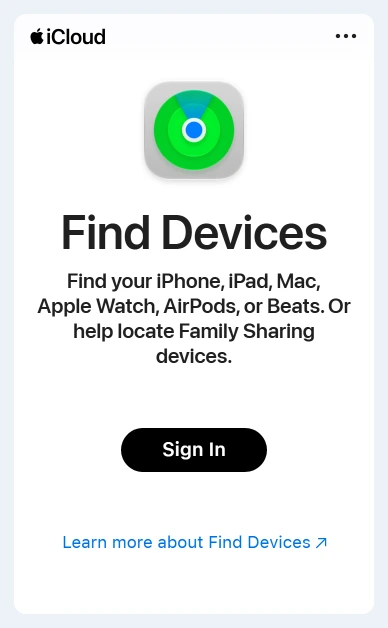
If it wasn't enabled, ask your carrier to protect the line and report a theft to local police. A new app installation on another phone won't add the missing device to your account or recover its location history.
The Short Version
Enable Find My iPhone and its network and low-battery options. Check Location Services and confirm the phone in Devices. Complete setup before the phone goes missing; remote activation afterward isn't available.
Checked November 8, 2026.

Isaac Smith is the founder and editor of PC Glance, a website that covers computers, laptops, and technology. He is a tech enthusiast and a computer geek who loves to share his insights and help his readers make smart choices when buying tech gadgets or laptops. He is always curious and updated about the latest tech trends.