
An iPad can look more like Android with a simpler wallpaper, a clock or weather widget, matching icons, and a familiar app layout. Use the built-in Home Screen controls; an Android launcher won't replace the iPad's Home Screen.
Aim to put familiar information and apps where you're used to reaching for them. The iPad will still run iPadOS, so its navigation, Control Center, and app installation won't turn into Android's versions.
Choose the Android features you actually want to copy
A Pixel-style screen, a Samsung tablet screen, and a heavily themed Android launcher can look very different. Pick a few details from the device you like instead of trying to copy every part at once.
For a simple starting layout, use one large clock or weather widget near the top, a small group of everyday apps, and a Dock containing your browser, messages, and media apps. Leave some space around the wallpaper's main subject.
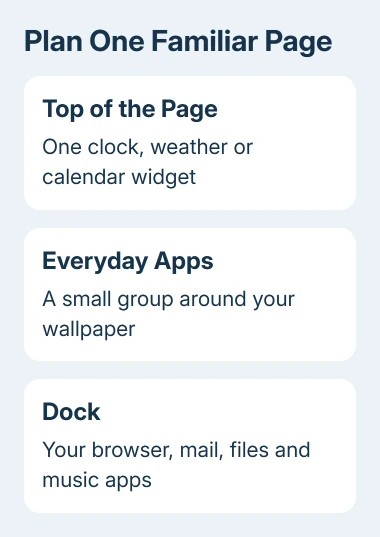
I'd build one Home Screen page first. That lets you judge the layout without moving every app, and you can keep another page in its familiar arrangement while you decide what feels comfortable.
These steps use recent iPadOS Home Screen controls. Check Settings > General > About for your version if a named option is missing. Older releases don't have every icon appearance shown in current versions.
Set a wallpaper that leaves room for your apps
Open Settings > Wallpaper > Add New Wallpaper. Choose a built-in design or a photo you already have permission to use, then adjust its position in the preview.
When you're done, use Customize Home Screen if you want the app page to look different from the Lock Screen. A plain color or a less busy photo makes app names and widget text easier to read.
Check the page in both portrait and landscape. A picture that looks well placed vertically can put its subject behind a widget when the iPad is turned sideways. Adjust the crop before spending time on individual icons.
Apple says you can change an existing design in its iPad wallpaper guide. A new background doesn't need a downloaded theme package.
For the full wallpaper workflow, including changing an existing pair, use the separate iPad wallpaper guide. Keep the image change separate from moving apps so it's easy to undo one part.
Add the clock, weather, or calendar widget
Touch and hold a blank part of the wallpaper until Home Screen editing starts. Tap Edit > Add Widget, then search for Clock, Weather, or Calendar.
- Tap the widget's app in the gallery.
- Swipe through the available sizes and styles.
- Tap Add Widget on the version that fits your page.
- Drag it into place and finish with Done.
Start with a medium or large widget if you want the information to be the first thing you see. Not every app provides every size, so choose from the options actually shown rather than trying to stretch a small widget freely.
For a weather widget showing the wrong city, hold a finger on it, then select Edit Widget. Set the location you want. For a Clock widget showing the wrong time, you may need to change its city settings too.
A Smart Stack puts several widgets in one space. Touch and hold it, then tap Edit Stack. Turn Smart Rotate off if you want the selected widget to stay in view instead of changing during the day.
Turning off Smart Rotate helps when you want widgets to stay put, as they do in the Android layout you're copying. If the stack switches to a calendar, the clock can seem to disappear even though it's still part of the stack.
Match icon colors without replacing every app
Hold the Home Screen background again and choose Edit > Customize. The appearance panel changes the look of app icons and widgets across the Home Screen.
Choose Tinted for a coordinated color. Adjust the hue and saturation with the sliders to suit your wallpaper, or use the eyedropper to take a color from the picture. Check several apps before settling on the tint.
For a darker layout, choose Dark. Auto switches between light and dark appearances with the time of day. Recent versions also offer Clear, which makes icons translucent rather than copying an Android icon pack.
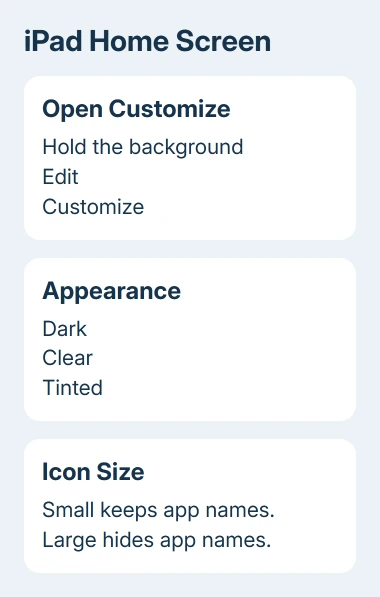
Choose the larger icon size if you prefer an uncluttered page without app names. Larger icons hide those labels, so keep the smaller size when names help you distinguish similar apps.
An icon pack made for an Android launcher can't simply be applied here. The iPad's appearance panel changes its own supported icon styles. It doesn't install Android's launcher, notification shade, or navigation buttons.
The separate custom app icon guide explains how to use Shortcuts to give an app icon a custom picture. That's an optional extra for a few apps; built-in tinting is much quicker for a whole page.
Arrange apps around the widget and set up the Dock
With the icons jiggling, drag your main apps into the spaces you want. On recent iPadOS versions, you can place apps around the screen, leaving gaps to show the wallpaper instead of filling every space.
Drag an app toward the right edge and pause to move it onto another page. Move the apps you use less often there, leaving the first page for the small set you reach for throughout the day.
For a familiar bottom row, drag your browser, mail, files, and music apps into the Dock. Moving an app there doesn't create a second account or another copy of its data. It still opens the same installed app.
Finish editing, then launch each app from its new position. Try the page in landscape too. A comfortable layout needs to work in the orientation you normally use, not only in one preview.
Keep the changes that work and undo the rest
Remove an unwanted widget by holding it and choosing Remove Widget. Change a tint or icon size from Edit > Customize, or return to Wallpaper settings to restore your earlier background.
For a layout reset, open Settings > General > Transfer or Reset iPad > Reset > Reset Home Screen Layout. This removes folders and puts downloaded apps in alphabetical order after built-in apps. Use it only when you want that arrangement.
If a widget or appearance option is missing, check the available styles for that app and your iPadOS version. Ask its developer why that app has no widget; ask Apple Support about a built-in Home Screen control that doesn't respond.
The Short Version
Build a familiar page with wallpaper, widgets, icon tinting, and your most-used apps in the Dock. Those changes can give an iPad an Android-inspired layout while keeping normal iPadOS controls and apps.
Checked November 8, 2026.

Isaac Smith is the founder and editor of PC Glance, a website that covers computers, laptops, and technology. He is a tech enthusiast and a computer geek who loves to share his insights and help his readers make smart choices when buying tech gadgets or laptops. He is always curious and updated about the latest tech trends.