
Task Manager's GPU column may just be hidden. If the GPU is missing from the Performance page too, check the graphics driver. Open Performance first; Windows needs a WDDM 2.0 or later graphics driver to show GPU performance data.
A GPU listed at 0% is a third case: Windows detects it, but that view isn't showing activity. Work through the matching checks before reinstalling drivers or changing your laptop's graphics mode.
1. Open Performance and look through the device list
Press Ctrl + Shift + Esc to open Task Manager. On Windows 11, choose Performance in the left navigation. On Windows 10, click More details if only a short app list appears, then open the Performance tab.
Look through the device tiles for GPU 0, GPU 1, or the graphics adapter's name. Scroll the device list if the window isn't tall enough to show every entry. Click a GPU tile to see its graphs and memory information.
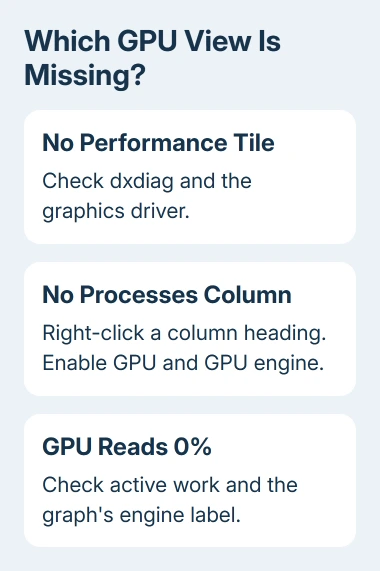
If the GPU appears here, Windows is getting data from it. Check the Processes columns next. A missing column beside CPU or Memory doesn't mean the graphics adapter is missing from the PC.
If no GPU tile appears, move to the driver-model check. It's quicker to check the window size and expand the view before you spend time on drivers.
For other ways to open the window when that shortcut doesn't respond, use the Task Manager shortcut guide. A shortcut failure and missing graphics data are separate problems.
2. Show the GPU columns for individual apps
Open Processes and right-click a column heading, such as CPU or Memory. Enable GPU and GPU engine in the available column list. Widen the window or scroll horizontally if the added columns aren't immediately visible.
The GPU column shows how much of the GPU each process is using. GPU engine shows which graphics device and which part of it, such as its 3D or video engine, is doing the work. Use both to check which adapter an app is using.
For the more detailed process list, open Details, right-click a heading, and choose Select columns. Select the GPU fields you need and confirm with OK.
If those columns now show values while an app is active, they were simply hidden. You don't need to remove a working driver to fix that.
An app at 0% isn't necessarily using the wrong hardware. A document editor sitting idle has different graphics work from a game or video playback. Check activity while the app is actually doing the job you're interested in.
3. Check the graphics driver's WDDM version
Press Windows + R, type dxdiag, and press Enter. This opens the DirectX Diagnostic Tool, which reports the display devices and their drivers.
Open the Display tab and find Driver Model in the Drivers area. If there are multiple Display or Render tabs, check each relevant adapter rather than assuming they all use the same driver.
Microsoft says GPU performance data requires WDDM 2.0 or later. WDDM means Windows Display Driver Model, the interface Windows uses to work with the graphics driver.
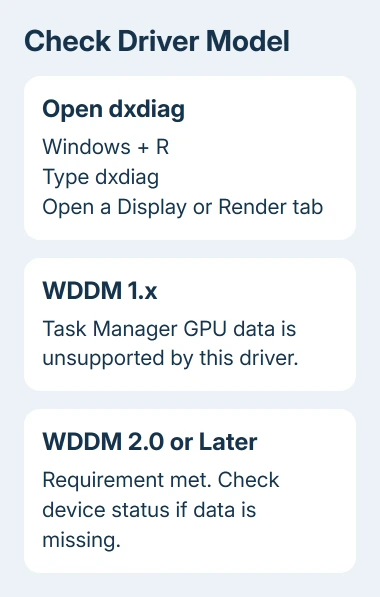
With WDDM 1.x, Task Manager won't provide GPU performance data for that adapter. Check for a compatible newer driver in the next section. If the hardware has no supported newer driver, changing Task Manager settings can't add that support.
With WDDM 2.x or 3.x, your driver meets that requirement. If the GPU is still missing, note that adapter's name and its driver version, then check its status in Device Manager.
Don't confuse the DirectX version shown elsewhere in dxdiag with the Driver Model entry. A DirectX version number alone doesn't answer whether this particular driver supports Task Manager's GPU data.
4. Restore the supported graphics driver
Right-click Start > Device Manager and expand Display adapters. Look for the adapter name, a warning symbol, or a generic entry such as Microsoft Basic Display Adapter.
Double-click the relevant adapter and read Device status on the General tab. Note any error code. That error needs a driver or hardware check; opening another Task Manager tab won't clear it.
On Windows 11, open Settings > Windows Update > Check for updates. Check Advanced options > Optional updates for a graphics driver.
On Windows 10, use Settings > Update & Security > Windows Update, including View optional updates when available.
Another supported route is Device Manager > Display adapters > your adapter > Update driver > Search automatically for drivers. The driver update instructions explain that route.
For a laptop with switchable graphics, start with the laptop maker's supported package for the exact model. The Windows graphics driver guide covers identifying the adapter and choosing the right source.
Restart after installing the driver, then reopen Task Manager and dxdiag. Check for the GPU tile and any change in Driver Model. I'd compare those results before trying another package, so you can tell whether this update helped.
5. Separate a missing second GPU from an idle graph
Some laptops have integrated graphics and a separate discrete GPU. GPU 0 doesn't automatically mean the fast adapter, and GPU 1 doesn't automatically mean the slower one. Read the device name on the Performance page.
If both adapters appear in Device Manager but Task Manager shows data for only one, check the driver model for each. One supported adapter doesn't make the other adapter's driver compatible.
If the second adapter is absent from Device Manager too, ask the laptop maker whether the current power or graphics mode hides it. Use the instructions for that model; don't change unrelated BIOS settings to make a performance graph appear.
For an adapter that is present but reads 0%, check the graph's engine label. Click a graph's engine name to select another available engine, such as Video Decode when watching a video. The 3D graph can sit idle while another engine is busy.
If data stays missing, give the laptop or graphics-card maker the adapter name, Windows version, Driver Model, driver version, and Device Manager code. Ask why Windows isn't listing the GPU's data with that supported driver.
The Short Version
Check Performance first, and enable GPU columns when only the app table is missing them. Use dxdiag to confirm WDDM 2.0 or later, then repair the driver if needed. A detected GPU at 0% needs an activity or engine check.
Checked November 8, 2026.

Isaac Smith is the founder and editor of PC Glance, a website that covers computers, laptops, and technology. He is a tech enthusiast and a computer geek who loves to share his insights and help his readers make smart choices when buying tech gadgets or laptops. He is always curious and updated about the latest tech trends.