
Fingerprints on a standard iPad screen usually come off with a soft, lint-free cloth, slightly dampened with water when needed. Unplug the iPad and turn it off before cleaning; dampen the cloth instead of spraying water onto the glass.
An iPad with nano-texture glass has its own cleaning instructions. Check which glass you have before choosing a cloth or cleaner, especially if you're following older advice about nano-texture screens.
Which glass does your iPad have?
Start with the screen type, not the stain. Most iPads have the usual smooth glass. Nano-texture glass is an option chosen when buying the iPad. It isn't a setting that makes an ordinary screen less reflective.
Check your purchase details if you aren't sure which glass you ordered. The current nano-texture instructions cover supported iPad Pro and iPad mini models, but knowing the model doesn't tell you whether yours has that glass.
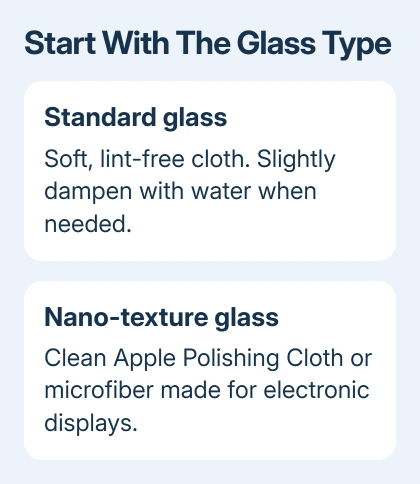
Apple recommends a slightly damp, lint-free cloth for standard glass in its product-cleaning instructions. The screen has an oil-repelling coating that wears with normal use, and abrasive cleaning can wear it further or scratch it.
A clean cloth matters more than force. I'd start with a fresh section of the cloth rather than rubbing harder at a mark. If the surface is cracked, switch to the iPad screen repair advice instead of treating broken glass as dirt.
Disconnect and shut down the iPad
Unplug the charging cable, headphones, adapters and other connected accessories. Rest it somewhere stable, supporting the back without placing the screen against anything rough.
With no Home button on your iPad, press two buttons together: the top button plus either volume button. Keep both pressed until the power slider shows, then drag it to switch off.
For Home button models, keep the top button pressed until you see the shutdown slider. Drag it to power off. Pressing the top button briefly only locks the screen; it doesn't shut down the device.
With the iPad off, oily marks are easier to see and you won't open apps as you wipe. Keep the cable disconnected during the cleaning rather than trying to work around a charging connector.
If the case covers the edge you need to clean, remove it and clean it separately using the case maker's instructions. Leather, fabric, silicone and glass don't all accept the same products.
Wipe ordinary glass with a barely damp cloth
Use a soft, lint-free cloth suitable for delicate surfaces. For ordinary fingerprints, first try wiping gently with a clean, dry part. The goal is to lift the oil, not polish the glass with pressure.
For marks that remain, slightly dampen the cloth with water. It should feel damp without dripping as you handle it. Wipe the screen gently, keeping moisture away from the speakers, microphones, buttons and connector openings.
Don't use paper towels, abrasive fabrics, window cleaner, ammonia, household cleaners, compressed air or aerosol sprays. These aren't substitutes for a screen cloth and water, even when a product promises streak-free glass.
Move to a clean part of the cloth as oil transfers onto it. Repeatedly wiping with the same dirty patch can spread a smear around instead of removing it, leaving the screen looking worse from a different angle.
Check the surface in reflected room light. A fingerprint usually changes as you wipe it, while a scratch stays in the same place. Don't keep scrubbing a line that isn't changing.
Let any remaining moisture dry before connecting accessories or turning the iPad back on. Keep the top button pressed until you see an Apple logo, then check the display normally once it starts.
Use the updated nano-texture instructions
The nano-texture cleaning page, updated November 5, 2026, now permits several cloth types. You no longer have to use only the included Apple Polishing Cloth.
Use a clean Apple Polishing Cloth, another microfiber cloth made for electronic displays, or a fabric made from cotton blended with elastane or spandex. Choose something clean and free of grit before touching the display.
For an occasional stubborn smudge, moisten your cloth with 70 percent isopropyl alcohol. Keep that option for stubborn marks. Don't soak the screen or use alcohol for your regular wipe.
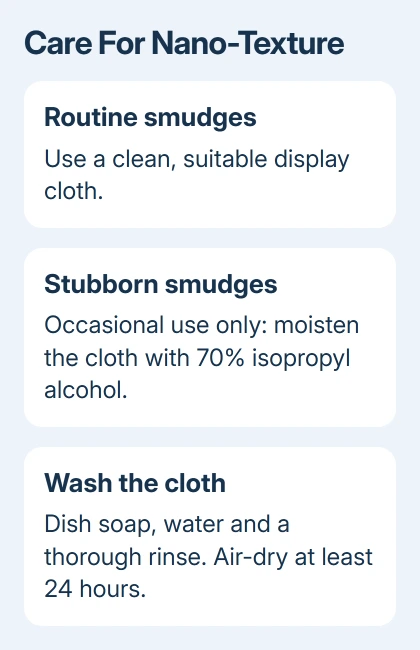
Hand-wash the polishing cloth using water and dish soap. After a thorough rinse, air-dry it for at least 24 hours. A cloth that is still wet from washing isn't ready for screen cleaning.
This is also why I'd keep a display cloth separate from one used for a desk or kitchen counter. A suitable fabric can't protect the glass from debris or cleaner left in the cloth.
Keep disinfection separate from removing fingerprints
For hard exterior surfaces that don't absorb liquid, the general instructions allow you to wipe gently with Clorox Disinfecting Wipes or alcohol wipes containing 70 percent isopropyl alcohol or 75 percent ethyl alcohol.
That advice rules out bleach and hydrogen peroxide products and says to keep moisture out of openings. Don't turn that permission into using a household disinfectant spray directly on an iPad.
For nano-texture glass, follow its own cleaning instructions rather than choosing from the general wipe list. Its occasional stubborn-smudge method uses 70-percent isopropyl alcohol on the cloth.
A screen protector adds its own surface, so follow its maker's cleaning instructions too. Wiping harder won't remove a patch trapped underneath it. Damage to the protector also needs different handling from a fingerprint.
For a mark that remains after gentle cleaning, stop and check whether it is a scratch, coating wear or an image problem visible only when the display is on. The iPad Pro display checks help separate touch and picture symptoms.
If the damage remains, ask Apple Support or an authorized provider to check the screen. Describe the glass type, cleaner used and whether the mark remains visible with the display off. That helps separate surface damage from an image fault.
The Short Version
Unplug and shut down your iPad, then gently wipe standard glass with a slightly damp, lint-free cloth. Follow the updated cloth advice for nano-texture. Keep openings dry and stop rubbing marks that seem to be damage.
Checked November 9, 2026.

Isaac Smith is the founder and editor of PC Glance, a website that covers computers, laptops, and technology. He is a tech enthusiast and a computer geek who loves to share his insights and help his readers make smart choices when buying tech gadgets or laptops. He is always curious and updated about the latest tech trends.