
Delete Android voicemail from its visual list or by calling your carrier's mailbox. Start in the app that plays the recording. Dismissing an alert or removing a missed call leaves the voicemail in place.
The buttons depend on your phone and carrier. A Pixel using Phone by Google, a Galaxy with a carrier voicemail app and Google Voice can all need different steps. Save any recording you want to keep before deleting it.
Open the mailbox that received the message
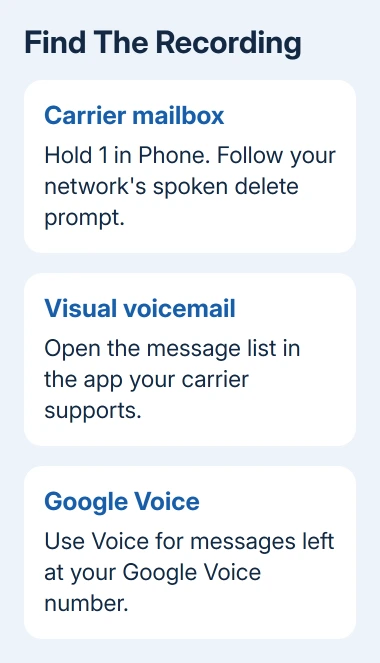
Open Phone and look for Voicemail. If the messages appear as a list, open one and check the caller, date and playback controls. That's the recording you need to remove, rather than the matching entry in Recents.
If the Voicemail tab is missing, open your carrier's visual voicemail app. Its name might include the network name. A missing tab doesn't mean the carrier has no recordings; many plans use a dial-in mailbox instead.
For two SIMs, check the mobile number before continuing. Phone by Google can show supported SIM mailboxes in separate tabs. A message left on your work line won't disappear when you clear a recording from your personal line.
Google's Phone app instructions explain that visual voicemail depends on the device, carrier and country. With the carrier app in use, Phone's visual message list is disabled so the two don't conflict.
Don't switch apps just to find a delete button. First check which one can play the message. If none can, use the dial-in method in the next section rather than resetting an app that might contain saved audio.
Delete a recording through the carrier's voice menu
Open the Phone dial pad and touch and hold 1. Choose the SIM you want if asked, then enter your voicemail password when prompted. That password can differ from your phone's screen-lock PIN.
Listen to the mailbox prompts, then play the unwanted recording. Open Keypad during the call if its buttons aren't visible, then press the number the recording gives for deleting that message.
There isn't one delete key for every network. Samsung's Galaxy deletion steps use this dial-in route and say the carrier determines the menu options. Follow the spoken menu on your own line.
Wait for the mailbox to confirm the action or move to the next message. Continue through other unwanted recordings, then end the call when you're finished. Calling back lets you check whether the old recording is still listed.
If holding 1 doesn't connect, ask your carrier for its voicemail access number and confirm the line is activated. For a rejected code, follow the Android voicemail password reset for the carrier instead of guessing repeatedly.
I'd use this route when an app claims the mailbox is empty but callers still hear that it's full. It checks the carrier's stored recordings directly, which is more useful than freeing space in the phone's photo library.
Remove messages from a visual voicemail list
Open the message in the voicemail app and look for Delete or a trash button. Check the selected recording before confirming. Some apps let you select several messages; check that you want to delete every recording you've selected.
For a Verizon Pixel, open the recording in visual voicemail and tap the trash icon. To select several recordings, touch and hold the first, then select the others and tap trash. Its Pixel message controls show those choices.
Your carrier's selection menu might differ. If tapping a message opens playback without a trash control, check its More options menu or the carrier's instructions for your exact app. Avoid copying another network's button sequence.
To keep a recording, first use the app's save, export or share feature. In Phone by Google, expand the recording and choose Send to, then choose an app. Open the saved audio and confirm that it plays before deleting the original.
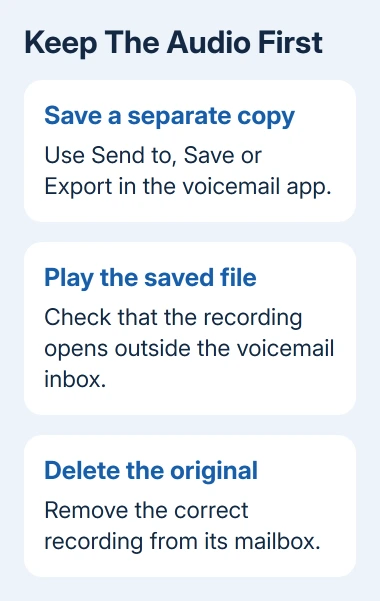
The audio file you've saved elsewhere is a separate copy from the one in your carrier's mailbox. Deleting the original won't tidy up that extra copy, and deleting a downloaded file isn't the same as deleting the original voicemail.
Reopen the list after deleting. If the recording returns or remains when you call in, remove it through the voice menu and report the mismatch. The Galaxy voicemail retrieval checks cover a list that won't refresh correctly.
Delete Google Voice voicemail inside Google Voice
Google Voice has its own inbox. A message sent to your Google Voice number isn't automatically a message in your mobile carrier's voicemail, even when both services run on the same Android phone.
Open Voice, select the right Google account and tap Voicemail. Select the recording, then open More options and choose Delete. Tick the I understand box when shown, then confirm Delete.
To remove several items, touch and hold the first voicemail and tap the others before using Delete. Check that the selection contains only the messages you intended to remove. These are the Android Google Voice deletion controls.
After deleting the message, you can't access it in Voice. Choose Archive instead to hide an item from the inbox while keeping its recording. You can return to your archived messages later; don't use Delete for something you want to keep.
If the message still appears, check that you're viewing the same Google account and number. Removing a carrier recording won't change the Voice inbox, and removing a Voice recording won't clear a carrier mailbox-full announcement.
When the mailbox still says it's full
Call the carrier mailbox again and listen for saved messages or a deleted-message folder. Follow its prompts for any final deletion step. Don't assume that removing a notification has changed the space available for incoming recordings.
Clearing the voicemail app's storage or switching visual voicemail off isn't a reliable substitute. The phone can lose its local recordings while the carrier retains its own copies. Keep the working app until the actual mailbox is cleared.
If new messages are still rejected, have your carrier check mailbox space. Give your number, how you deleted messages and whether they remain when you call in. Before agreeing to a mailbox reset, ask how to save recordings you need.
The Short Version
Delete the recording in the correct voicemail app, or hold 1 and follow your carrier's delete prompt. Save important audio first. Google Voice has a separate inbox, and dismissing a voicemail notification doesn't empty either mailbox.
Checked November 9, 2026.

Isaac Smith is the founder and editor of PC Glance, a website that covers computers, laptops, and technology. He is a tech enthusiast and a computer geek who loves to share his insights and help his readers make smart choices when buying tech gadgets or laptops. He is always curious and updated about the latest tech trends.