

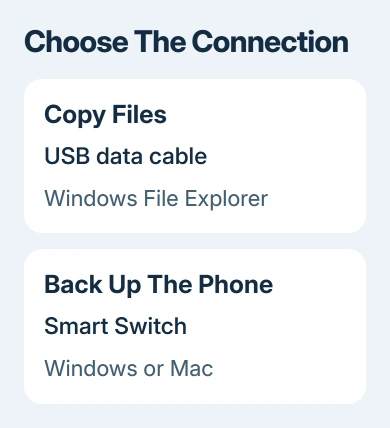
A Samsung phone can connect to a Windows computer with a USB data cable, but the phone must allow file transfers before its folders appear. Unlock it, connect the cable and choose Transferring files / Android Auto from the USB notification.
One UI 8.0 defaults to Charging phone only. A Galaxy that charges without showing files may just need that mode changed. For a phone backup on Windows or Mac, use Smart Switch rather than copying folders.
Choose files or a phone backup first
Use a USB file connection for ordinary photos, videos and documents that you want to copy into a Windows folder. It lets you browse the phone's shared storage in File Explorer without setting up an ongoing wireless link.
Use Smart Switch if you want a phone backup you can later restore to a Galaxy device. Copying your camera pictures saves those files, but it doesn't create a phone backup.
Phone Link lets you use supported phone features on a PC. It isn't required just to copy a document over USB. Keep the task simple if a cable is all you need.
For problems with an existing wireless pairing, our Phone Link connection checks cover that app. The steps here start with a physical USB connection.
Connect the Galaxy and allow data access
- Unlock the phone as you normally would.
- Plug a USB data cable into the phone and a USB port on the computer.
- If the phone asks whether to allow access to phone data, tap Allow on your own trusted computer.
- Find the USB connection notification on the phone.
Choose a data-capable cable rather than a charging-only lead. A working charging icon tells you power is reaching the phone, but it doesn't confirm that the cable can carry files.
Depending on the computer's ports, the cable may be USB-C at both ends or USB-A at the computer end. Match the connectors without forcing them, and try a direct computer port before adding a hub or dock.
Keep the phone where you can see its screen while connecting. Permission requests appear on the phone, so staring at an empty File Explorer window can leave the important prompt unanswered.
If nothing happens on either screen, reseat the cable and try another data-capable cable or port. If charging works, continue to the USB mode check before assuming the connection has failed.
Change Charging phone only to file transfer
Samsung says One UI 8.0 uses Charging phone only by default in its USB mode instructions. That explains why a new connection may charge without showing files.
Open the notification panel or Quick panel by swiping down, depending on your Galaxy layout. Tap USB for charging phone, or the USB connection notification shown on your version.
Tap the notification again if the USB options aren't showing. Under Use USB for, select Transferring files / Android Auto. Older versions may use Transferring files or MTP for this mode.
MTP is the file-transfer connection Windows uses to browse the phone's shared files. Selecting it is the important change; enabling developer options or USB debugging isn't needed for ordinary copying.
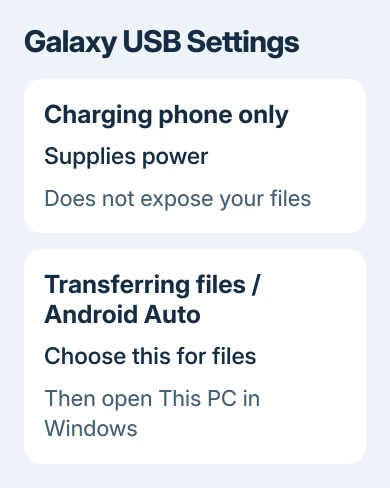
Once the mode changes, return to the computer and open File Explorer again. If the device now appears, the cable was supplying a working data connection and the USB mode was preventing file access.
Don't choose a different USB function just because it also mentions a computer. Charging, image transfer and other modes don't all expose the same files or provide the same features.
Browse and copy files in Windows
On Windows 11 or Windows 10, press Windows + E to open File Explorer. Select This PC, open the Galaxy device and then open Internal storage or Internal shared storage.
Open the folder containing the files you need, select them and use Copy. Open a destination folder on the computer and use Paste. Start with a small file to check the connection before copying a large collection.
If the folder isn't obvious, open My Files on the phone and locate the item there first. Its details can show where it's stored, so you can follow the same folder path from the computer.
An SD card appears separately only if your model supports one and has a card inserted. A phone without expandable storage won't show a card entry; that isn't a USB fault.
I'd copy first and open the result on the PC before deleting anything from the phone. That gives you a second usable copy while you check that the transfer finished correctly.
Copying these folders won't save all the data stored privately inside your apps. Use the app's own export or a supported backup method if you need to save messages, settings or other app information.
Make a Smart Switch backup on Windows or Mac
With Smart Switch installed on the computer and phone, connect the Galaxy by USB and approve the phone's access prompt. Open Smart Switch on the computer and allow its requested permissions.
Select Backup, choose the content offered for backup and confirm the backup. Available categories can vary with the phone and its data. Leave the cable connected until the completion screen appears, then select OK.
Keep the saved backup available on that computer if you'll restore it to a Galaxy later. Seeing a phone icon in File Explorer doesn't mean it's backed up. Check Smart Switch's completion screen and which categories it saved.
On a Mac, use this supported backup route since the Windows This PC steps don't apply to Finder. For an individual app's files, use its supported export or sharing method if a full backup isn't what you need.
When the computer still can't see the phone
Recheck that the phone is unlocked, the data-access prompt is approved and file transfer is selected. Then try a second cable and a direct port. This checks both phone permissions and whether the cable or port can carry data.
Google's Android USB transfer checks also include restarting the phone and computer. Save open work before restarting the PC, then reconnect and read the phone's prompts again.
A specific Windows warning needs its own response. If it says USB Device Not Recognized, use the USB error checks and keep the exact wording for support.
If the same Galaxy fails on another computer with a working data cable, ask Samsung Support to check its USB data connection. Give the phone model, One UI version and whether charging and the USB notification still work.
The Short Version
Unlock the Galaxy, connect a USB data cable, allow access and select Transferring files / Android Auto. Browse it under This PC in Windows. Use Smart Switch for a supported phone backup on Windows or Mac.
Checked November 9, 2026.

Isaac Smith is the founder and editor of PC Glance, a website that covers computers, laptops, and technology. He is a tech enthusiast and a computer geek who loves to share his insights and help his readers make smart choices when buying tech gadgets or laptops. He is always curious and updated about the latest tech trends.