

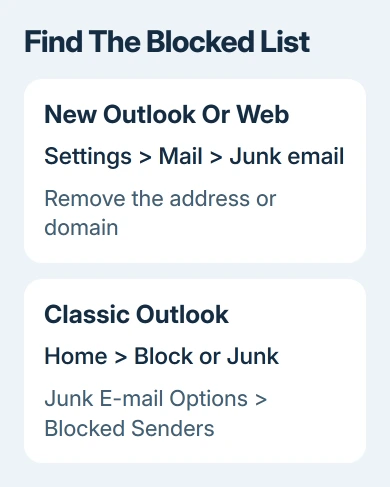
Removing a sender from Outlook's blocked list lets future mail pass that filter again. For new Outlook and webmail, open Settings > Mail > Junk email, select the blocked address or domain and choose Remove.
Classic Outlook keeps the list inside Junk E-mail Options instead. Unblocking doesn't bring old messages back to the Inbox or override every spam check, so recover any wanted mail from Junk and test with a fresh message afterward.
Open the list for the right Outlook account
Start by checking which account should receive the sender's mail. If several mailboxes are added, changing the blocked list for one won't correct a block on another.
Microsoft explains how the versions differ in its sender blocking instructions. Follow the steps for the app you're using rather than searching for a missing ribbon button.
An Outlook.com or Microsoft 365 address can be checked in Outlook on the web as well as its desktop app. This is useful when you're reading mail on a phone but can't find the full blocked list there.
For Gmail, Yahoo, iCloud or another third-party account in new Outlook, manage the block through that email provider. New Outlook doesn't support its sender-blocking controls for these accounts.
That difference matters: the Outlook app name doesn't tell you which company runs the mailbox. Check the account address and provider before deciding where its blocked-sender setting should be.
Remove the address through modern Outlook settings
- Select the mailbox whose blocked list needs changing if you've added several accounts.
- Open Settings, then Mail > Junk email.
- Find the sender under Blocked senders, Blocked domains, or Blocked senders and domains, depending on the layout.
- Select the entry and choose Remove, shown as a remove or trash control in some layouts.
- Select Save if the page presents that button.
Look for the exact address, not just the person's display name. A message can show a familiar name while coming from a different mailbox, such as a work address rather than a personal one.
Check the domain list too. An entry for an entire domain can affect multiple addresses from the same organization. Removing one individual address won't remove a separate block on its domain.
After removing the entry, check the list again to confirm it's gone. If it is still there, repeat the removal and finish any Save step before closing Settings.
Don't clear the entire list to rescue one person. Remove only the address or domain you recognize so your other blocks stay in place.
The web route requires signing into the mailbox first. Use the account's normal Outlook sign-in, then the same Settings > Mail > Junk email path. The public sign-in page isn't the blocked list itself.
Use Junk E-mail Options in classic Outlook
Classic Outlook has the traditional ribbon and File menu. Select the relevant mailbox's Inbox, then open the Home tab to reach its junk-mail controls.
- In the Delete group, open Block or Junk, depending on the ribbon layout.
- Select Junk E-mail Options.
- Open the Blocked Senders tab.
- Select the address or domain to remove.
- Click Remove, then Apply if available, and OK.
This deletes the block instead of trying to work around it with a safe-sender entry. Check both the full email address and any domain entry if mail from several people at the same organization is affected.
If the ribbon is compressed, expand the menu or make the window wider to see the junk-mail controls. Don't switch to instructions for new Outlook just because the classic ribbon hides a command in a smaller window.
With a business Exchange mailbox, filters on your organization's mail server can still move mail after you change your blocked list. An administrator may need to check the organization's settings if a fresh message is still blocked.
Move wanted mail out of Junk and add a safe sender
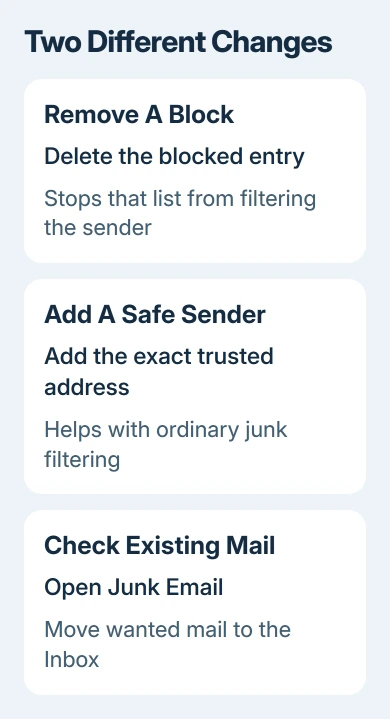
Open Junk Email and look for messages already received from the person. Removing a blocked entry changes the list; it doesn't automatically move those existing messages into the Inbox.
Select a wanted message from a sender you recognize, then use Not junk or move it to the Inbox. Review the sender's actual address first so a familiar display name doesn't lead you to trust an unrelated message.
If legitimate future messages continue landing in Junk, add the address to the safe list. For the modern app and webmail, return to Settings > Mail > Junk email and find Safe senders and domains.
Choose Add safe sender or Add, enter the exact address, confirm it and save if asked. I'd add the individual address before trusting an entire domain, especially for a large public email provider.
In classic Outlook, open Junk E-mail Options > Safe Senders > Add, enter the address and confirm it. A message's Never Block Sender command can also add that sender to the safe list.
Adding a safe sender won't bypass every security rule your organization uses. If work mail is quarantined rather than delivered to Junk, ask IT to review that message rather than repeatedly adding the same address.
Send a fresh message and check what happens
Ask the sender to send a new, simple message to the correct address. Search for it in the Inbox and Junk, and check other folders if you use rules that move incoming mail.
If it's in the Inbox, mail from that sender is getting through again. If it's in Junk, review the safe-sender setting and any provider or business filtering. If it never arrives, the blocked list may not be the cause.
Our Outlook mail delivery checks cover the missing-message case. A sender's delivery error is especially useful because it can identify a rejection before the message reaches your folders.
If Outlook itself won't open, use the mailbox's web version to handle the block, then follow the Outlook startup checks separately. Reinstalling the app isn't the first step for one blocked person.
If mail still doesn't arrive in your personal account, contact Outlook.com support with the sender's full address, a recent test time and any delivery error. For work or school mail, give those details to your Microsoft 365 administrator.
The Short Version
Remove the exact address and any intended domain block in Junk email settings. Classic Outlook uses Junk E-mail Options > Blocked Senders. Recover old wanted mail from Junk, then send a fresh test before changing other filters.
Checked November 9, 2026.

Isaac Smith is the founder and editor of PC Glance, a website that covers computers, laptops, and technology. He is a tech enthusiast and a computer geek who loves to share his insights and help his readers make smart choices when buying tech gadgets or laptops. He is always curious and updated about the latest tech trends.