

Count cells with text in Excel using COUNTIF with an asterisk as the text to match. Give it the cell range containing your list. The asterisk matches text and skips ordinary numeric values.
To find a particular word within cells, put it between asterisks. To count all nonempty cells, including numbers, use COUNTA. Decide which count you need first, so the formula answers your actual question.
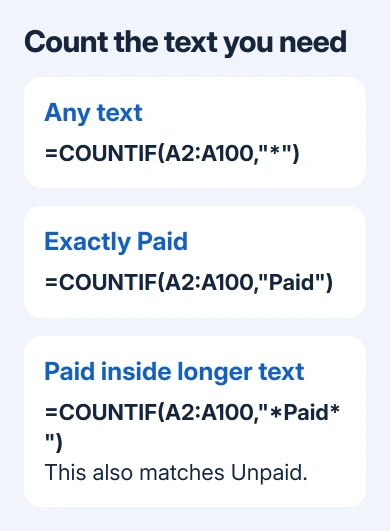
Count any text in the selected range
Select an unused cell away from the list, then type the formula. Press Enter to see the total. Keep the header outside the range unless you actually want to count it as one of the text entries.
=COUNTIF(A2:A100,"*")The range tells Excel where to look, and the second part tells it what to match. In this case, the match is text of any length. The formula counts matching cells, rather than adding up the letters inside them.
For a small check, put Oak, Birch, the number 12 and one empty cell in a short column. A text count over those four cells should return 2. The number is a different kind of value from the two tree names.
Microsoft says an asterisk criterion counts text with COUNTIF. Windows, Mac and supported browser editions of Excel offer this function.
If Excel rejects commas between the formula's parts, use your installation's list separator, which can be a semicolon. Keep the same range and text to match. Changing the separator doesn't change what you're asking the function to count.
Match a whole word or a word inside a longer entry
For cells containing exactly Paid, use a plain text criterion. That excludes Unpaid and Paid late, since those cells contain different complete text.
=COUNTIF(A2:A100,"Paid")For cells containing Paid anywhere in the entry, add an asterisk on each side. That includes longer entries, including Unpaid, because those letters occur inside that word too.
=COUNTIF(A2:A100,"*Paid*")This is an easy mistake in a payment list. I'd use the exact match for a status column with fixed choices, then inspect a few matching rows. Searching within longer text works better for descriptions where the word can appear in a sentence.
COUNTIF isn't case-sensitive. PAID, Paid and paid match the same criterion. If capitalization changes the meaning in your records, this formula alone won't count those entries separately.
If the text you want to match is in another cell, use that cell's reference. The first formula matches the whole entry in D2. The second finds that text inside longer entries.
=COUNTIF(A2:A100,D2)
=COUNTIF(A2:A100,"*"&D2&"*")
Match special characters without treating them as patterns
An asterisk in the criterion is normally a pattern that matches any sequence of characters. A question mark matches one character. You'll need to mark those symbols differently when you want to find the symbols themselves.
Put a tilde (~) immediately before an asterisk or question mark you want to find as text. For example, this counts cells containing an actual asterisk somewhere in their text, rather than counting every text cell.
=COUNTIF(A2:A100,"*~**")For a single question mark with no other characters, use this formula. The tilde tells Excel to look for the question mark itself.
=COUNTIF(A2:A100,"~?")Use a small sample of known records when building a pattern. Otherwise, a formula can look convincing while matching many more rows than you intended. Compare the total with entries you can check yourself.
Decide whether empty-looking cells should count
COUNTA counts nonempty cells, including numbers, errors and formulas returning empty text. Use it for the number of entries of any kind. That differs from asking how many cells hold text.
=COUNTA(A2:A100)A formula can return text with no characters, called an empty text string. It looks blank but is still text. A space can also make a cell look empty. That's why a text count can be higher than the number of labels you can read.
To require at least one character in the text, use a question mark followed by an asterisk. The question mark requires the first character, and the asterisk allows any remaining characters.
=COUNTIF(A2:A100,"?*")That excludes zero-length text but still treats a space as one character. Don't erase empty-looking records automatically. First inspect the formula bar to see whether the cell contains a formula, a space or an entry that should be kept.
Numbers stored as text also need attention. An ID imported from another file can look like a number but be stored as text. The long-number checks explain why identifiers should stay as text when converting them could lose digits.
Count text only when another column also matches
Use COUNTIFS to apply more than one condition to each row. For example, count text in column A only on rows whose status in column B is Open.
=COUNTIFS(A2:A100,"?*",B2:B100,"Open")Both ranges must cover corresponding rows, with the same number of rows and columns. Starting one at row 2 and the other at row 3 would compare the wrong records even if the formula looked similar.
This counts rows where both conditions are true. It doesn't produce a unique list of names, and a repeated name counts again on each row that meets both conditions. For a different count, use the unique-value formulas.
Filtering a list on screen doesn't turn COUNTIF into a count of visible rows only. Its range still refers to those cells. Before using the total, check whether you need to count the whole list or just the rows you can currently see.
Correct a result that doesn't match the list
Check the formula's starting and ending rows, included headings and any new records outside its range. Look for leading or trailing spaces when an exact word matches fewer entries than expected.
For a formula that appears as text instead of a result, change the cell from Text to General and re-enter the formula. For errors involving a linked workbook, open the source workbook before recalculating COUNTIF against its cells.
If the total still doesn't make sense, send your formula, Excel version and a small sample to Microsoft Support, removing private details first. Include the count you expected so they can check the calculation, not just its final number.
The Short Version
Use COUNTIF with an asterisk for any text, a plain word for exact matching, and question mark plus asterisk to exclude empty text. Use COUNTA for all nonempty values and COUNTIFS when a second column must also match.
Checked November 9, 2026.

Isaac Smith is the founder and editor of PC Glance, a website that covers computers, laptops, and technology. He is a tech enthusiast and a computer geek who loves to share his insights and help his readers make smart choices when buying tech gadgets or laptops. He is always curious and updated about the latest tech trends.