
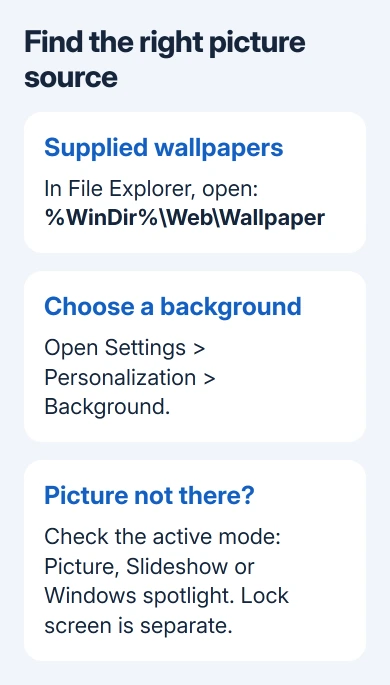
Windows 11's supplied wallpapers are usually in C:\Windows\Web\Wallpaper. Browse that folder through File Explorer for installed images. To choose one without finding its file, use Settings > Personalization > Background.
Your current picture may come from a personal photo, downloaded theme or Windows spotlight instead. Check the active background mode before searching for an image that isn't in the supplied collection.
Open the folder containing supplied wallpapers
Press Windows-E to open File Explorer. Click its address bar, enter %WinDir%\Web\Wallpaper and press Enter. The %WinDir% shortcut opens your actual Windows folder, even if Windows is installed on a drive other than C.
Open the folders inside and look at their image files. The collections depend on your Windows installation and PC maker. Another Windows 11 PC may have different manufacturer backgrounds from yours.
Use the File Explorer View menu to choose large thumbnails if filenames alone aren't helpful. Open a promising file to inspect the complete image before deciding whether it's the one you remember.
For the familiar picture that comes with Windows, check the Windows subfolder. The theme-file documentation uses the wallpaper path ending in Windows\img0.jpg as an example.
Copy an image into your own Pictures folder if you want a personal working copy. Leave the files in the Windows folder intact. You don't need to rename, replace or take ownership of system files to choose a desktop picture.
This folder is the right starting point for images supplied with Windows. It isn't a complete history of every wallpaper you've ever selected. A photo you chose from Downloads can still belong to that original folder.
Find the wallpaper selection in Settings
Right-click an empty area of your desktop and select Personalize. Open Background, or use Start > Settings > Personalization > Background. Check the Personalize your background menu to see the active type.
Microsoft says Picture selects one image in its background instructions. Use a recent image or Browse photos to select a file. Some builds label the same control Browse.
For a downloaded photo, look in its original save location, often Downloads or Pictures. Open the file first to check the image, then use the Background file picker to select that same file.
An image file can also be selected by right-clicking it and choosing Set as desktop background. That applies the file you've already found and saves you another search through Settings.
If choosing a background makes the theme name say Custom, that's expected after changing part of a theme. The Windows theme explanation covers why the name changes without any wallpaper fault.
Check Spotlight, slideshow and the Lock screen separately
Windows spotlight supplies changing background images. Its current photograph isn't necessarily a static file from the Windows wallpaper collection. Not finding a match in that folder doesn't mean a system file was deleted.
Slideshow uses a selected folder of pictures. Check its selected album or folder in Background settings and open that location in File Explorer. That takes you to your slideshow pictures without searching Windows system folders.
To keep one particular file as the background, select Picture and choose that file. Staying in Slideshow or Spotlight means the background can change again, even after the current picture looks right.
The Lock screen has its own settings under Personalization > Lock screen. A landscape shown before you sign in might be the Lock screen picture rather than the desktop wallpaper. Changing Background doesn't automatically change both.
I'd check which screen and mode the image came from before searching hidden caches, where Windows keeps temporary copies. A cached copy isn't the same as the full-size original, and it isn't a reliable way to keep your photos.
To keep a Spotlight photograph, check any image details the feature offers to find its source. Don't assume every version provides a simple Save button or the same cached filename.
Choose how the found image fits the display
After selecting Picture, open Choose a fit for your desktop image. Fill covers the display but can crop the edges. Fit preserves the whole image and can leave unused space when the picture and screen have different proportions.
Stretch changes the picture's proportions to cover the screen. If a face or a circular object looks unusually wide, switch to Fit or Fill before deciding you found a damaged file. The original picture may be fine.
Center keeps the image centered without resizing it. Tile repeats it, while Span spreads one image across several displays. Choose the option that suits your picture's shape and how you've arranged your screens.
A small image doesn't gain detail when enlarged. Open the source picture at a useful size before choosing it for a high-resolution display. If it already looks soft there, a fit setting won't recover missing detail.
For separate pictures on two screens, use the different monitor background steps. Multiple virtual desktops have different limits, so don't assume the per-monitor choice is available in every desktop arrangement.
When the picture isn't in the expected folder
Check whether it was part of a downloaded theme, a photo on removable storage or a file that has since been moved. Reconnect the drive or restore the original file from your backup before selecting it again through Background settings.
Search your likely personal folders by filename or image type, leaving Windows folder permissions alone. Recent thumbnails can help you recognize a picture, but you'll still need to keep its original file safely stored.
Your employer can control a work PC's background and Lock screen. If controls are disabled or the company image returns after sign-in, ask IT about its background policy before repairing personal settings.
If supplied pictures are missing, tell Microsoft Support which Windows version you're using and what's in the wallpaper folder. For manufacturer backgrounds, ask your PC maker whether it can provide your model's original image collection.
The Short Version
Browse %WinDir%\Web\Wallpaper for supplied pictures, and use Personalization > Background to choose one. Check the active mode when an image is missing: personal photos, Slideshow, Spotlight and the Lock screen can use different sources.
Checked November 9, 2026.

Isaac Smith is the founder and editor of PC Glance, a website that covers computers, laptops, and technology. He is a tech enthusiast and a computer geek who loves to share his insights and help his readers make smart choices when buying tech gadgets or laptops. He is always curious and updated about the latest tech trends.