
Chrome VPN add-ons send Chrome's internet traffic through a VPN provider. Their coverage stays inside the browser. Install the provider's official desktop extension, then sign in and connect before you start browsing with it.
For a practical example, Proton VPN offers a standalone Chrome extension that works with a free account. The important choice is whether you want browser coverage or a full device VPN, because the same provider can offer both.
Choose browser coverage or a full VPN app
An extension is convenient when the activity you want covered stays inside Chrome. A VPN app is the better fit when you also need protection for another browser, a mail program or other internet-connected software.
Proton's browser extension instructions explain that its add-on protects browser connections while its VPN app covers the device's internet traffic. The extension doesn't need that app installed to work.
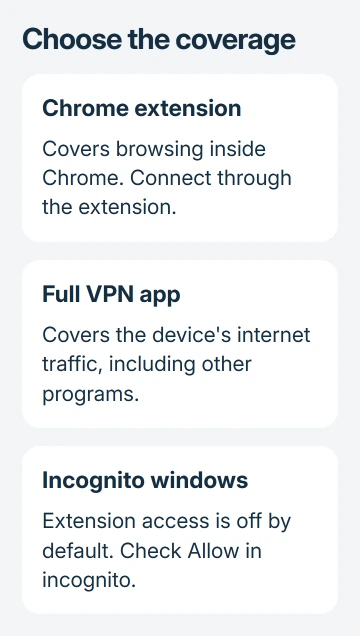
Choose based on which apps you want the VPN to cover. Installing an extension and then opening a separate download client doesn't put that client's connection inside Chrome. That stays true even when both apps use the same VPN provider.
For the wider privacy limits, the VPN explanation covers what a provider can and can't hide. A website can identify the account you sign into, even when the connection uses a VPN.
I'd start with one provider and either its extension or its app. One VPN setup leaves you fewer settings to check when a page stops loading, and makes the connection status easier to follow.
Install the official extension on desktop Chrome
Use Chrome on Windows, macOS or Linux for these steps. Chrome on a phone doesn't run desktop extensions. An Add to Desktop action on a phone queues an extension for the computer rather than installing a working mobile VPN add-on.
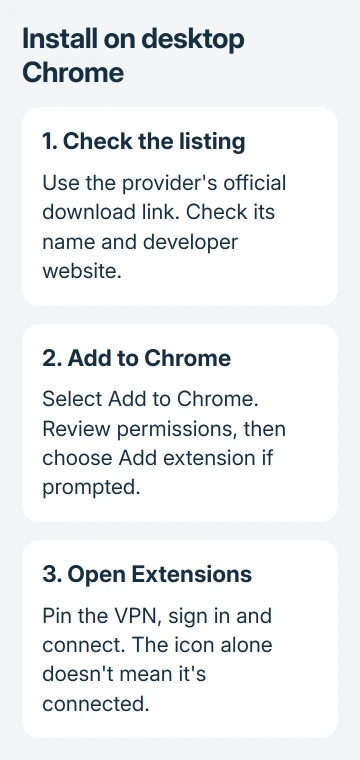
- Open the provider's official website in a regular Chrome window.
- Follow its download link to the provider's listing in Chrome Web Store.
- Check the extension name, developer website and requested permissions.
- Select Add to Chrome, then approve Add extension if the prompt appears.
- Select Chrome's Extensions button and pin the new extension for easy access.
For this example, use the Proton VPN download page to reach the official listing. Avoid choosing a similarly named result just because it appears first in a store search.
Chrome's extension installation help explains the permission prompt and installation controls. Installation must happen outside Incognito and Guest mode. Switch to a regular profile window if the button is unavailable there.
An administrator can restrict extension installation on an organization's computer. If Chrome reports a policy restriction, ask IT for the approved VPN or remote access method. Developer mode isn't a sensible workaround.
Sign in and connect before testing a website
Adding the icon doesn't start the connection. Open the pinned extension, select Sign in and use the account for that provider. Complete the two-factor authentication prompt if your account uses it.
In Proton's extension, select Quick Connect, or connect through an available country. Free accounts can use it; some features and locations depend on your plan. Check the options your account offers before choosing a server.
Wait for the extension to report a connected state, then load a fresh page in Chrome. Keep the extension panel handy so you can check whether it's still connected if a page won't load.
If a website still sees the same signed-in account or remembers your preferences, that doesn't mean the extension failed. A VPN changes how you connect to the site; it doesn't sign you out or clear the data Chrome has saved.
When you're finished, use the extension's disconnect control. Closing its small panel doesn't mean the VPN session ended, just as closing a settings window doesn't disable the setting you changed.
Decide whether Incognito should use the extension
By default, Chrome extensions don't run in Incognito windows. A VPN connected in a regular window can therefore leave an Incognito browsing session outside the extension's coverage until you allow it there.
Open chrome://extensions, find your VPN and select Details. Turn on Allow in incognito only if you want that extension available for private windows. Then open an Incognito window and check its connection state there.
Incognito changes the history Chrome saves on your device; it doesn't create a VPN connection. Allowing an extension gives it access in those windows too, so only allow one you trust rather than enabling every add-on.
For another person's computer, use your own approved VPN setup rather than leaving a signed-in extension behind. Removing your browsing history isn't the same as signing out of the VPN account.
Fix a missing icon or a connection that breaks pages
If the icon is missing, select the Extensions toolbar button and find the VPN's entry. Pin it again. If it isn't listed, check chrome://extensions for its installed and enabled state.
For pages that fail only while connected, disconnect the extension and reload the same page. If it loads, reconnect using another available server. That checks whether the VPN is causing the trouble without changing other Chrome settings.
Avoid running several proxy or VPN extensions together. Disable the others while checking one. A full VPN app and an extension can also create two connection layers, making a slow connection harder to diagnose.
If the full Windows application itself only connects after rebooting, use the Proton restart troubleshooting steps. Those steps address the Windows app, so they won't help with an extension that installs but never signs in.
To remove an unwanted add-on, right-click its toolbar icon and choose Remove from Chrome, or use Remove on its entry in chrome://extensions. Test browsing again once it's gone.
If it still won't connect, send support the Chrome version, operating system, extension version and exact error. Explain whether ordinary browsing works while disconnected and whether a second server changed the result.
The Short Version
Install the official desktop Chrome extension, pin it, sign in and connect. Check Incognito access separately. Use a full VPN app for software outside Chrome, and test one VPN setup at a time.
Checked November 9, 2026.

Isaac Smith is the founder and editor of PC Glance, a website that covers computers, laptops, and technology. He is a tech enthusiast and a computer geek who loves to share his insights and help his readers make smart choices when buying tech gadgets or laptops. He is always curious and updated about the latest tech trends.