
A Safari black screen can be an empty webpage, a readable dark page or a video player without a picture. Reload an empty page first. For a readable page, check appearance settings before deleting website data.
The Safari toolbar matters too. If the address bar works but one tab is empty, start with that page or Safari itself. A completely black display, including other apps, needs the device's display checks instead.
1. Separate dark appearance from a page that won't draw
Open another familiar website in a new tab. Look for actual missing content: no text, images or working page controls. A dark background behind readable text is an appearance choice, not necessarily a failed page load.
On iPhone, try Settings > Display & Brightness > Light. On Mac, open System Settings > Appearance > Light. A website with its own theme or a dark-mode extension can still keep its page dark even with that setting changed.
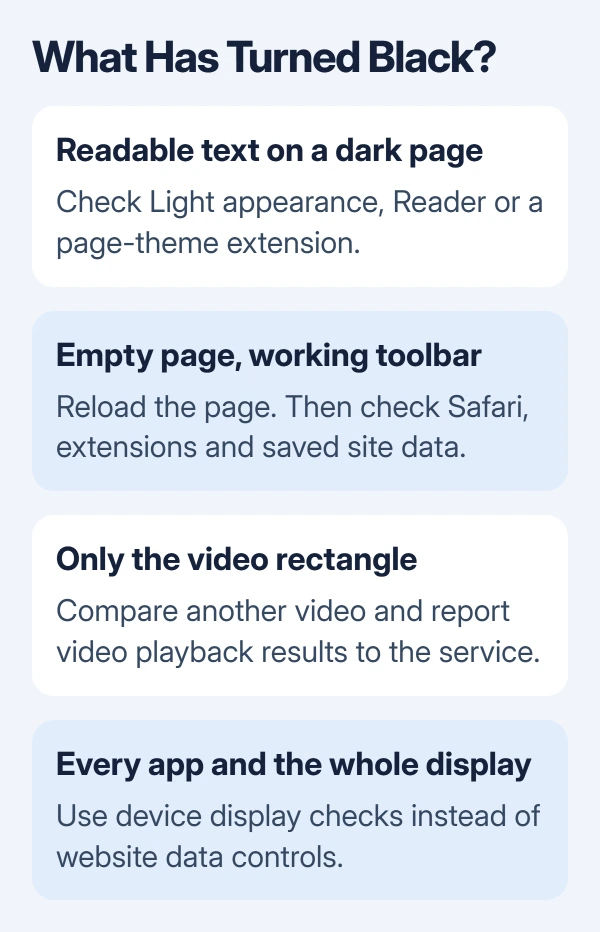
If Reader is active on iPhone, open Safari's Page Menu and choose Hide Reader to compare the normal page. Don't erase all browsing data just to change a readable page's background.
If only the video rectangle is black, try another video on the same service and another service. Keep that result for section 6. If the toolbar and every other app are black too, stop treating it as a website problem.
2. Reload the page and reopen Safari
On Mac, choose View > Reload Page, or press Command + R. If that doesn't work, quit Safari and open it again. Use Option + Command + Esc to force quit only if Safari won't quit normally.
If the same broken page immediately returns, quit again and hold Shift while opening Safari. This prevents automatically reopening the previous windows, so you can start with another page.
On iPhone or iPad, close the unresponsive Safari app and reopen it. For a device without a Home button, swipe up from the bottom, pause to show the app switcher and swipe Safari up. With a Home button, double-click it first.
Try the same address again. If the page displays normally, it's working again. If Safari stays empty, restart the device normally and continue with the checks for that platform.
Apple says its Safari troubleshooting steps for Mac apply to blank and incomplete pages. Check whether the page also fails in other browsers and on other devices before blaming one Safari session.
3. Test extensions and saved website data on Mac
Open Safari > Settings > Extensions and turn extensions off. Older versions call the Settings menu Preferences. Reload the affected page, especially if you use a content blocker or an extension that changes page colors.
If the page returns, enable extensions one at a time and reload after each change. Update or leave off the extension that brings the problem back. Leave the other extensions installed.
Next, try File > New Private Window, or Shift + Command + N, and enter the address. If the page works there, try removing that website's saved data from your ordinary browsing session.
Open Safari > Settings > Privacy > Manage Website Data, select the affected site and click Remove, then Done. Open the site again in a regular window so it can create fresh data.
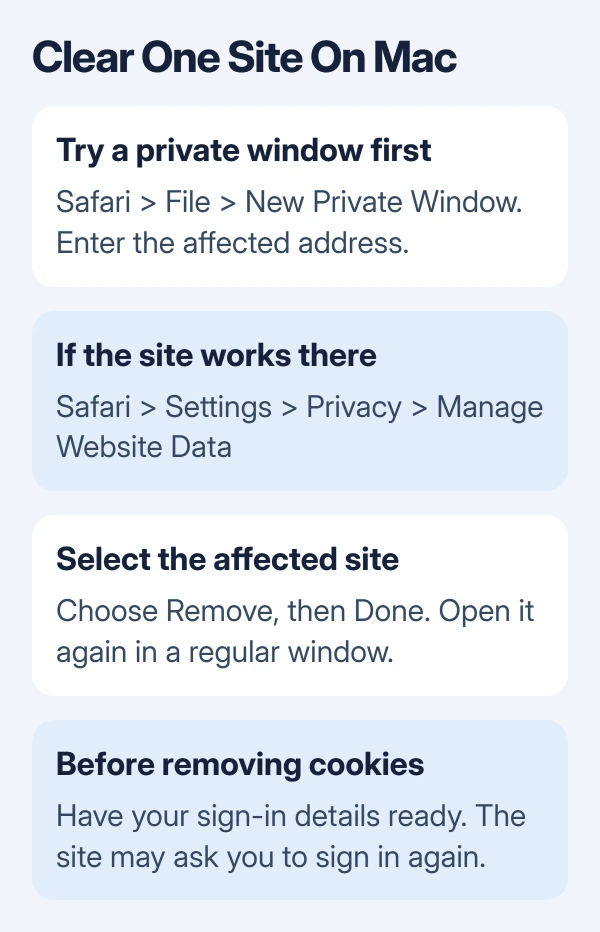
Have your sign-in details ready before removing a site's cookies and other saved data. You'll have to sign back in to sites that were using that data to remember you.
If removing that site's data fixes it, stop there. A blank page on one site doesn't call for signing out of every website or changing all your Safari privacy settings at once.
4. Restore missing page content on iPhone or iPad
Open Settings > Apps > Safari > Advanced and check that JavaScript is on. Websites that need scripts can fail to display their normal content when it is off.
On iOS or iPadOS 17 and earlier, open Safari from the main Settings list instead of Apps. Use Settings > Safari > Advanced for the same switch on those versions.
If the site remains blank, open Settings > Apps > Safari > Clear History and Website Data and confirm Clear History. Keep account sign-in details available before clearing browsing data.
The iPhone Safari blank-page checks give the fuller phone-specific route. This step applies to missing page content, whether the empty area looks white or black.
Try the address again after the change. If only one site still fails, compare connections next rather than repeatedly erasing the same history.
5. Compare the network and Private Relay
On iPhone, try the same page over cellular data instead of Wi-Fi, or use another Wi-Fi network when cellular isn't available. On Mac, compare another available network and note whether other browsers can load the address.
A page that fails only on one connection points toward that network's settings or filtering. If a VPN is active, check it as well. VPN software can affect whether a site or part of its content loads.
On Mac with iCloud Private Relay enabled, choose View > Reload and Show IP Address for the affected page. That menu item appears only when Private Relay is on for the network.
For an iPhone or iPad using Private Relay, temporarily turn it off in the account's iCloud settings and retry the failing site. Then restore your preferred privacy protection rather than leaving settings changed without knowing what helped.
When one site works only without the VPN or relay, report that pattern to the site or service involved. It gives support something concrete to check instead of just a report that Safari looks black.
6. Handle a black video player or a continuing failure
When the page around the player works, report a video playback problem. Check whether audio plays, whether every title fails and whether another supported browser works. Tell the service each result so it can choose the next step.
Install available Safari updates through the operating system, then restart the device. The Safari update routes explain the different Mac, iPhone and iPad paths; Safari isn't updated through a separate iPhone app download.
For one website that stays broken, contact its owner or the video service with the address, device, Safari version and your connection results. For failures across sites after these checks, contact Apple Support about Safari page loading.
On Mac with Safari 26 or later, reload the page, open the Page Menu beside the address field and choose Report a Website Issue if offered. Describe the missing picture or content in the report.
The Short Version
Separate dark appearance, empty pages and black video. Reopen or reload Safari, then check Mac extensions and site data or iPhone JavaScript and browsing data. Compare networks and report persistent video failures to the service.
Checked November 9, 2026.

Isaac Smith is the founder and editor of PC Glance, a website that covers computers, laptops, and technology. He is a tech enthusiast and a computer geek who loves to share his insights and help his readers make smart choices when buying tech gadgets or laptops. He is always curious and updated about the latest tech trends.