
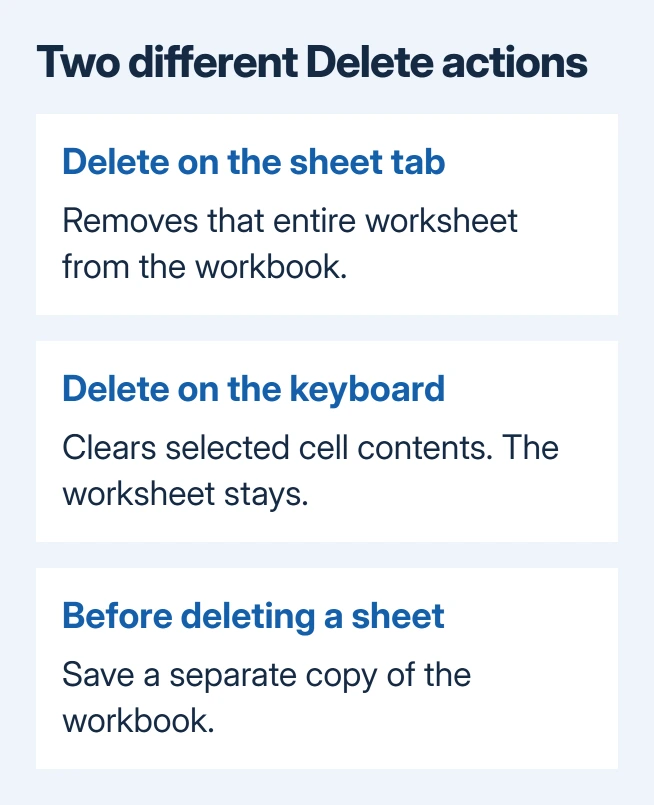
Right-click an Excel sheet's tab and choose Delete to remove the entire worksheet, including its cells and contents. Save a separate workbook copy first: desktop Excel can't reverse sheet deletion with ordinary Undo.
If Delete is unavailable, check workbook structure protection and whether another visible sheet remains. Locked cells use a different protection setting. Check what's blocking deletion before changing it.
Save the version you want to be able to recover
Open the workbook and use File > Save As or Save a Copy, depending on where the file is stored and your Excel edition. Name the backup so you'll recognize it as the spare copy rather than your working file.
Keep that copy somewhere you can find again. A second worksheet inside the same file isn't a complete backup of the workbook, especially when deleting a tab could affect formulas on several sheets.
Check the sheet's headings, formulas, and any data outside the area you can currently see. A sheet that looks empty near cell A1 can still hold information farther down or to the right.
If you only want one field or record removed, use Excel's column deletion controls or the row deletion steps. Deleting a whole tab is a much larger change than either of those tasks.
For a shared workbook, agree on the cleanup with the people using it. A sheet might feed a chart or another person's monthly report even when its tab name makes it look like an old draft.
Remove the tab in Windows or Mac Excel
Click the target tab once to bring that worksheet into view. Read the name on the active tab and check the visible data. Then open that tab's context menu and choose Delete.
On Windows, right-click the tab. On Mac, use a right-click or Control-click. If Excel displays a permanent-deletion warning, read the selected sheet's name and confirm only when it's the sheet you meant to delete.
Microsoft describes the ribbon route in its worksheet deletion instructions: select the sheet, then choose Home > Delete > Delete Sheet.
Take care with that Delete menu. Delete Sheet, Delete Sheet Rows, and Delete Sheet Columns apply to different things. Choosing the sheet command from the ribbon should make its tab disappear from the workbook.
After removal, Excel displays one of the remaining sheets. Check the tabs right away. If the sheet you meant to delete is still there, you may have cleared cells or used a different Delete command instead.
I'd remove one sheet at a time when the workbook has similar names such as January, January Old, and January Final. Checking each removal is easier than working out which tabs you accidentally selected as a group.
Delete a worksheet in Excel for the web
Open the workbook with editing permission, then locate the worksheet's tab. Choose Delete from that tab's context menu. Confirm any deletion prompt after checking the selected tab.
A browser's own context menu isn't the worksheet menu. If you see browser commands instead of sheet commands, close it and open the menu directly on the tab name inside the workbook.
Online workbooks can save changes automatically. Keep the separate copy before starting rather than relying on closing the browser to discard a change. Closing a tab isn't the same as choosing not to save in a desktop file.
If Delete is absent because the workbook is view-only, ask the workbook owner to send an editable version or grant editing permission. There isn't a browser shortcut that turns a read-only workbook into one you can change.
For protected or managed workbooks, check with the owner, just as you would in desktop Excel. A missing editing command is a reason to check permissions, rather than to download random password-removal tools.
Work out why Delete is grayed out
Check Review > Protect Workbook in desktop Excel. Protecting the workbook's structure blocks changes to its sheet tabs, including deletion, insertion, renaming, and moving sheets.
If you're authorized to change that structure, turn off the workbook protection and enter its password when requested. Reopen the sheet tab menu afterward. Delete should become available if structure protection was the restriction.
Worksheet protection is a separate control for editing cells and other content inside a sheet. Removing it doesn't automatically remove workbook structure protection. For a blocked Delete command, check the workbook's protection setting.
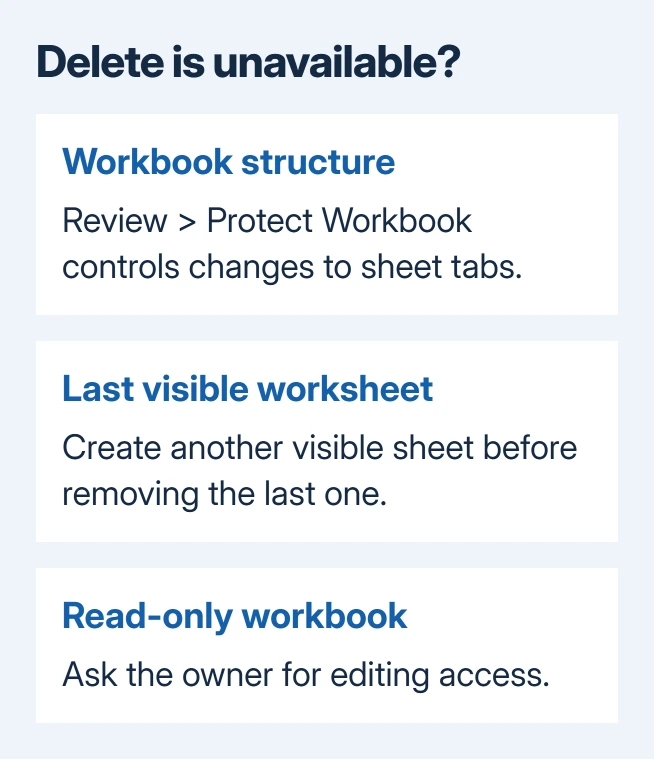
Also check how many visible worksheets remain. Excel needs a visible sheet in the workbook. If you're replacing the last one, create a new blank sheet first, then remove the old sheet.
When the workbook belongs to someone else, request that the owner unlock its structure or remove the sheet for you. Send the exact sheet name and explain why you want to delete it. That avoids changes to a similarly named tab.
Check formulas and recover a mistaken deletion
Visit the remaining summary sheets and charts before you finish. A formula pointing directly at the deleted sheet can turn into #REF!, meaning it can no longer find the cells it refers to.
Don't replace those errors with zeros just to tidy the display. Decide whether the report should still use that source data. If it should, go back to your backup and check which sheet you meant to delete.
For a local desktop workbook with AutoSave off, closing without saving can return to the last saved file. It also discards every other unsaved edit from that session, so compare what else you'd lose before choosing it.
For a file saved in OneDrive or SharePoint, open Version History. If an earlier version is available, you can open it to check or restore the workbook from before the deletion.
If no useful copy or earlier version exists, stop editing. Ask the file's maintainer or Microsoft Support about recovery, telling them where the file is saved, whether AutoSave was on, and when you deleted the sheet.
The Short Version
Save a separate copy, then choose Delete from the intended tab's menu. If it's unavailable, check workbook structure protection and the last visible sheet. Inspect formulas afterward; use a backup or Version History after a mistake.
Checked November 9, 2026.

Isaac Smith is the founder and editor of PC Glance, a website that covers computers, laptops, and technology. He is a tech enthusiast and a computer geek who loves to share his insights and help his readers make smart choices when buying tech gadgets or laptops. He is always curious and updated about the latest tech trends.