
IIS turns off when you clear Internet Information Services in Windows Features and apply the change. Restart if Windows asks.
To pause a local website without removing IIS, stop its site in IIS Manager instead. Decide whether you want to pause the site or remove IIS before changing its settings.
Choose between pausing a site and removing IIS
Removing IIS disables the parts installed on your PC. Stopping a test website for an afternoon leaves the server software available for later use. Choose based on whether you plan to use IIS again.
Before removing IIS, save any local website files and application settings you need, including its configuration. On a work-managed computer, ask the administrator which application installed or depends on IIS before turning it off.

IIS is an optional Windows web server. Browsers don't need it to visit websites, but a development tool or local business application may rely on it to serve its own pages.
I'd stop a known test site first when you only want to pause its content. Remove the feature when you don't need IIS anymore, rather than stopping its service after every restart.
Open Windows Features and inspect the IIS entry
Open Start, search for Turn Windows features on or off, then select that result. Enter an administrator account and password or approve the permission prompt if asked. Wait for the feature list to load before changing a checkbox.
Another route is Control Panel > Programs > Programs and Features, then the Windows features link. This is the checkbox-based Windows Features dialog, rather than the separate list of optional downloads in Settings.
Find Internet Information Services. Expand it if you want to see which parts are selected. A filled square can mean that only some child components are enabled; it doesn't mean the entire branch is disabled.
Use the features listed on your own PC. A PC labeled Windows 11 Home shouldn't be treated like a Windows Server machine: use its own Windows Features dialog, rather than following a Server Manager removal wizard.
If the IIS entry is already empty, that branch has no enabled components to turn off. If it isn't listed at all, don't install it just to follow an uninstall procedure. Check the application or service that prompted the question instead.
Clear the feature and apply the change
Clear the main Internet Information Services checkbox when you don't need any of IIS. Expand the entry and review the parts inside it before continuing, so you disable only what you intend to.
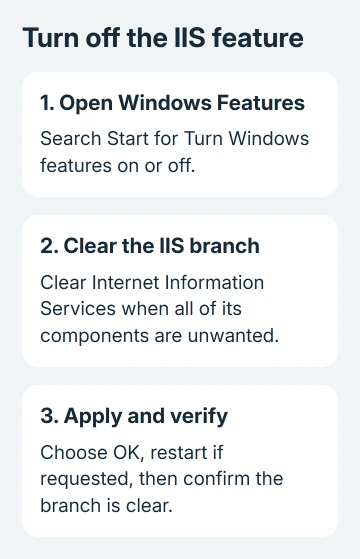
Click OK and let Windows apply the change. Save other work and restart if requested. Closing the dialog before applying the selection doesn't disable the feature.
Afterward, reopen Windows Features and confirm that the IIS branch is clear. That confirms the setting itself; whether a browser page loads doesn't tell you which features are enabled.
Microsoft's Windows feature management guidance explains the difference between removing optional components and hiding their controls through a policy. A hidden settings page doesn't mean its feature was removed.
Leave unrelated entries alone. Internet Information Services Hostable Web Core is separate, and Windows Process Activation Service can have its own dependencies. Similar names aren't a reason to clear extra boxes.
Stop a site when the software should remain installed
For a temporary pause, open Internet Information Services (IIS) Manager from Start. Expand the computer in the Connections tree, expand Sites and select the site you want to pause.
In the Actions pane, choose Stop for that selected site. Check the site's status in IIS Manager. Choose Start there when you're ready to serve that site's content again.
Selecting the computer node and stopping the server has a broader effect than stopping one site. Use the site-level control when other local sites should continue working.
To stop the full web server, select the computer node and use Stop, as described in the IIS start and stop instructions). Existing sessions are interrupted when the server stops.
A missing IIS Manager doesn't mean the server is absent. Its console is a separate component. Inspect Windows Features, or ask the person who installed the local application how they manage it.
Separate an IIS welcome page from a port conflict
A welcome page at localhost can come from an enabled local web server. After stopping its site, retry the same local address. A failure to connect is expected when nothing else is serving that address and port.
That browser result doesn't identify every server on the PC. Apache, a development server or another application may use a different address or port, and another process can serve a page after IIS has stopped.
If the reason for removing IIS is a port-80 conflict, use the port 80 owner checks to identify the listener. A System entry doesn't by itself tell you which application should be removed.
If Chrome reports ERR_UNSAFE_PORT, that is a different problem: the browser can reject a restricted port before reaching the server. The Chrome unsafe-port guide explains the supported port change.
When removal fails or a local application stops working
If Windows can't apply the feature change, write down the full error code, the stage that failed and whether it asked for a restart. Reopen the dialog to see whether IIS remains selected.
Ask Microsoft Support about the Windows Features failure with those details and your Windows version. For a managed PC, give them to IT first; policy can hide the controls or prevent an administrator change.
If an application stops working after IIS is disabled, ask its administrator or publisher which components it needs and how to restore the configuration. Avoid guessing by enabling the whole feature tree.
Removing the feature isn't a way to securely erase website files, credentials or database contents. Follow the application's removal instructions for any data left behind if you're retiring the whole setup.
The Short Version
Use Windows Features to disable IIS components, or stop one site in IIS Manager for a temporary pause. Confirm the checkbox state afterward. Check the actual listener if a port conflict remains.
Checked November 9, 2026.

Isaac Smith is the founder and editor of PC Glance, a website that covers computers, laptops, and technology. He is a tech enthusiast and a computer geek who loves to share his insights and help his readers make smart choices when buying tech gadgets or laptops. He is always curious and updated about the latest tech trends.