

Transmission can open automatically when you sign in to Windows 11 by placing its shortcut in your Startup folder. If it already appears in Settings > Apps > Startup, turn its switch on instead.
Both methods open the desktop app after you sign in. They won't start it before anyone logs in.
The folder method is useful when Transmission isn't listed in Startup settings. It doesn't need a registry edit or a scheduled task, and removing the shortcut later stops the automatic launch without uninstalling Transmission.
Check that Transmission opens normally first
Open Start, search for Transmission and launch the installed desktop app. Check that its window opens normally in the Windows account you use each day.
Close it after checking, so a later test can show whether automatic launch worked.
If Transmission doesn't open manually, fix that problem first. A startup shortcut launches the same installed app; it won't repair a missing installation or make a program that crashes start successfully.
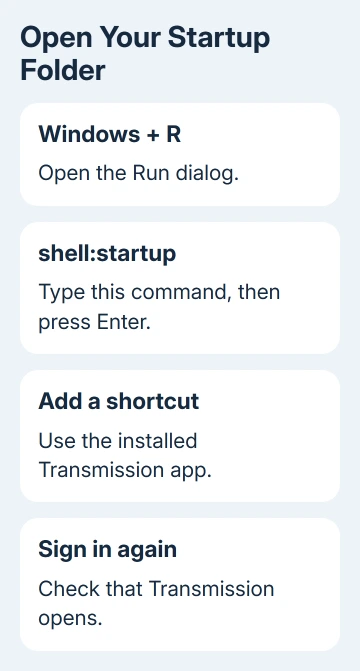
Microsoft says to use Startup settings or File Explorer to configure automatic launch.
Whether that switch appears depends on the app adding itself to Windows' startup list.
I'd use one route, then test it before adding anything else. A single launch method is easier to remove later and avoids leaving old shortcuts behind when you change the installation.
These steps are for the Windows desktop app. Instructions that mention a Linux service or a background Transmission daemon describe a different setup.
A normal shortcut is all you need to start with if you want the familiar Transmission window to open when you log in.
1. Look for an existing Startup switch
Open Start > Settings > Apps > Startup. Look for Transmission in the list. If it's there, set its switch to On. Save your work, sign out and sign back into the same Windows account to check the result.
Task Manager offers the same registered startup list. Right-click Start, choose Task Manager and select Startup apps. If Transmission is listed but disabled, select it and choose Enable.
You don't need to enable it separately in both places. Settings and Task Manager manage the same registered startup apps. Use whichever is easier to reach, and leave the Startup folder alone if this route works.
If Transmission isn't listed, that doesn't mean Windows can't launch it automatically. Apps without a registered startup task can use the folder method in the next section.
Your installation may simply not have added a switch to that list.
2. Open the app list and your Startup folder
Press Windows+R, type shell:appsfolder and press Enter. A File Explorer window opens with the installed applications. Find Transmission and keep this window open.
Press Windows+R again, type shell:startup and press Enter. This opens a second File Explorer window for the current user's Startup folder. An empty folder is normal if no shortcuts have been added there.
Use the shell command rather than manually typing your Windows username into a long folder path. It takes you to the Startup folder for the account currently signed in, so the change applies to your sign-in.
For a shared computer, this distinction matters. A shortcut in your Startup folder won't configure another person's sign-in. Test under your own account before deciding that the shortcut didn't work.
The different command shell:common startup opens the all-users Startup folder. Use that only if you want Transmission to open automatically for all accounts on the computer.
For a personal Transmission setup, the current-user folder keeps the change limited to your account.
3. Add the Transmission shortcut
Drag Transmission from the applications window into the Startup folder window. This creates a shortcut to the app. Check that the new item points to Transmission rather than a downloaded installer or a folder of files.
Double-click the new shortcut to test it immediately. Transmission should open just as it did from Start. If it doesn't, correct the shortcut now, before testing a full sign-in cycle.
If Transmission isn't available in the applications window, use a shortcut to the installed application's executable file instead. Copy or create that shortcut in the Startup folder.
Leave the app itself where it was installed.
Don't move the executable itself into Startup. Windows needs a shortcut pointing to the installed app. Moving just one of its files isn't the same thing. Moving files out of an installation can break paths the application needs.
If you're unsure where the shortcut points, right-click it and open Properties. For a normal desktop shortcut, check Target.
The target should be the installed Transmission application, and opening the shortcut should confirm that it works.
4. Test a fresh sign-in and check a missing app
Save open work and close Transmission. Sign out of Windows, then sign back in. You can also restart and sign in normally. Wait for the desktop to finish loading and check whether the application opens.
This is a sign-in test, not a test of whether the PC can run Transmission while you're logged out. If you stop at the Windows login screen, your personal Startup folder hasn't launched the desktop app yet.
If it doesn't open, return to shell:startup in the same account. Confirm the shortcut is present and double-click it again. If that fails, check the installation or the location it points to. Sign-in timing isn't the problem yet.
Windows can display We couldn't find this app for a startup entry whose target no longer exists. A program moved to another location, an uninstalled app or an unavailable removable drive can leave that kind of entry behind.
Replace a broken shortcut with one pointing to the current installation. If the application was uninstalled, reinstall it through its official source before recreating the startup shortcut.
Don't keep adding shortcuts to an old path that no longer opens.
If the app opens manually but is still disabled in the startup list, recheck Settings > Apps > Startup. On a managed work computer, ask IT about a restriction that prevents the setting from staying enabled.
Undo the change or address a slow sign-in
To stop Transmission opening through the Startup folder, open shell:startup and delete only the Transmission shortcut you added. To stop a registered startup entry, turn it off in Startup settings or disable it in Task Manager.
Neither action uninstalls the app. You can still open Transmission manually when needed. Stick with one launch method so you or anyone helping you later can tell what starts Transmission.
If Windows itself becomes slow at sign-in, compare with the new entry disabled. The Windows slow-startup checks help separate an added application from a wider startup delay.
For a broader slowdown after the desktop appears, use the slow laptop checks rather than adding more startup launch methods.
If the shortcut opens normally but never starts at sign-in, send IT your Windows account name, the location the shortcut points to and the startup setting.
The Short Version
Enable Transmission in Startup settings if it's listed. Otherwise, add its working shortcut to shell:startup and test a fresh sign-in. Remove that shortcut to undo the change; this launches the desktop app after login, not before it.
Checked November 9, 2026.

Isaac Smith is the founder and editor of PC Glance, a website that covers computers, laptops, and technology. He is a tech enthusiast and a computer geek who loves to share his insights and help his readers make smart choices when buying tech gadgets or laptops. He is always curious and updated about the latest tech trends.