
The message Task Manager has been disabled by your administrator means a Windows policy is blocking access. On a personal PC, changing Remove Task Manager to Disabled or Not Configured can restore access.
Ask IT to check this restriction when the computer belongs to your employer or school. This policy message differs from a window that opens and freezes. Another shortcut won't lift it, even when you're an administrator.
1. Confirm the block and who manages the PC
Press Ctrl+Shift+Esc once and read the response. If the disabled-by-administrator message appears, continue with the policy checks.
If Task Manager opens but ignores clicks, use the Task Manager response checks instead.
Open Settings > Accounts > Access work or school. This works in Windows 10 and 11. If a work or school connection is listed, tell support its name. A personal Microsoft account used for Windows sign-in is separate from that connection.
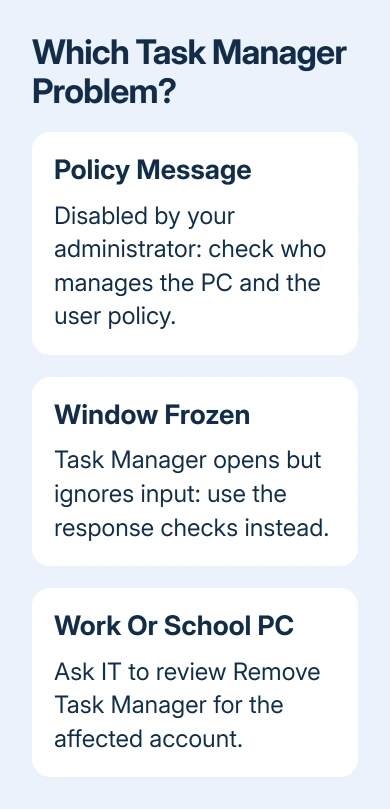
For a managed computer, ask IT whether the Remove Task Manager user policy is intentional. Give them the affected username and exact message.
They can check the policy applied to that user rather than changing every account on the machine.
Don't remove the work or school account to clear this message. That can cut off access to its services, and IT needs to change a policy it manages.
If this began after exam, kiosk or device-management software was used, record that program's name. It gives support a concrete change to check. The warning itself doesn't identify which program or administrator set the policy.
2. Reverse the local policy on supported editions
Press Windows+R, enter gpedit.msc and press Enter. The Local Group Policy Editor is available in editions such as Pro and Enterprise.
Windows Home normally doesn't include it; use the registry check in the next section if the editor isn't found.
Open User Configuration > Administrative Templates > System > Ctrl+Alt+Del Options. Double-click Remove Task Manager. Despite its name, turning this restriction off permits access. It doesn't uninstall or reinstall Task Manager.
Microsoft's client policy reference explains the switch: Enabled prevents Task Manager from starting. Disabled or Not Configured allows access, unless another policy blocks it for that account.
Choose Disabled, select Apply, then OK. Close the editor. If this local setting caused the block on your personal PC, try opening Task Manager again in the same account.
Press Windows+R, enter gpupdate /force and press Enter. Let the policy refresh complete, then try Ctrl+Shift+Esc. Follow any sign-out or restart prompt after saving your work.
If the message remains, recheck the setting rather than toggling it repeatedly. A work network or device-management rule can still block access even after you change the local setting.
A local screen showing Not Configured doesn't tell you what a central administrator has applied.
3. Check the blocking registry value on a personal PC
Windows stores the Task Manager restriction in a value named DisableTaskMgr. This check is useful on Home, or when the local editor isn't available.
This value controls the restriction for the signed-in user, so use the account that gets the warning.
Back up the registry key before changing it. Press Windows+R, type regedit, approve the administrator prompt and open Registry Editor. Change only the named value. Other policies in this area affect separate Windows functions.
Navigate to this path using the address bar:
HKEY_CURRENT_USER\Software\Microsoft\Windows\CurrentVersion\Policies\SystemSelect the System key, then choose File > Export. Save the selected branch somewhere you can find again. Check that the export covers this policy branch; a backup of a different key won't help undo this change.
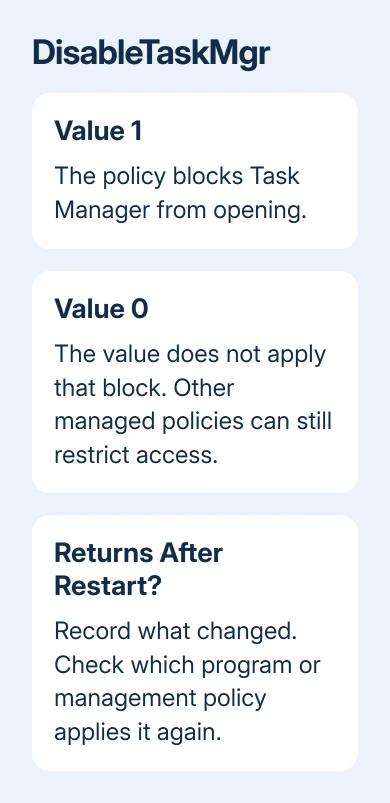
If DisableTaskMgr exists, double-click it. A value of 1 enables the block; set Value data to 0 and confirm with OK. Close Registry Editor, restart Windows and test Task Manager in the same account.
If that key or value is absent, don't create a collection of guessed registry entries. The block can be applied elsewhere.
The troubleshooting reference lists other policy locations for an administrator to review.
4. Check what happens after the next restart
A successful repair opens Task Manager without the policy message. Try it again after restarting and signing back in. If access works only until the next login, something is applying the restriction again.
I'd stop repeating the registry edit at that point. Note whether the value returns to 1, whether the editor's policy changes, and whether the problem affects another existing user account.
With those restart results, support can check whether the restriction affects just your account or a wider group.
Review any management, exam or security tool installed around the time access disappeared. Use that product's own support to remove a leftover restriction.
If that software set the restriction, follow its cleanup steps instead of removing Windows components to force Task Manager open.
An unexpected restriction on an unmanaged home PC also deserves a security check. Open Windows Security > Virus & threat protection > Scan options, choose Full scan, then Scan now.
If the scan detects anything, note its name and the action taken so you can tell support.
Once Task Manager opens, its normal keyboard shortcuts work again. Changing the policy restores access; choosing a different menu to launch it doesn't.
When the restriction keeps returning
For a work machine, ask IT which Remove Task Manager policy applies to your account, including domain and management settings. Share what happens after a restart and any local changes, so they can check which rule brings the block back.
For a personal PC, contact Windows support through Get Help with your Windows edition, exact message and the value's behavior after restart.
If a particular program preceded the block, include that program's name and ask its support about restoring Windows policies.
The Short Version
The disabled-by-administrator message points to policy. Have IT review managed devices. On an authorized personal PC, turn off Remove Task Manager, or check DisableTaskMgr in the current user's policy key.
If the block returns after restart, find what reapplies it.
Checked November 10, 2026.

Isaac Smith is the founder and editor of PC Glance, a website that covers computers, laptops, and technology. He is a tech enthusiast and a computer geek who loves to share his insights and help his readers make smart choices when buying tech gadgets or laptops. He is always curious and updated about the latest tech trends.