
Every normal restart brings you back to the desktop when you need the advanced startup options in Windows 10.
I'll show you the Settings route, the Shift shortcut, and the recovery-drive option when Windows won't load. Entering recovery doesn't itself reset your PC.
If Windows opens, restart from Recovery settings
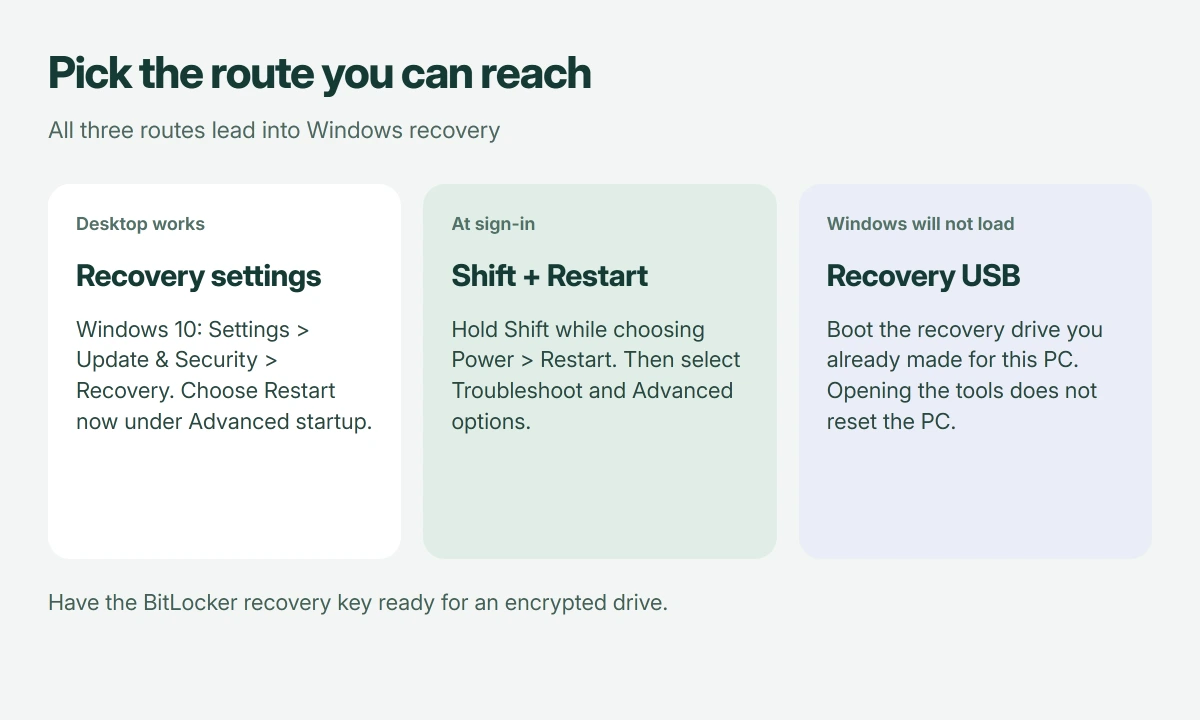
Save your work, then open Start > Settings > Update & Security > Recovery. Under Advanced startup, choose Restart now. After the restart, select Troubleshoot > Advanced options to reach the repair tools.
Microsoft documents the Windows 10 location in its recovery-environment guide; the System > Recovery path shown in newer instructions belongs to Windows 11.
Status: Windows 10 recovery entry paths reviewed against Microsoft's guidance on 18 October 2026. Windows 11 menu locations are separated. No restart or repair was performed here.
Before using a repair tool, have your BitLocker recovery key available if the drive is encrypted. Microsoft says some recovery tools require it. Our recovery-key guide explains where to look.
I would find that key while Windows still works, because discovering you cannot unlock the encrypted drive afterward makes an otherwise straightforward menu change much less comfortable.
If Settings won't cooperate, use Shift with Restart
Open Start > Power, hold Shift, and select Restart while holding the key. You can also use the Power control on the Windows sign-in screen, so this route doesn't require reaching the desktop.
Microsoft states this sign-in route in its Windows RE technical reference; once the recovery screen appears, choose Troubleshoot and then Advanced options.
Pick the Restart command here. Simply holding Shift while the computer is already booting isn't the same action as choosing the restart command with Shift held.
Back in Windows again? Try another entry route. Use the Settings route if accessible, or the recovery media route if the built-in environment isn't available.
If Windows cannot load, boot an existing recovery drive
Connect the USB recovery drive you previously created for this PC. Turn the computer on and select the USB through its manufacturer's boot menu, using the menu key specified for your particular computer model.
Microsoft's recovery documentation says booting a recovery drive takes you into Windows RE. Select the troubleshooting tools there; you don't need to choose Recover from a drive just to reach Advanced options.
That distinction protects your files. Recovering the PC from the drive is a separate operation, with consequences that go beyond opening a menu.
Our recovery USB guide covers creating and maintaining that drive; an ordinary USB stick containing personal files won't boot into Windows recovery simply because you plug it in.
If Windows has already entered Automatic Repair, select Advanced options on that screen. You can use the environment that has already loaded instead of booting the USB again.
Choose the tool that matches the problem
Advanced options and Startup Settings are different screens. Startup Settings is one choice inside Advanced options, and it needs another restart before you can select a startup mode.
For Safe Mode, Microsoft's startup-settings instructions give Troubleshoot > Advanced options > Startup Settings > Restart, followed by 4 or F4 on the numbered menu for Safe Mode.
For a computer that fails during startup, Startup Repair is the automatic repair tool. For a recent change, System Restore or Uninstall Updates may be relevant; select a tool only after reading what it will change.
For a PC halted at its logo, check which startup stage is failing before treating it as a Windows fault.
I wouldn't reset just to be thorough. Reset this PC is a different recovery operation and removes apps, even when you select the option that keeps personal files.
Microsoft explains those choices in its recovery-options comparison. Reaching the blue menu is the first task; the right repair depends on what stopped working.
For ASUS hardware, compare the two reset facilities before choosing a Windows reset or the separate MyASUS tools.
The Short Version
On Windows 10, use Recovery under Update & Security, or hold Shift while selecting Restart. If Windows cannot load, boot your existing recovery USB. Choose Troubleshoot and Advanced options, then the tool your particular problem needs.
Where to Next
Which screen can you reach right now: the desktop, sign-in, or Automatic Repair? Tell me that and what happens when you try restarting into recovery. I'll suggest the route that fits your screen.

Isaac Smith is the founder and editor of PC Glance, a website that covers computers, laptops, and technology. He is a tech enthusiast and a computer geek who loves to share his insights and help his readers make smart choices when buying tech gadgets or laptops. He is always curious and updated about the latest tech trends.