
Keep antivirus running, install security updates and check what you download to reduce your risk of a computer virus. Check Windows Security first, then avoid unexpected attachments and installers that ask you to disable protection.
A frightening browser warning doesn't by itself mean the computer is infected. If you've already opened a suspicious program, treat that as a possible infection and scan the PC rather than relying only on prevention settings.
1. Check that antivirus protection is actually running
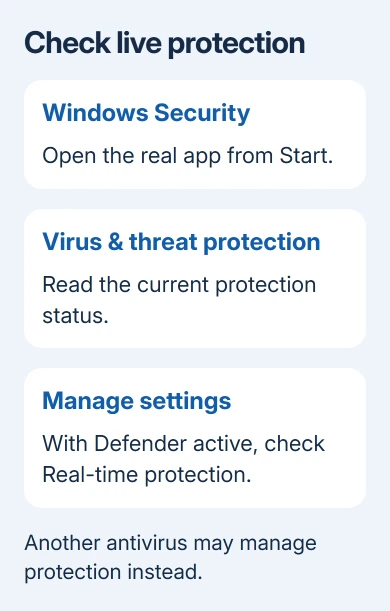
Open Start, type Windows Security, and open the app. Select Virus & threat protection. Read the status shown there. An antivirus icon on your taskbar doesn't tell you whether protection is working.
If your PC uses Microsoft Defender Antivirus, open Manage settings under the protection settings. Check that Real-time protection is on. This checks files as you use them, rather than waiting for you to request a scan.
Check Tamper Protection too, when available. It helps stop unauthorized changes to security settings. Stop and check the program if its ordinary installation asks you to disable this protection.
Another antivirus product can manage protection instead of Defender. In that case, check the active product's status and update controls. Don't install several competing antivirus programs just to get more green check marks.
Microsoft's Windows Security guide describes the built-in protection and scan controls. The Windows Security app is included with Windows; checking its Defender Antivirus protection doesn't require buying a Microsoft 365 subscription.
If the page reports action needed, complete that action and check again. When an organization manages the PC, send the exact warning to IT rather than trying to remove its management settings.
2. Install security updates and complete the restart
On Windows 11, open Settings > Windows Update > Check for updates. Install the available security updates and use Restart now when Windows requests it. Save your open files first so the update can finish without losing your work.
Windows 10 puts this in Settings > Update & Security > Windows Update. Free regular support ended October 14, 2025. Check whether you're covered by Extended Security Updates or plan a move to a supported version of Windows.
An antivirus program doesn't replace operating-system patches. Security updates repair weaknesses in Windows itself, including ones a malicious file or website could try to use. Both layers need to stay current.
Update your browser and the applications you actually use as well. Open their built-in update or About screen instead of installing a supposed browser update advertised by a random webpage.
Check the update screen after restarting. Downloaded updates can still need a restart to finish installing. If updates keep failing, note the error code and fix that problem before treating your PC as up to date.
3. Leave download and app warnings enabled
Open Windows Security > App & browser control > Reputation-based protection settings. Check Check apps and files and the available browser protection options. These controls can warn about files or websites with a poor reputation.
When available, turn on Potentially unwanted app blocking. Unwanted software can add advertising, bundle extra programs or change behavior you didn't request, even when it isn't considered a virus.
Windows 11 can offer Smart App Control, depending on the installation and its current state. Windows 10 doesn't have that feature, so you don't need to look for it there.
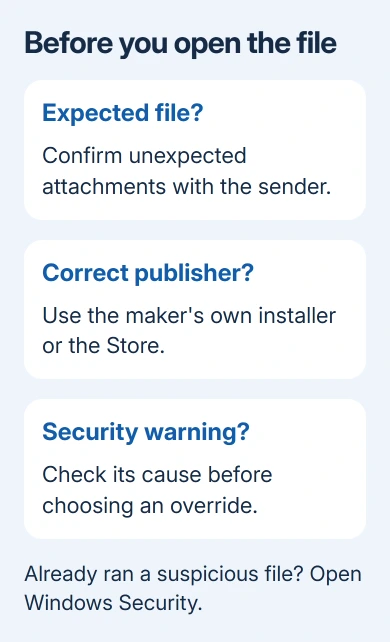
Read a blocked-download message before choosing an override. An unfamiliar file isn't necessarily malware, but check where it came from before bypassing a warning. Otherwise, you're removing a useful protection just when you need it.
If a needed application is blocked, return to its publisher's official download page and confirm the filename and supported version. For a work application, ask IT to check it. Leave the warning in place until you've checked.
4. Get installers from the actual publisher
Use the Microsoft Store or the software maker's own download page. Search results can contain advertisements and similarly named products, so check the site address before downloading rather than choosing the first large download button.
Avoid cracked software, activation tools and installers distributed through unrelated file-sharing links. A promise that antivirus must be disabled for installation is a reason to stop, not a normal requirement to follow.
During setup, read the choices before clicking through. Decline unrelated browser extensions or extra applications you didn't set out to install. A legitimate-looking installer can still offer additions you don't need.
I'd spend a minute checking the publisher before running a file. Replacing an unwanted browser setting is inconvenient; giving an unknown program permission to change Windows can have much wider consequences.
Downloaded documents need judgment too. Don't enable macros or active content just because a document tells you that doing so is necessary to read it. Confirm the request with the sender through a contact method you already trust.
5. Check unexpected attachments and urgent messages
When an invoice, delivery notice or shared-file message arrives unexpectedly, check who sent it. A familiar display name isn't enough, especially when the message asks you to run a file or enter a password urgently.
Contact the person through an existing phone number or a separate conversation. Ask whether they sent that specific attachment. Replying only to the suspicious message can leave you talking to the person who created it.
For a downloaded file you haven't opened, right-click it in File Explorer and choose Scan with Microsoft Defender when Defender is active. On Windows 11, select Show more options if the scan command isn't in the first menu.
A clean scan is useful, but it doesn't make an unexpected request trustworthy. If the message still makes no sense, leave the file unopened. The scan checks the file for threats; contacting the sender checks whether the request is real.
6. Recognize fake infection alerts and act on real exposure
A webpage claiming it found hundreds of viruses is trying to make you act on its message. Don't call its displayed number, install its repair tool or grant remote access. Close the page using your browser controls.
If an alert arrived after an unwanted program was installed, use the PC App Store removal steps for that specific program. Preventing the next installation and removing one already present are separate jobs.
If you've run a suspicious program or Windows reports a threat, open Windows Security directly from Start. Use the Windows virus-scan procedure to choose the appropriate scan and review its result.
Keep a separate backup of important files so a security incident doesn't leave you with the only copy trapped on the affected PC. A backup helps you recover your files; it doesn't remove malware or replace the protections you've checked.
If protection keeps turning off or threats return, ask your antivirus provider or Microsoft Support for removal help. Include the threat name and the action shown in Protection history. Report a managed PC to IT promptly.
The Short Version
Keep antivirus active and finish security updates. Verify downloads and unexpected attachments, and leave app warnings enabled. After running a suspicious file, scan for threats and follow the removal result.
Checked November 10, 2026.

Isaac Smith is the founder and editor of PC Glance, a website that covers computers, laptops, and technology. He is a tech enthusiast and a computer geek who loves to share his insights and help his readers make smart choices when buying tech gadgets or laptops. He is always curious and updated about the latest tech trends.