

Your Mac keeps showing a Background Items Added notice for an app you set up long ago, for Google Updater, or for an app you already deleted. It waits in Notification Center until you clear it, then returns.
I would find the file behind the notice before switching anything off. Apple's own tools name it.
The Google Updater version of the question has 31,738 views on Ask Different. The question about where these items come from has 52,744.
Why the same notice keeps coming back
Since macOS 13 Ventura, your Mac lists everything an app sets to run in the background.
Apple's deployment guide says this framework "is used to create transparency to the user when you configure login items, launch agents, and launch daemons on a Mac".
So an app that registers its helper again sets off your notice again. Google's updater notes admit as much: "macOS 13 notifies the user each time a new task is created".
Google says it changed the updater because of that, so each new version now replaces its task instead of adding one beside it.
Ours: none. With no Mac on this desk, each step comes from Apple, Google or an owner, and says which.
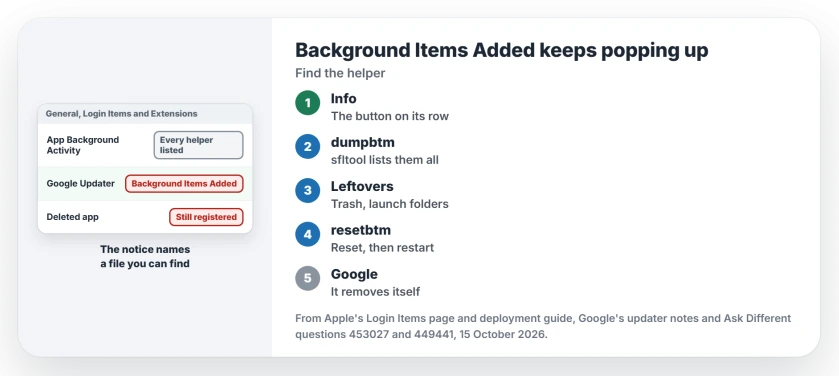
Status: built from Apple's macOS 27 Login Items page, its deployment guide of December 2025, Google's updater design notes and owner reports from 2023 to 2026. Collected 15 October 2026.
1. See which app the item belongs to
Go to System Settings, then General, then Login Items & Extensions. On macOS 27 your background list is App Background Activity, which was called Allow in the Background on macOS 13 to 15.
Apple describes it as apps working while they are closed, for jobs like update checks and syncing. Switching a row off stops that work, not the app itself.
For AdGuard, check the app's Quit and launch preferences to stop the program and its next automatic start.
Some rows carry an info button. Apple's guide to login items and background tasks says to "click the Information button" to see what is being launched. An owner noted it shows the item's place in the Finder.
The same list decides what opens at startup. If your Mac also starts slowly, the slow startup page walks through the Open at Login side.
2. List everything with sfltool dumpbtm
Apple documents a Terminal command that "Prints the current status of login and background items". It needs no download:
sfltool dumpbtmThe top answer on the 52,744-view question points to the same command. It says "The output is fairly self-explanatory". Search it for the name in your notice. One reader found the URL and executable path there.
3. Clear what a removed app left behind
An app dragged to the Trash can stay registered, and one owner found that "apps in Trash still appear" in the list. Empty your Trash first.
Then open the three folders owners keep naming. Remove only the files that carry the name of the app you deleted, and restart:
~/Library/LaunchAgents
/Library/LaunchAgents
/Library/LaunchDaemons
In those folders, Google's files start with com.google. Leave files from apps you still use. Those apps need their helpers.
4. Reset the list with sfltool resetbtm
Nothing in the folders matches? Apple's guide has a reset. It "Resets login and background item data", and Apple recommends a restart after it:
sfltool resetbtmAn owner with a leftover PDFgear item ran it in July 2025: "Then I restarted my computer, and the application was not there anymore". It clears more than the ghost, though.
One reader warned that "it removes all there Open at Login items". Another added their login items back by hand.
A third saw every item return at restart, because apps still installed register again. Write down your Open at Login list first.
5. Google Updater: let it remove itself
Google's notes explain why it lingers on your Mac. The updater "runs periodic tasks every hour, checking its own status, detecting application uninstalls, and potentially checking for updates".
Deleted Chrome and still see it? Google says that "When all managed applications are uninstalled, the updater will uninstall itself, leaving behind only a log file". If another Google app of yours still uses it, it stays.
In January 2023 an owner stopped the notices by setting RunAtLoad to false in com.google.keystone.agent.plist. The asker accepted it after testing. Their verdict: "Seems to be working after few reboots".
I would not start there on your current Chrome. Google's notes now describe both Keystone programs as stand-ins that "simply exit immediately when run".
The same owner later wrote that the notices had not returned after Sonoma and Chrome 120. Microsoft's updater nags for a different reason, and the Microsoft AutoUpdate page covers it.
Why does it name a person, or bash?
The row shows whoever signed the helper, which may not match the app you know. One answer explains that a developer's name "is associated with the digital certificate signing the background app".
That answer's author had a backup app listed under a company name that sounds like a photo app. So search the name before you switch it off.
A shell script has no name of its own to show you. Another answer put it this way: "As a script isn't an executable binary, bash is the next thing macOS can come up with".
A new prompt when you quit an app?
That one arrived with macOS 26. Apple's guide says that when an app's background tasks stay active after you quit it, "the user is prompted to allow or not allow the background tasks to remain active". You choose there.
The Short Version
- The notice appears each time an app registers a helper that runs in the background.
- Find the app in General, Login Items & Extensions, with the info button on its row.
- sfltool dumpbtm lists every item and the file behind it.
- Removed app: empty the Trash, delete its files from the launch folders, restart.
- sfltool resetbtm clears leftovers, but your Open at Login apps must be added again.
- Google Updater uninstalls itself once no Google app needs it.
Where to Next
Got a repeat offender on your Mac? Post the helper's name and your macOS version. I keep a tally of these, and Google Updater may have slipped off the top of it by now.

Isaac Smith is the founder and editor of PC Glance, a website that covers computers, laptops, and technology. He is a tech enthusiast and a computer geek who loves to share his insights and help his readers make smart choices when buying tech gadgets or laptops. He is always curious and updated about the latest tech trends.