
Chromebook mouse trouble can come from a touchpad setting, a lost connection or a hardware problem. Check whether the pointer moves. Failed taps with normal movement call for Tap to click; an unresponsive pad needs different steps.
An external mouse also needs its own connection check. Resetting the Chromebook's touchpad will not reconnect a Bluetooth accessory or correct the wrong USB receiver.
Start with the part that stopped responding
Move one finger across the touchpad, then press its lower half. Try the external mouse separately if one is attached. This comparison tells you which input still works, so keep that working input available for Settings.
If keyboard commands and apps also stop responding, follow the Chromebook freezing checks. A whole computer that stops accepting input needs a broader check than a touchpad that cannot click.
Status: Chromebook input steps checked against Google, Logitech and Roblox help on October 29, 2026. No Chromebook or mouse was tested.
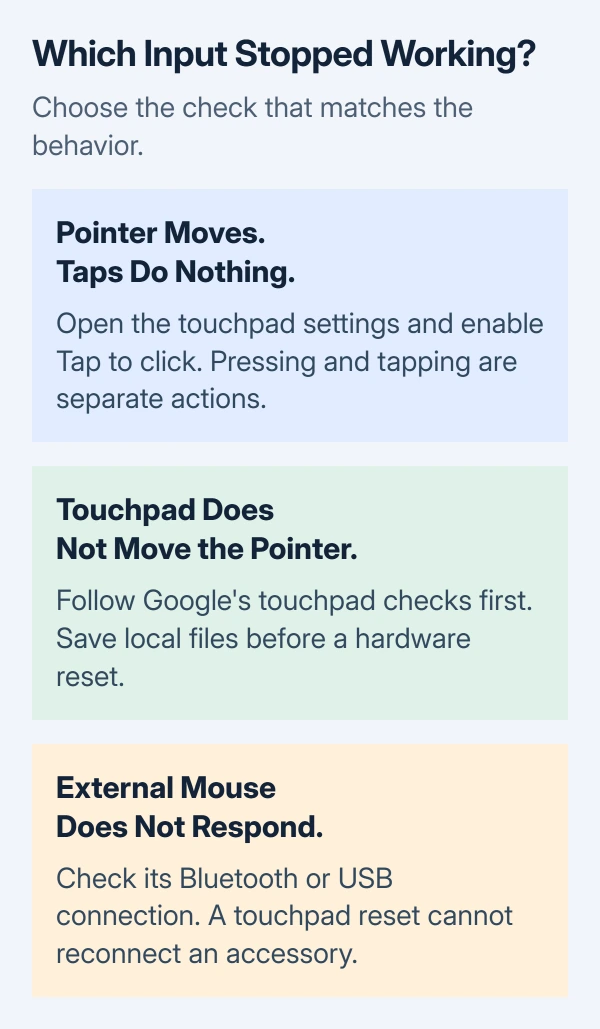
Google's touchpad instructions distinguish moving, pressing and tapping. That distinction matters: turning on tap-clicking changes how a working pad clicks, not whether it detects finger movement.
Restore taps or work through a dead touchpad
For a pointer that moves normally, open Settings > Device > Touchpad. Some versions label the final option Touchpad and mouse. Enable Tap to click, then tap an ordinary control to check the result.
For a motionless pointer, Google says to try this sequence:
- Clean any dirt from the pad using the maker's care instructions.
- Press Esc several times.
- Lightly drum your fingers across the pad for 10 seconds.
- Save open work, turn the Chromebook off, then turn it on again.
Try moving and clicking after each action. Stop when input returns. If the pad stays unresponsive after restarting, save local files before considering the hardware reset described later in this guide.
Google does not explain why its finger-drumming step works. Treat it as a documented troubleshooting action, not a claim that pressing harder repairs a damaged pad.
Check an external mouse through its actual connection
For Bluetooth, check that the mouse is charged and switched on. Open the time menu, select Bluetooth, then disable and re-enable it. Google documents this for connection trouble; keep the mouse close during the check.
Look for the mouse under Currently connected. If it still needs pairing, use the Chromebook Bluetooth setup procedure and the mouse maker's pairing instructions.
A USB receiver mouse uses its receiver rather than the Bluetooth list. Logitech says to bypass any hub for its receiver models, plug into the computer itself, and bring the mouse closer.
Logitech also recommends another USB port for a wired mouse and a second-computer comparison. Use a supported connection on that computer. Failure there points to the accessory or its connection, without proving which part failed.
If movement works outside one app, check that app's requirements. Roblox documents that its Chromebook app does not support Bluetooth mice or other Bluetooth pointing devices.
For that specific limitation, use a supported input method or contact Roblox Support. Repeating touchpad resets will not add support to the app.
Save Downloads before resetting Chromebook hardware
A hard reset restarts hardware including the keyboard and touchpad. Google states that some Downloads files may be deleted. Copy needed local files to Drive or an external drive and confirm the copies open first.
For most Chromebook laptops, Google's hardware reset is:
- Turn the Chromebook off.
- Hold Refresh, then tap Power.
- As soon as startup begins, lift your finger from Refresh.
Check the touchpad after startup. Chromebook tablets use Volume Up + Power held for at least 10 seconds. Some models have their own reset method; use Google's model list instead of opening the case or guessing at a reset hole.
This is a hardware restart. A factory reset, called Powerwash, erases local user data and is a separate operation. Do not select Powerwash when intending to follow the Refresh-and-Power procedure.
When only one account fails, or the pad stays dead
Google's touchpad guide has an additional step for Chromebooks with multiple accounts: remove and re-add the affected account. Use it only after checking whether another account on that Chromebook has working input.
Back up that account's local files first. At the sign-in screen, select the arrow beside its name, choose Remove this user, and confirm. Add the account again afterward. The Google Account itself continues to exist.
The primary owner cannot be removed through that menu. On a managed school or work Chromebook, ask the administrator to handle account or device restrictions instead of attempting a reset to remove them.
If the touchpad still fails, contact the Chromebook manufacturer with its model and the checks that changed nothing.
For an external mouse that remains unusable on another supported computer, contact the mouse manufacturer with its model and connection type.
The Short Version
Check tap-clicking when movement still works. Follow Google's touchpad checks before a hardware reset, saving local files first. Check external mice through their own connection, including any app-specific input limits.

Isaac Smith is the founder and editor of PC Glance, a website that covers computers, laptops, and technology. He is a tech enthusiast and a computer geek who loves to share his insights and help his readers make smart choices when buying tech gadgets or laptops. He is always curious and updated about the latest tech trends.