
An ea.com/unable-to-connect message can mean an outage, account restriction or PC connection problem. Check the game's server status first. If the service is working, check whether the EA app itself is offline or only one game fails.
That order avoids reinstalling a working game during a service outage. Keep the exact error and game name available as you work through the relevant checks.
Check the game and account before changing Windows
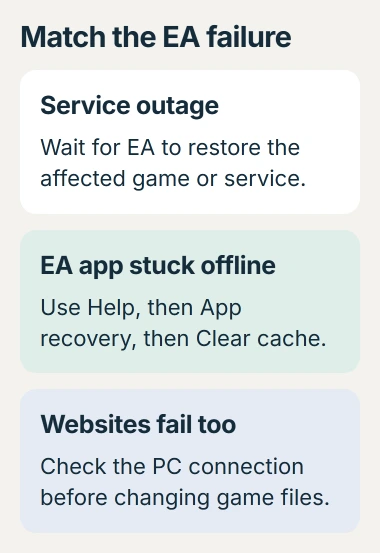
Open EA's server-status page and select the affected service or game. If EA reports an interruption, wait for its recovery notice and retry later.
For an older title, check whether online support has ended. EA's connection guidance points to its service-retirement information as well as temporary server outages.
Status: EA server, cache, account and background-app guidance checked October 30, 2026. No active outage is asserted. No account, game or network setting was changed.
Try signing in through EA's official site. A ban, suspension, deleted account or account already in use needs the account route. Changing DNS cannot remove an account restriction.
If the message says the account is already being used, sign out on the other device before retrying. For an unexpected restriction or lost account access, use EA Help rather than repeatedly resetting the PC's network.
Clear the EA app cache when the launcher stays offline
An EA app that remains offline while websites work has its own repair option. Cache recovery for offline mode, stuck downloads and missing library entries is documented by the vendor.
Open the Windows EA app's three-line menu at the upper left. Choose Help > App recovery > Clear cache. Let the app recover, then reopen it and check whether it connects.
If the app will not open, use Start > All apps > EA > App Recovery, then select Clear Cache. EA provides both routes in its cache-recovery instructions.
This does not fix a server outage. If the launcher reconnects but one game still fails, keep the remaining checks focused on that title and its error instead of clearing the cache repeatedly.
Compare the network connection and the clock
Open a few unrelated websites on the PC. If they fail as well, address the broader connection first. The difference between Wi-Fi and internet access explains why full signal bars do not guarantee a working service.
Try Ethernet to the router when available. For a router that has stopped passing traffic, EA recommends unplugging it for about a minute, reconnecting power and waiting for internet access to return.
Check Windows' displayed date and time too. Microsoft says automatic clock and zone settings are available in Date & time settings. Open Settings > Time & language > Date & time.
Correct a wrong clock or zone, then retry the sign-in. If Windows specifically reports a name-resolution error, follow the DNS server checks; the EA message alone does not prove a DNS fault.
Check software that handles the game's connection
EA lists VPNs, proxies, security software and overlays in its background-app troubleshooting. On a personal PC, disconnect an optional VPN and close unnecessary overlays before testing again.
For a managed PC or network, ask its administrator about required connection software. Do not remove a work proxy or security policy to make a game connect.
If the security app records a block, follow its maker's instructions to allow the legitimate EA app and game. Keep protection enabled while checking that specific block; a broad permanent exemption creates a different problem.
The one-change-at-a-time approach is ours: retry the same connection after each adjustment so a working result has a clear cause. Start with the condition that matches the error or blocking record.
Give EA Help the game, launcher, exact message and time of failure if it still cannot connect. Include whether browser sign-in works and whether another connection changes the result. Those details keep the support request specific.
The Short Version
Check EA's service and account status, use App Recovery for an offline launcher, then inspect the connection, clock and blocking software. Report the remaining failure with its exact error and game name.

Isaac Smith is the founder and editor of PC Glance, a website that covers computers, laptops, and technology. He is a tech enthusiast and a computer geek who loves to share his insights and help his readers make smart choices when buying tech gadgets or laptops. He is always curious and updated about the latest tech trends.