
If an Epson printer doesn't recognize an ink cartridge, it may need pressing back into place. Read the error on the printer, then use your model's replacement mode to move the cartridge holder into position.
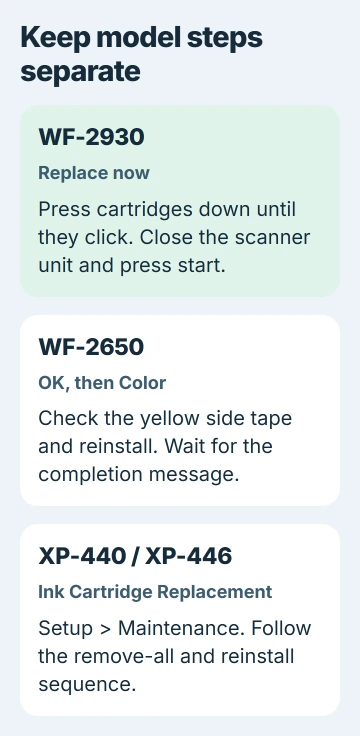
The controls differ by model. A WorkForce WF-2930 can use Replace now; an Expression XP-440 or XP-446 can use Setup > Maintenance > Ink Cartridge Replacement. Let the printer move the holder, rather than pulling it by hand.
1. Read the cartridge error on the printer
Write down your printer's model number and the color or cartridge named in the message. Not recognized, low ink and an empty cartridge mean different things, even if the message appears just after a replacement.
If the printer itself shows the recognition error, start there before reinstalling Windows drivers. It's reporting a cartridge problem, and changing your computer's print queue won't press a loose cartridge into place.
Epson recommends pressing cartridges back into place in its WF-2930 recognition instructions. Look up your model number first. Each set of steps here applies to the model named in its heading.
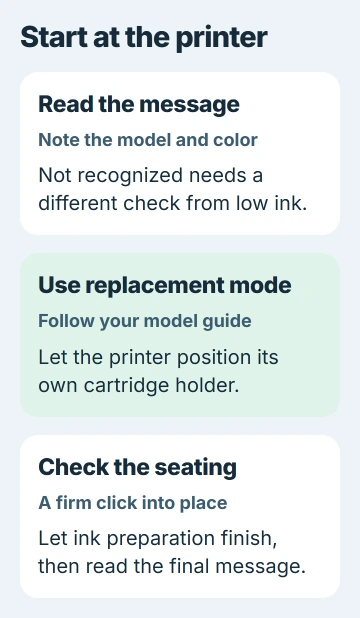
Check that the replacement package lists your exact printer model. A cartridge can look like the old one and still be the wrong type. Keep the package until your printer accepts the cartridge.
The printer ink-level explanation covers estimates of how much ink remains. Even a full cartridge needs the installation and compatibility checks here if your printer doesn't recognize it.
2. Use the WF-2930 replacement position
On a WorkForce WF-2930, turn the printer on and choose Replace now. Lift the scanner unit until it locks into its open position, then press each cartridge down until it clicks into place.
Let the printer move the print head, and keep clear of the flat white cable and translucent film inside. They're parts of the mechanism, not handles for moving the cartridge holder.
To close the scanner unit, lift it slightly and lower it. If it catches partway, lift it again and lower it fully rather than pressing against the catch.
Press start when you're finished. The holder returns to its resting position and the printer starts charging the ink, which prepares the ink system for printing. Wait until it finishes, then check whether the error has cleared.
The WF-2930 steps ask you to press the cartridges into place. Another model may need you to remove and reinstall them, with a different button sequence. Use the complete set of steps for your model.
3. Check tape and reinstall on the WF-2650
On the WorkForce WF-2650, close the document cover, then lift the scanner unit and choose OK on the printer. The model-specific procedure shows this sequence.
Squeeze the cartridge tab and lift the cartridge straight up. Check that the specified yellow tape on the side has been removed, then return the cartridge to its holder and press down until it clicks.
Press OK, then Color, to start the installation check and prime the ink system for use. Wait for the completion message on the printer's LCD screen, then close the scanner unit as directed.
Keep the printer on while it prepares the ink. Interrupting this stage can waste ink, and you can't judge a print test until it's finished.
I'd read all the replacement steps once before opening the printer. That way, you'll know when your model needs another button press before you continue.
4. Follow the full reseating sequence on XP-440 or XP-446
If your Expression Home XP-440 or XP-446 already shows the recognition error, choose the option to replace the cartridge and press OK. If it doesn't show that error, press the Home button and use the maintenance menu.
Choose Setup > Maintenance > Ink Cartridge Replacement, then OK and start. Wait until the printer asks you to replace the cartridges before lifting the scanner unit.
Follow the XP-440/446 reseating procedure: use each cartridge's tab to remove all the cartridges, then reinstall each cartridge separately. Press each one down until it clicks into place.
Remove only the yellow tape named in the cartridge instructions. Leave the other labels and seals in place; peeling off more pieces isn't part of clearing this error.
Once the cartridges are back in place, close the scanner unit and press start. The printer starts charging the ink. Leave it closed while it finishes, then check the final message.
5. Separate a seating fault from incompatible supplies
If the error names a different cartridge after you've put them back, note which one before buying replacements. Check that cartridge's model compatibility and fit. A changed error doesn't mean every color suddenly ran out.
The XP-440/446 support steps call for genuine Epson cartridges for this check. If your printer still rejects a third-party cartridge, follow that guidance or ask the seller about a compatible replacement.
Our third-party cartridge guide explains compatibility in more detail. A rejected cartridge doesn't tell you that a firmware update caused it, especially if the error began when you installed new ink.
Skip repeated cleaning cycles for this error. Cleaning helps ink reach the page; it doesn't put an unrecognized cartridge back into place.
6. Contact support when correct installation still fails
If the error remains after you've followed your model's steps, contact Epson Support. Give your printer model, the rejected cartridge's code and color, whether it's new, and the exact error shown after ink preparation finishes.
If the printer accepts its cartridges but a Windows job still won't print, move to the separate Windows application-printing checks. Compare another document before changing the printer again.
Keep the receipt for your replacement cartridge. Support or the seller can use its code and the steps you've tried to decide what to do next, without sending you through unrelated computer resets.
The Short Version
Select your printer's cartridge-replacement command. Press the cartridge fully into place, check the specified packing tape, and let ink preparation finish. If it's still rejected, check compatibility and contact Epson Support.
Checked November 5, 2026.

Isaac Smith is the founder and editor of PC Glance, a website that covers computers, laptops, and technology. He is a tech enthusiast and a computer geek who loves to share his insights and help his readers make smart choices when buying tech gadgets or laptops. He is always curious and updated about the latest tech trends.