

Ethernet can work while Wi-Fi fails because Wi-Fi uses its own radio, settings and adapter. Try a second wireless device: if all Wi-Fi devices fail, check the router. If only your PC fails, start with its wireless settings.
Check where the Ethernet cable connects too. A cable plugged directly into the modem skips your separate Wi-Fi router, leaving the router untested.
1. Make sure the cable and Wi-Fi use the same router
Follow the working Ethernet cable from your computer. If it ends at your Wi-Fi router or combined modem/router, that device has internet access through its wired ports. Its wireless radio can still be off or set up incorrectly.
If the cable connects directly to a separate modem, check the router's power and its connection to the modem. Put the devices back in the arrangement your provider describes before testing the router.
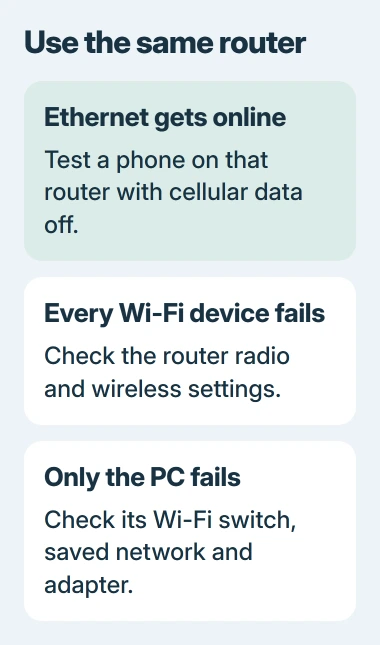
Try a phone on the affected Wi-Fi with cellular data temporarily off. Load a fresh webpage, rather than reopening something already saved. Then test the Windows PC with its Ethernet cable unplugged.
Note three things: whether the network appears, whether your device joins it and whether a fresh page loads. A missing network name needs different checks from a connection that joins but has no internet.
If the cable doesn't get online either, use the Ethernet fault checks. The comparison here depends on a working wired connection.
2. Turn the PC's wireless connection on
In Windows 11, open Settings > Network & internet. Turn Airplane mode off, then open Wi-Fi and turn it on. Windows 10 uses Settings > Network & Internet for these controls.
If the laptop has a wireless or airplane key, press it once while watching those settings. Some models require Fn with the marked key. Stop when Wi-Fi stays on and Airplane mode is off.
Open the available-network list and select your network. Enter the Wi-Fi password if asked. The Windows sign-in password and the router's administration password aren't substitutes for that wireless password.
A desktop with Ethernet may not have Wi-Fi hardware. Check your PC's specifications or look for an installed wireless adapter. If it came with external Wi-Fi antennas, attach them as its manual describes.
Microsoft says in its Wi-Fi repair procedure to check radio controls and the adapter if the Wi-Fi option is missing. If Wi-Fi is absent from Settings, go to step 5.
3. Repair the router side when every wireless device fails
Try Wi-Fi on both devices while you're beside the router. If neither sees your network, use the router's physical wireless control or provider app to check whether Wi-Fi broadcasting is enabled.
The router's internet light can be on while Wi-Fi is off. Check its separate Wi-Fi light or app setting. Some routers also have a schedule that turns Wi-Fi off at certain times.
Unplug the router, wait at least 30 seconds, then reconnect its power and wait for startup to finish. With separate modem and router units, start the modem first, wait for it, then start the router.
Restarting interrupts other people using the equipment, including Ethernet users. Arrange it around calls and downloads, and use a normal power restart rather than the recessed factory-reset button.
If both devices fail on Wi-Fi while Ethernet through that router works, contact its maker or provider. Say which devices you tried and whether the network name appears. Ask them to check the wireless settings and radio.
4. Compare network bands and one saved connection
When other devices connect but your PC can't see the home network, compare the Wi-Fi bands your router and PC support. A band is a range of wireless frequencies. Your PC can't see a network on a band its adapter doesn't support.
If the router has separate network names for 2.4 GHz and 5 GHz, try each one near the router. If one works, you can use it for now and tell support which band failed.
The home Wi-Fi layout guidance explains range and frequency differences. Testing close to the router makes weak coverage less of a factor.
If the home network appears but Windows rejects it, open Settings > Network & internet > Wi-Fi > Manage known networks. Select that network and choose Forget, then join it again.
Have the current wireless password ready first. Forget removes the PC's saved connection details. The router keeps its password, and other devices keep their saved connections.
Try a trusted second network, such as your phone's hotspot, if available. If that works, your PC can use Wi-Fi. Compare your home router's band and security settings with what the PC's adapter supports.
5. Enable or repair the wireless adapter
Right-click Start, open Device Manager, then expand Network adapters. Find the Wi-Fi adapter by its name. Keep the Ethernet adapter enabled so the working cable remains available during repairs.
If the Wi-Fi adapter's menu offers Enable device, select it and check the Wi-Fi list again. If you see Disable device instead, it's already enabled. Open Properties > General and check Device status for an error.
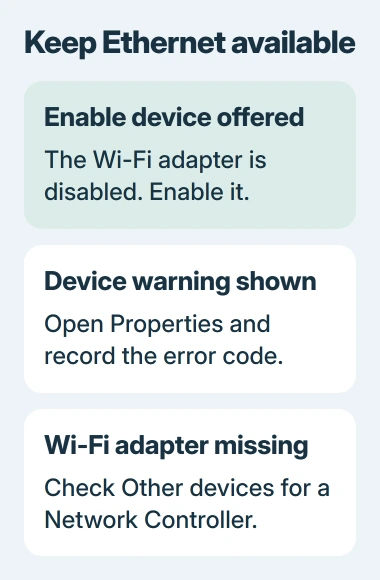
A Network Controller under Other devices can mean Windows is missing the driver for your wireless hardware. Have your computer's exact model and hardware details ready when looking for a replacement driver.
Check Windows Update, including available optional driver updates. If Wi-Fi failed straight after its driver changed, open the adapter's Driver tab. Try Roll Back Driver if available, then restart.
Before uninstalling a wireless driver, save its matching replacement installer on the PC or a USB drive. The post-update connection guide walks through that driver recovery and its fallback.
6. Use the Windows diagnostic before a full reset
Open Get Help, enter a description of your network problem, then follow the diagnostic prompts. On Windows 10, the older route is Settings > Network & Internet > Status > Network troubleshooter.
For a missing Wi-Fi control with the adapter present, press Windows + R, enter services.msc, and find WLAN AutoConfig. Right-click it and choose Restart, or Start if it's stopped.
If those checks fail, discuss Network reset with support before using it. It removes and reinstalls adapters. VPNs or virtual networks may need setting up again, including settings your working wired connection uses.
Tell support your adapter name, error code and which networks worked. If Wi-Fi fails for all devices, contact the router's maker or provider. If your PC fails on several working networks, have its wireless hardware or driver checked.
The Short Version
Use one router for the wired and wireless comparison, then test another Wi-Fi device. Check the radio, bands and saved connection. Repair the PC's adapter when the failure follows that PC, keeping Ethernet available.
Checked November 5, 2026.

Isaac Smith is the founder and editor of PC Glance, a website that covers computers, laptops, and technology. He is a tech enthusiast and a computer geek who loves to share his insights and help his readers make smart choices when buying tech gadgets or laptops. He is always curious and updated about the latest tech trends.