
Your iPhone says storage is full, and Maps is near the top of the list, even though you deleted the Maps app. The space did not come back with the app gone.
That space is most likely offline maps, and Apple says they can only be removed from inside Maps. I read an owner's thread on it and Apple's offline maps pages, and put the steps in the order that clears space fastest.
What the owner ran into
The owner had removed Maps and still had no room: "Ive tried everything and nothing is working and my storage is full because of the maps data".
A Level 10 volunteer's answer sounds backward at first, in their words: "Reinstall the Maps app, open Maps app > tap your round account icon in the upper right > tap Offline Maps > tap whichever maps you want to delete".
Status: iOS 18 and later, checked 26 September 2026. Offline maps take up storage and can only be deleted inside Maps, Apple says. If you deleted Maps, reinstall it first.
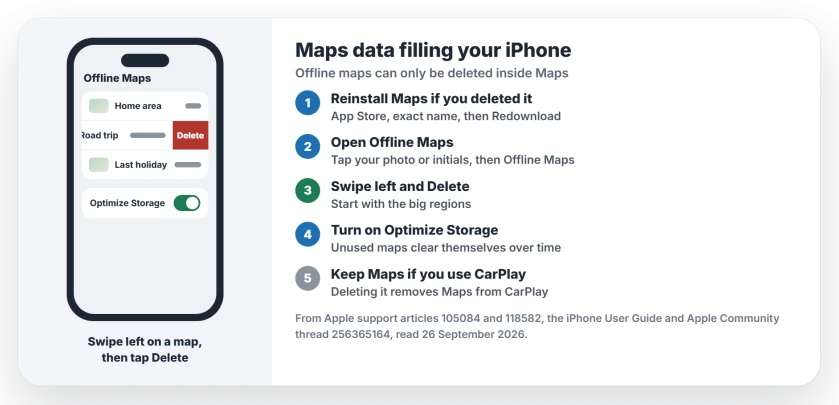
1. Put Maps back if you deleted it
It is the only door in, because Apple's offline maps article is clear that deleting them works only from inside Maps.
To restore it, open the App Store and search for Maps. Apple's steps say to "use the exact name of the app", then tap the Redownload button and wait for it to restore.
2. Open your offline maps list
In Maps, tap your photo or initials beside the search box, then tap Offline Maps, where every map you downloaded is listed.
Apple notes that offline maps take up storage space, and Maps shows each map's file size, so you can see which ones earn their space.
3. Delete the maps you do not need
Apple's quickest method: "Swipe left on the map, then tap Delete". Or tap a map and choose Delete Map.
Apple puts it plainly: "You can remove downloaded maps to free up storage space on your iPhone". Start with the big regions. They free the most space.
4. Let Maps clean up by itself
On the same Offline Maps screen, turn on Optimize Storage, and Apple says unused offline maps are then removed automatically after a while.
That keeps old trips from filling your phone again, and it is separate from any photo storage setting.
5. Check the storage again
Go back to Settings, then General, then iPhone Storage, and look at Maps once more. Give it a few minutes to recount; that timing is ours.
If Maps still looks large, you may keep the app after all and simply manage its maps. Apple warns that deleting Maps also removes it from CarPlay, which matters if you drive with it.
Other iPhone storage problems
If System Data is what fills your iPhone, the System Data page explains what sits in it. And if your offline maps stop working when you need them, the offline maps page covers downloads and settings.
Why is Maps using so much storage on my iPhone?
Offline maps take up storage space on your device, Apple says. Each downloaded region shows its file size in Maps, under Offline Maps.
How do I delete Maps data after deleting the Maps app?
Reinstall Maps from the App Store, open it, tap your picture, then Offline Maps, and delete the maps. Apple says offline maps can only be deleted inside Maps.
Can I delete offline maps from Settings?
No. Apple's article says the Maps app is the only place to delete them.
How do I stop offline maps filling my iPhone again?
Turn on Optimize Storage in Maps, under Offline Maps, and unused maps clear themselves after a while, Apple says.
The Short Version
- Offline maps are the likely space hog.
- They can only be deleted inside Maps.
- Reinstall Maps first if you removed it.
- Offline Maps, then swipe left and Delete.
- Turn on Optimize Storage afterwards.
- Deleting Maps also removes it from CarPlay.
Where to Next
Open Maps now, tap your picture, and check the Offline Maps list for regions you no longer need. It takes a minute.
How much space did you get back? Tell me in the comments. I will note how big offline maps get for readers.

Isaac Smith is the founder and editor of PC Glance, a website that covers computers, laptops, and technology. He is a tech enthusiast and a computer geek who loves to share his insights and help his readers make smart choices when buying tech gadgets or laptops. He is always curious and updated about the latest tech trends.