
Bright patches around an LCD laptop screen can look stronger on black in a dark room. Check in normal room lighting at a comfortable brightness. If the patches remain visible during everyday use, ask the manufacturer to assess them.
Lower brightness can make the patches less distracting, but it can't fix physical screen damage. These checks help you tell whether the effect changes with lighting or viewing angle, or needs service.
1. Compare the screen in ordinary room lighting
Open the picture or page where you noticed the problem and sit as you normally would. Turn on the room lights and compare. A black loading screen in a dark room can make small differences look much stronger than during normal work.
ASUS recommends checking LCD light leakage in normal office lighting, rather than only in a dark room. It directs you to support if the leakage is still visible in that lighting.
Look at an ordinary document and a movie scene too. Does the bright patch affect what you're viewing, or do you only notice it on a completely dark image? Note the difference so you can explain it to the repair team.
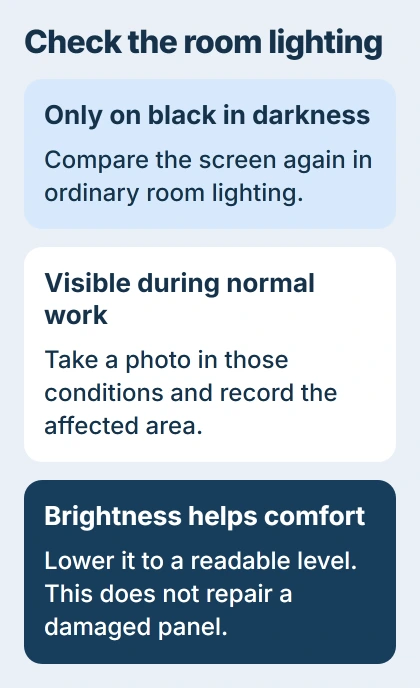
Take a photo in the lighting where the patch affects your work. Include the whole screen so support can see where it is. A camera that brightens a dark scene can make the patch look stronger than it does to your eyes.
Don't press the glowing corner or squeeze the frame around the screen. Neither is a supported repair, and you could damage the display. Check how it looks without putting pressure on it.
If the problem is green across the whole desktop instead of a pale edge patch, use the laptop green-screen checks. A color setting or graphics problem takes a different route.
2. Set brightness for the room you're using
On Windows 11, open Settings > System > Display and find the built-in screen's brightness control. Lower it to a comfortable reading level, then compare the same dark scene in the same room lighting.
The Windows brightness instructions cover the slider and automatic brightness options. Your laptop's brightness keys may make the same adjustment.
Turning down the backlight can make an edge patch less noticeable. Keep the screen bright enough to read comfortably. Making it too dim to use doesn't solve a patch that still gets in the way during work.
If brightness changes by itself, check the automatic controls on the Display page. Keep brightness steady while comparing the patch. The options you'll see depend on your laptop and screen.
An external monitor may have its own brightness buttons instead of using the laptop's slider. Check the built-in screen for this comparison; adjusting an external monitor won't change your laptop's display.
I'd try this before installing anything. You'll quickly see whether lower brightness makes the screen comfortable to use. A display driver can't physically close a light leak around an LCD panel.
3. Check whether the effect follows your viewing angle
Put the laptop on a stable surface and look straight at the screen. Move your head slightly to each side, then back to the center. Keep the same image and brightness throughout.
A broad glow that changes a lot as you move can come from the viewing angle. A patch concentrated in one area that stays put needs a different assessment. Describe what changes, rather than calling every bright area backlight bleed.
LCD screens have a light source behind the image. IPS, a common type of LCD, can show a glow when you look from off-center. OLED screens make light differently, so the LCD backlight explanation doesn't apply to an OLED laptop.
If you're unsure, look up the screen type in your exact model's specifications. One laptop family can have several screen options. The brand or laptop size alone won't tell you which one you have.
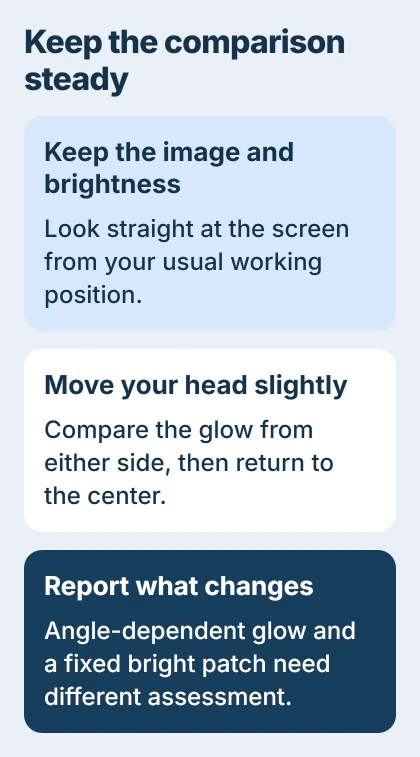
These observations help you describe the problem, but support still needs to assess warranty coverage. Note whether the glow changes as you move and whether it gets in the way of normal content in normal lighting.
If you see dark branching marks, a crack or a spreading black area, arrange a check for physical damage. Those need different attention from a mild glow around the edge of an otherwise readable picture.
4. Use the laptop's own display test
A built-in screen test lets you check whether the patch appears when Windows isn't drawing the picture. Follow your exact model's instructions; different brands don't all use the same keys to start the test.
For Dell's LCD self-test, shut down the laptop and connect its AC adapter. Disconnect external equipment as directed, but leave the power adapter plugged in.
Hold D, press Power and keep holding D until solid colors start appearing. Then release D. Check each color for the same uneven patch, unexpected lines or other visible problems.
The test is meant to show solid colors, so a full red or green screen at this stage is expected. Look for the unwanted patch or distortion within those colors.
If you see the same defect during the test, tell support it appears outside Windows too. They can then focus on the display hardware instead of having you repeatedly change app or graphics settings.
If the patch appears only sometimes, it may stay hidden during the test. Give support your normal-use photo and explain when it happens. For another brand, use its own screen-test instructions or ask support to explain the steps.
5. Arrange service when the patch affects normal use
Contact the seller or laptop manufacturer if the bright area still distracts you in normal room lighting, has recently worsened or appeared after a repair. Include your model, purchase date, photos and any self-test result.
Ask support to check it against your model's display standards. The inspection and purchase terms will determine your options. A visible glow doesn't always mean you need a new screen.
If the screen needs repair and an external display works, use the broken-laptop-screen guide to keep your computer usable while copying needed files and arranging service.
The Short Version
Compare at comfortable brightness in a lit room, then check whether viewing angle changes the patch. Run your model's screen test. If the patch still gets in the way of normal use, ask the seller or service team to assess it.
Checked November 5, 2026.

Isaac Smith is the founder and editor of PC Glance, a website that covers computers, laptops, and technology. He is a tech enthusiast and a computer geek who loves to share his insights and help his readers make smart choices when buying tech gadgets or laptops. He is always curious and updated about the latest tech trends.