

You give each app its own desktop, so your layout builds itself. Then the Mac sleeps, and every app lands on one desktop. That is annoying when the layout took time to set up. I would try the reassign trick first.
It held through a reboot for one owner. A ham radio operator raised the problem on MacRumors in September, and the thread drew 16 replies in ten days.
What breaks after sleep
The opening poster keeps radio apps across two desktops. They "are assigned to open in the correct space so that they are opened in my preferred layout".
On macOS 27 that stopped. In their words: "Since installing Golden Gate this doesn't work after the computer has been sleeping for a while".
Another owner has far more desktops: "I have 16 Desktop spaces and no apps remember their assigned space". They described the slow fade: "It appears to work and then sometime later the app is no longer assigned to its space".
A third saw it after restarts too: "After a restart all the apps start in the same desktop and not in the desktop they are supposed to".
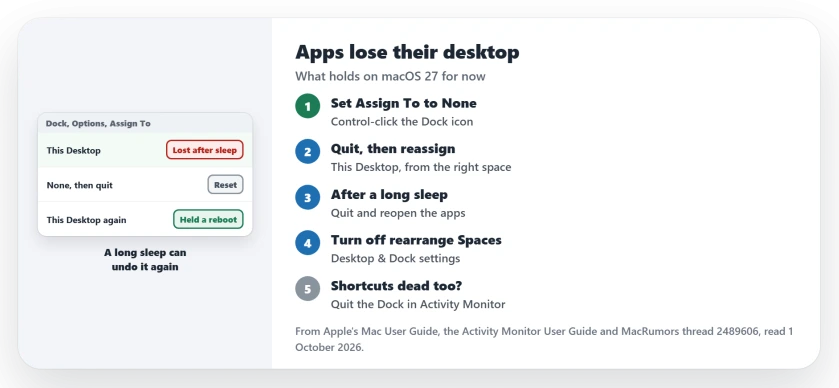
Status: checked 1 October 2026. No fix from Apple yet, and one owner still saw it in the macOS 27.2 beta. The None, quit and reassign reset held through a reboot, until a long sleep.
1. Set it to None, quit, then reassign
Apple's normal route starts in the Dock. Apple's Spaces guide says: "On your Mac, Control-click an app's icon in the Dock". Then choose Options and look at Assign To.
The owner trick adds a reset first. One member wrote that what stuck was setting Assign To to None, then to "quit the app, then reassign This Desktop from the Space I want".
So first go to the desktop where the app belongs. Set Assign To to None, quit the app, open it again there, and choose This Desktop.
Apple defines both settings: "None: The app opens in whichever space you're using at the time". And "This Desktop: The app opens only in the current space".
The owner with 16 desktops tried it. In their words: "This does seem to work. I tested it with several Apple apps. It also seems to survive a reboot".
2. After a long sleep, quit and reopen the apps
The fix did not last the night. Two days later the same owner wrote: "Today after the Mac slept all night, all the Apple apps have lost their Spaces".
The member who found it saw the same. The reset "only held until a long sleep for me too", they wrote.
The opening poster had already found a stopgap: "If I close the apps and reopen them with the computer awake there isn't a problem". So after an overnight sleep, quit the apps you assigned and open them again while the Mac is awake.
3. Check the rearrange setting
One member pointed to a Desktop & Dock setting. They "turned off Automatically rearrange Spaces in Desktop & Dock and the native apps stayed where I put them".
Apple describes that option as a way to "Get quicker access to the desktops you used most recently". With it on, macOS reorders your desktops by how recently you used them.
Turn it off, though it was not enough on its own for others. The opening poster found theirs "was already turned off", and the owner with 16 desktops wrote: "Native apps do not stay in their assigned spaces".
4. If the desktop shortcuts stop too, restart the Dock
Switching desktops with Control and a number can fail at the same time. One owner said it did "nothing but producing an error sound".
Another member had the fix: "restart the Dock (in Activity Monitor or something similar) when it stops working". The owner with the error sound replied: "This works, thank you".
Open Activity Monitor, select Dock in the process list, click the stop button, and choose Quit. Apple says Quit is "the same as choosing File > Quit within an app". macOS then reopens the Dock by itself.
5. Report it each time it drops
Two owners have sent it to Apple. One member has been "filing Feedback every time it drops".
When you report it, mention that it happens after sleep, and say how many desktops you use and which apps lose their place.
If Mission Control misbehaves in other ways on macOS 27, the Mission Control page collects those. And if the wallpaper turns black as you switch desktops, see the black wallpaper page.
Why do my Mac apps open on the wrong desktop after sleep?
macOS 27 drops the Assign To setting after the Mac sleeps for a while. Owners report it with Apple apps and others alike, and there is no fix from Apple so far.
How do I assign an app to a desktop on a Mac?
Go to the desktop you want, Control-click the app's icon in the Dock, choose Options, and pick This Desktop under Assign To.
Does turning off Automatically rearrange Spaces fix it?
It helped one member's native apps, but the opening poster already had it off. Turn it off and use the None reset as well.
The Short Version
- macOS 27 drops app desktops after sleep.
- Set the app to None, quit, then reassign it.
- That held through a reboot for one owner.
- An overnight sleep undid it again.
- Quit and reopen the apps after a long sleep.
- Turn off Automatically rearrange Spaces.
- Restart the Dock if Control-number shortcuts fail.
Where to Next
Try the None reset on one app today. Then check it after the next overnight sleep, before you open anything else.
If you find a step that survives a long sleep, describe it in a comment and name your macOS version. I will put every lasting fix on this page.

Isaac Smith is the founder and editor of PC Glance, a website that covers computers, laptops, and technology. He is a tech enthusiast and a computer geek who loves to share his insights and help his readers make smart choices when buying tech gadgets or laptops. He is always curious and updated about the latest tech trends.