
Windows 11 Media Creation Tool issues can mean a closing app, failed download or missing USB drive. If the app opens and disappears, start with a fresh installer from Microsoft's Windows 11 download page.
The widely reported Windows 10 launch failure from September 2025 was fixed with an updated tool on October 28, 2025. Replace that old download instead of trying to run it again.
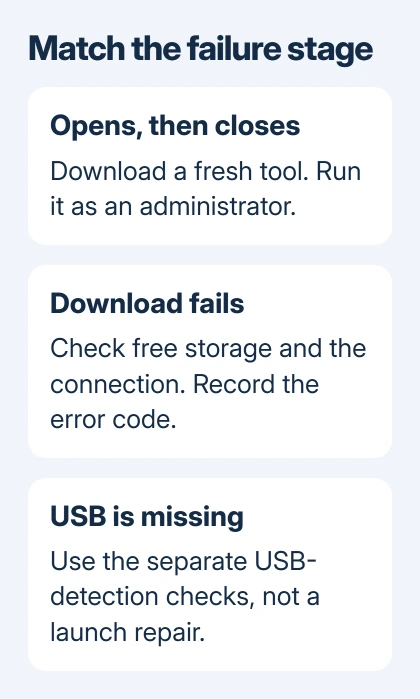
1. Replace an old tool that closes on launch
Open the official Windows 11 download page and find Create Windows 11 Installation Media. Select Download Now in that section, rather than the Installation Assistant button in the section before it.
Save the new file, then run it using an administrator account. If Windows asks for administrator approval or credentials, complete that prompt. A work-managed computer may require the IT team to run it.
Microsoft's resolved-issue record identifies version 26100.6584, released September 29, 2025, as the tool that could close without an error on Windows 10. It records the replacement on October 28.
If the new copy reaches the license screen and media choices, the launch problem is fixed. Continue creating your installation media.
If it still closes, note whether Windows displays a security message or an error code. Keep that exact text for support. An app closing before its license screen is different from Windows Setup rejecting the PC later.
2. Check the processor and the job you're asking it to do
The tool creates x64 Windows 11 media. It doesn't create Arm64 media for Snapdragon and other Arm-based PCs. On Windows 10 or 11, open Settings > System > About and check System type.
For an Arm-based PC, use the official Arm64 download or the upgrade route offered for that device. Don't expect running the x64 media tool again to produce an Arm installer.
Choose among the Windows 11 download options based on the job. The Media Creation Tool makes installation media; the Installation Assistant upgrades the current PC; an ISO is the complete disk-image download.
Creating media successfully doesn't mean the target PC meets Windows 11's requirements. If the failure appears inside Windows Setup, record that message and check the target PC's compatibility instead of troubleshooting the download app.
I wouldn't change the registry to force the tool past a processor mismatch. Use the download built for your PC.
3. Check storage and the connection for a failed download
The tool needs an internet connection and enough free storage on the computer and the destination. A nearly full system drive can still be a problem even when the USB stick has plenty of room.
Open File Explorer > This PC and check the drive where Windows and the download are stored. Free space by moving your own large files to another drive, then rerun the fresh tool.
For USB media, choose a blank stick holding 8 GB or more. Copy anything needed off it first, because creating installation media deletes its contents.
If downloading fails, confirm that ordinary web downloads work on that connection. On a managed network, ask IT whether the Windows download is being blocked. Tell IT if it keeps failing at the same stage.
Note the stage and error code before closing the tool. Tell support whether it failed during the download, while writing to USB or when checking the PC during installation.
For USB flash drive not found, use the USB-detection fixes. That covers storage visible in File Explorer but absent from the tool's list, rather than a download that never starts.
4. Download the ISO when the tool still won't run
The same official download page offers Download Windows 11 Disk Image (ISO) for x64 devices. Choose the available edition, confirm the product language and generate the download link.
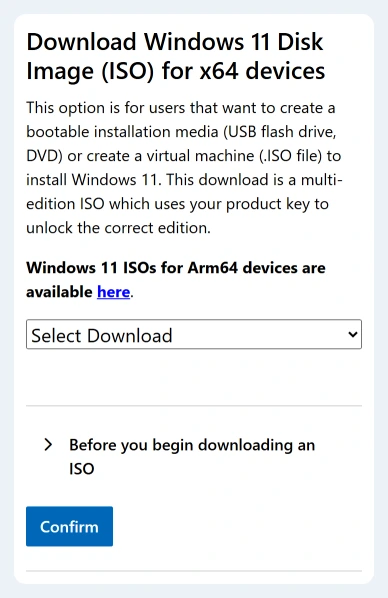
Use the language matching your current Windows installation when planning an upgrade. An ISO bypasses the media tool's download interface; it doesn't bypass the hardware requirements of Windows Setup.
After downloading, right-click the ISO and select Mount. Open the new virtual drive in File Explorer and run setup.exe to start an upgrade from inside Windows.
If Mount is missing, open the ISO's Properties. On General, change Opens with to Windows Explorer, apply it, then try the right-click menu again.
Back up important files before starting the installation. Review what Setup says it will keep, and stop if that choice doesn't match your intended upgrade.
This starts Setup on a running PC. Copying the ISO file onto a USB stick won't make that stick bootable.
5. Escalate with the failure stage and exact code
If a fresh tool and the direct ISO download both fail, use Windows Get Help and describe the download failure. Include the Windows version from winver, processor type, tool version, free drive space and exact error code.
For a company-managed PC, send those details to IT first. If the download completes and Setup then refuses the upgrade, give support the Setup message rather than describing the Media Creation Tool as broken.
The Short Version
Replace an old crashing tool, confirm x64 support, and check storage and the connection. Treat a missing USB as its own fault. Use the direct ISO download if the tool still won't launch, then troubleshoot any later Setup error separately.
Checked November 7, 2026.

Isaac Smith is the founder and editor of PC Glance, a website that covers computers, laptops, and technology. He is a tech enthusiast and a computer geek who loves to share his insights and help his readers make smart choices when buying tech gadgets or laptops. He is always curious and updated about the latest tech trends.