

Start with the good news: in most cases your files are not deleted. They are just sitting somewhere other than where you expect.
For most people the files turn up in iCloud or in a folder the update quietly created. For a few people, mostly anyone without a backup, some files really were lost.
The first time my own Desktop went empty after a macOS update, I was sure I had lost a folder of work. I had not. It was sitting in iCloud with a little cloud icon, half downloaded.
Check the safe stuff first, and do not touch anything that could make it worse.
First, Do Not Touch the iCloud Settings Yet
Before anything, a warning that comes straight from people who lost files. Do not start switching "Desktop and Documents in iCloud" on and off, do not reinstall macOS, and do not erase anything.
Toggling that one iCloud setting is exactly what relocates files and makes them harder to find. We will get to iCloud, just carefully.
Work down the list and you will most likely find them long before the scary stuff.
Confirm Your Files Are Safe From Another Device
This is the calmest place to start. If your files were in iCloud, there is a good chance they are sitting safe in the cloud right now, and you can confirm that before you change a single thing on your Mac.
Here's what to do:
- On your iPhone or iPad, open the Files app, tap iCloud Drive, and look in Desktop and Documents.
- Or on any computer, go to iCloud.com, sign in, and open iCloud Drive.
- If your files show up there, breathe out. They are safe. The rest of this is just about getting them back down onto your Mac.
Download Them From iCloud Drive on Your Mac
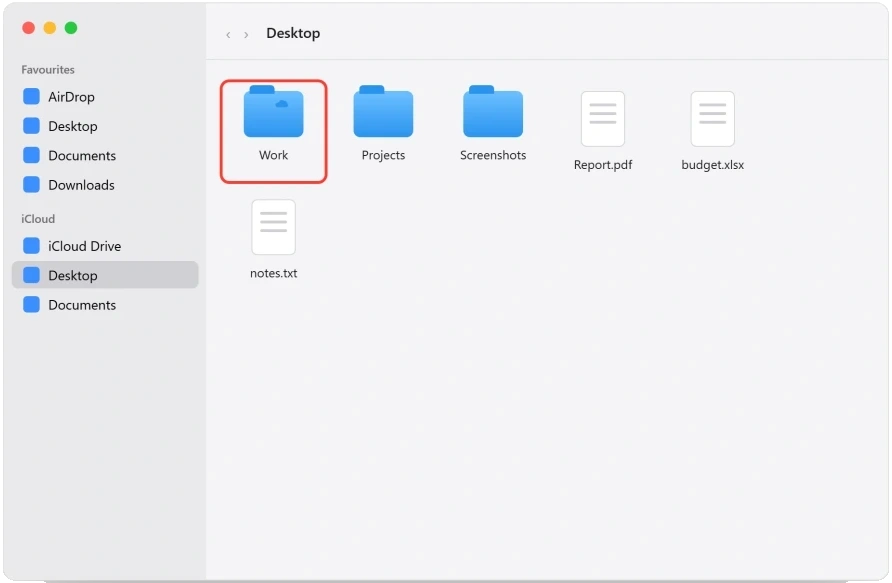
The files are hiding here nine times out of ten. macOS Tahoe is pushy about moving your Desktop and Documents into iCloud Drive, so they are not on your "local" Desktop anymore.
They live under iCloud now, and Apple's Desktop and Documents in iCloud Drive guide spells out how that setup works.
Here's what to do:
- Open Finder.
- In the left sidebar, under iCloud, click Desktop and Documents.
- See a small cloud icon with a down arrow next to a file or folder? That means it is in iCloud but not downloaded yet. Click it, or right click and choose Download Now, to pull it back.
Pro tip: Get on Wi-Fi and give it time. If your MacBook's Wi-Fi keeps dropping on Tahoe, fix that first or the download stalls.
With a lot of files, iCloud looks completely frozen right up until everything suddenly appears at once.
Check the Hidden Folders the Update Created
Almost no guide mentions this next spot, and it is usually what cracks the case open. When the update cannot place your files normally, it does not throw them away.
It tucks them into spots most people never know exist.
Check all three:
- A folder named after your Mac. When iCloud merges the Desktops from more than one Mac, it sometimes nests your files inside a folder called something like Desktop - [Your Mac's Name] inside iCloud Drive, or a Desktop folder buried inside another folder. Your missing files are very often sitting right inside it, untouched.
- The archive folder. In Finder, press Command + Shift + G (Go to Folder), paste ~/iCloud Drive (Archive), and press Return.
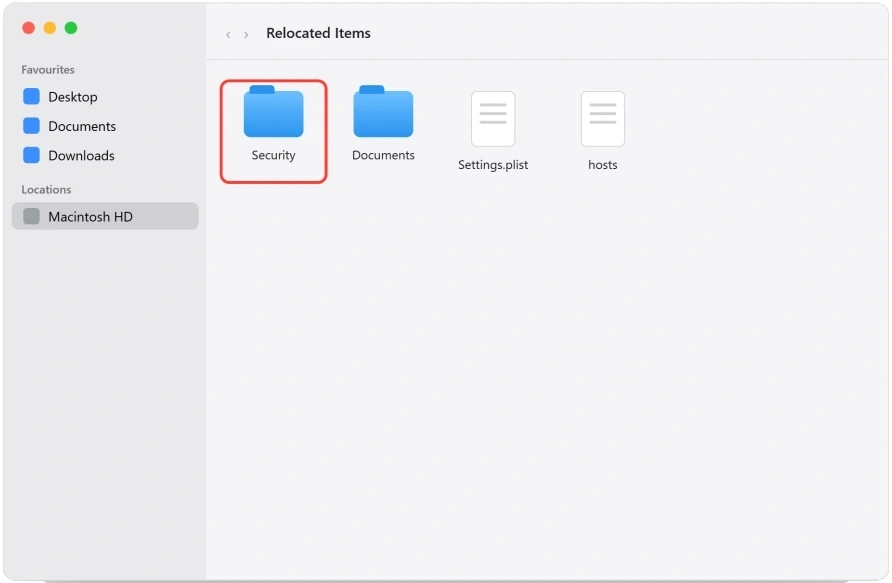
- The relocated items folder. Same Go to Folder box, this time /Users/Shared/Relocated Items (it often has a "Security" subfolder inside).
Drag anything you find back onto your Desktop and you are done.
Check Your Local Home Folder
This one trips up almost everybody: you can end up with two Desktop folders. The iCloud one, and a plain local one inside your Home folder.
If iCloud sync got toggled at some point, your files may have landed in the local one.
Here's what to do:
- In Finder, click Go in the menu bar, then Home (or press Command + Shift + H).
- Open the Desktop and Documents folders here. These are the local ones, separate from iCloud.
- Your files may be sitting in here the whole time.
Make Sure You Are in the Right User Account
Quick one, but it catches people. Sometimes a big update signs into a different account, or creates a new one, and you are just looking at an empty Desktop that is not actually yours.
Here's what to do:
- Open the Apple menu, then System Settings, then Users and Groups.
- If there is more than one account, or a name you do not recognise, log out (Apple menu, then Log Out) and sign back into your account.
If your Desktop fills back up the second you log into the right account, that was the whole thing.
Re-establish iCloud Sync, Carefully
If you saw your files in the cloud back in the first check but they just will not come down to your Mac, sync is stuck.
Re-establishing it usually kicks the download back to life, and files often reappear right after.
Here's what to do:
- First, check you actually have enough iCloud storage (Apple menu, System Settings, your name, iCloud). If iCloud is full, nothing syncs.
- Glance at Apple's System Status page to be sure iCloud is not down on Apple's end.
- Then sign out and back in: System Settings, your name, scroll to the bottom, Sign Out, then sign back in. Give it time to re-sync.
Important: Do not turn OFF "Desktop and Documents" in iCloud to "reset" it. That is the move that relocates files and makes the mess worse. Sign out and back in instead. It re-syncs without moving anything around.
Already switched it off, and the switch refuses to come back on? Clearing the way for that switch covers the old folders and aliases that block it.
Run Through the Quick Classics
Worth a couple of minutes before the heavy options.
Here's what to do:
- Trash: open it from the Dock. If your files are in there, right click and choose Put Back. Get them out before you empty it.
- Hidden files: click your Desktop and press Command + Shift + Period (.) to reveal anything that was hidden.
- Listed in Finder, not on the desktop: if Finder's Desktop folder shows the files, the desktop is simply not drawing them.
- iCloud Recently Deleted: at iCloud.com, open iCloud Drive, then Recently Deleted (it holds files for 30 days). Also check Account Settings, then Restore Files.
- Restart, then wait ten minutes. Your Mac is rebuilding the Spotlight index after the update, so search can come up empty for a while even when the files are there. If it stays dead, our Spotlight fix for Tahoe covers it.
Restore From Time Machine
I put this last, but it is the most reliable fix of the whole list.
The people who got everything back almost all did it with Time Machine, restoring from a backup made before the update.
Here's what to do:
- Plug in your Time Machine drive. If the drive will not mount after Tahoe, fix that first.
- Open the folder your files used to live in.
- Open Time Machine from the menu bar or System Settings.
- Use the timeline to step back to a point before the Tahoe update.
- Select your files or folders and click Restore.
If you cannot even get into your account normally, you need macOS Recovery. On an Apple Silicon Mac, shut down, then hold the power button until Loading startup options appears and click Options.
On an older Intel Mac, restart holding Command + R instead. Either way, then choose Restore from Time Machine Backup.
If They Are Genuinely Gone
I will be straight with you. Sometimes files were never synced to iCloud and there is no backup, and in that case they may really be gone. Here is your last line of defense:
- Data recovery software. Disk Drill and similar tools can scan your drive for deleted files that have not been overwritten yet. Use the Mac as little as possible until you run one, because every new file written lowers your odds.
- Apple Support, and ask for a senior advisor. This one matters. A junior advisor may tell you that you are out of luck, while a senior advisor can escalate the same case as a genuine issue. If the first person cannot help, politely ask to escalate.
- iCloud recovery within 30 days at iCloud.com, under Account Settings, then Restore Files.
The Short Version
For most people the files turn up in iCloud Drive on the Mac, with that little cloud icon next to them, waiting to be downloaded.
If they are not there, work down the hiding spots in order: a folder named after your Mac, the iCloud Drive (Archive) and Relocated Items folders, your local Home Desktop and Documents, then the right user account.
Stuck sync gets fixed by signing out and back in, never by toggling Desktop and Documents off. And if all of that comes up empty, Time Machine is the fix that actually got people their work back.
The real lesson here: iCloud is a sync service, not a backup. If you do not already run Time Machine, set it up the moment your files are back.
It is ten minutes today that saves you one very bad day later.
Where to Next
More macOS Tahoe help: This fix is part of our macOS Tahoe problems and fixes guide, a single place that rounds up every common Tahoe issue.
Where the desktop goes black switching between Spaces rather than losing files, that has its own cause.
Where the files turn out to be in iCloud rather than gone, Tahoe moving your files to iCloud explains the setting that did it and how to reverse it.
While you are in System Settings, one nearby list is worth a look. Login items decide what launches itself every morning.
If something else on your Mac is acting up after the update, start there.

Isaac Smith is the founder and editor of PC Glance, a website that covers computers, laptops, and technology. He is a tech enthusiast and a computer geek who loves to share his insights and help his readers make smart choices when buying tech gadgets or laptops. He is always curious and updated about the latest tech trends.