
After the iOS 26 update, your location sharing breaks in one of a few ways: you cannot see a family member on the map, they cannot see you, or Find My shows a frozen, hours-old location.
Before you reinstall anything or sign out of iCloud, check the hidden Share My Location switch, because chasing the wrong one is what wastes everyone's time.
iOS 26 has two different "Share My Location" switches, and the update silently turned off the hidden one. As one person put it, "iOS update switched off Shared Location in System Services. So there, caused by the update."
Before You Start, Two Things
Two things will save you a lot of frustration:
- Check which way it is broken. Can you not see them, can they not see you, or both? It is common to have one direction working and the other dead, like the user who said, "family members can see me, I can't see them."
- You will fix it on both phones. The update can flip the switch off on either side, so the person sharing and the person viewing both need to check. Do not just fix your own phone and stop.
Turn On the Hidden "Share My Location" Switch
This is the real fix, and it is buried where almost nobody looks. There is a second Share My Location toggle hidden under System Services, past every single app in your location list, and the update switched it off.
Here's what to do:
- Go to Settings, then Privacy & Security, then Location Services.
- Scroll all the way to the bottom and tap System Services.
- Turn Share My Location back on, and confirm Find My iPhone is on in that same list.
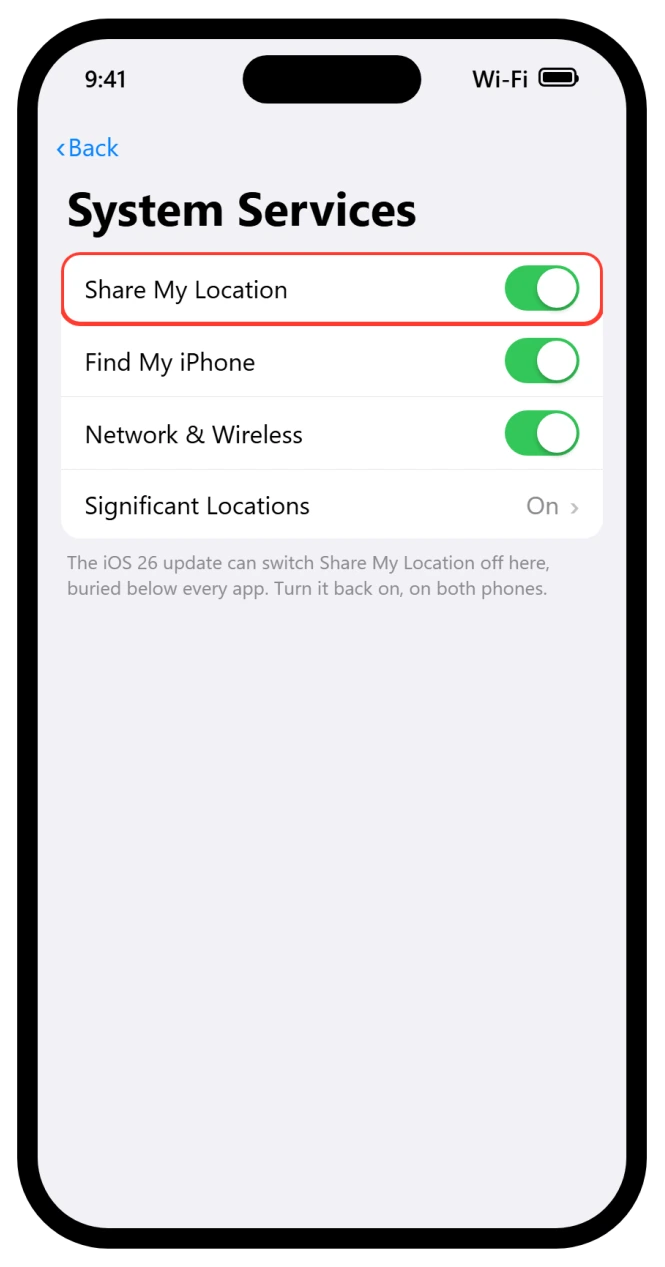
While you are on this screen, turn on Network and Wireless too.
If you were getting "sharing location unavailable, please try again later," or you could not add people at all, that toggle plus a passcode is usually what is missing.
Set a passcode under Settings, Face ID and Passcode, since Find My needs one.
Important: Do all of this on both phones.
One person confirmed it plainly: "both our phones had Share My Location turned off by the update and worked perfectly once this was turned back on." This is the single most reported fix, so try it before anything heavier.
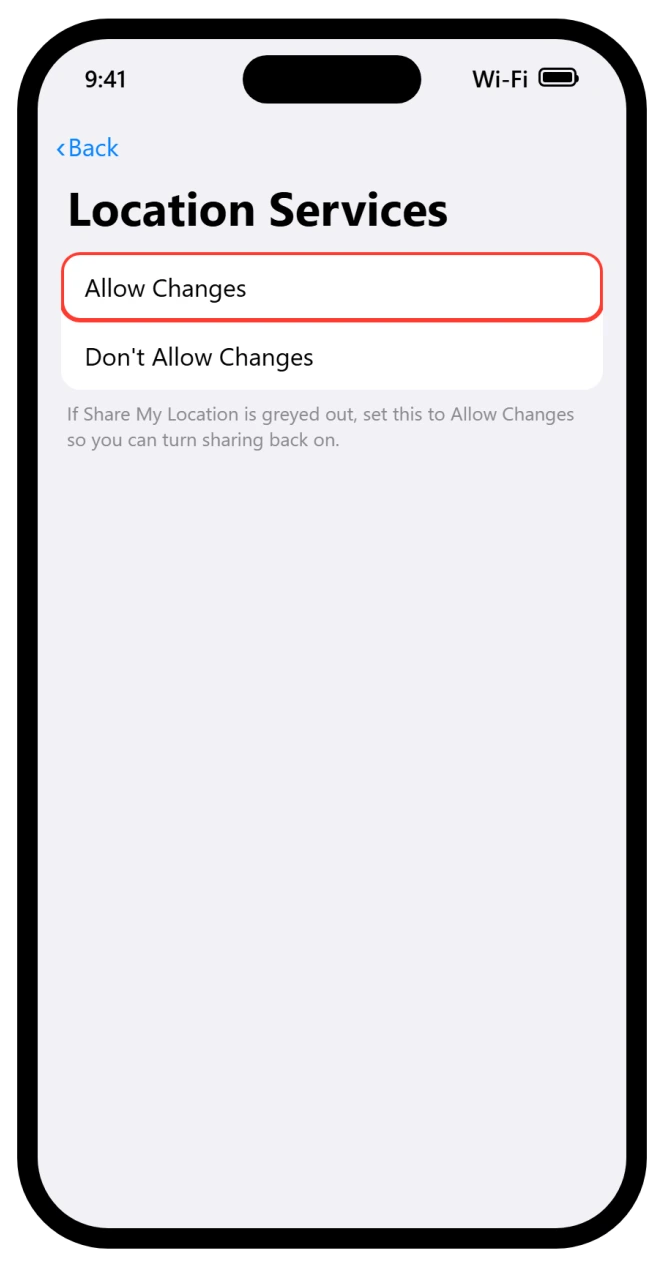
If Share My Location is dimmed and you cannot tap it, Screen Time is locking it, which is especially common on family or child accounts.
Go to Settings, then Screen Time, then Content & Privacy Restrictions, tap Location Services, and set it to Allow Changes (you will need the Screen Time passcode).
Once changes are allowed, the toggle becomes tappable.
Confirm the Normal Chain Is On
With the hidden switch sorted, make sure the obvious settings are correct too. All of these have to line up.
Here's what to do:
- In Location Services, make sure the master toggle is on, and that Find My is set to While Using or Always with Precise Location on.
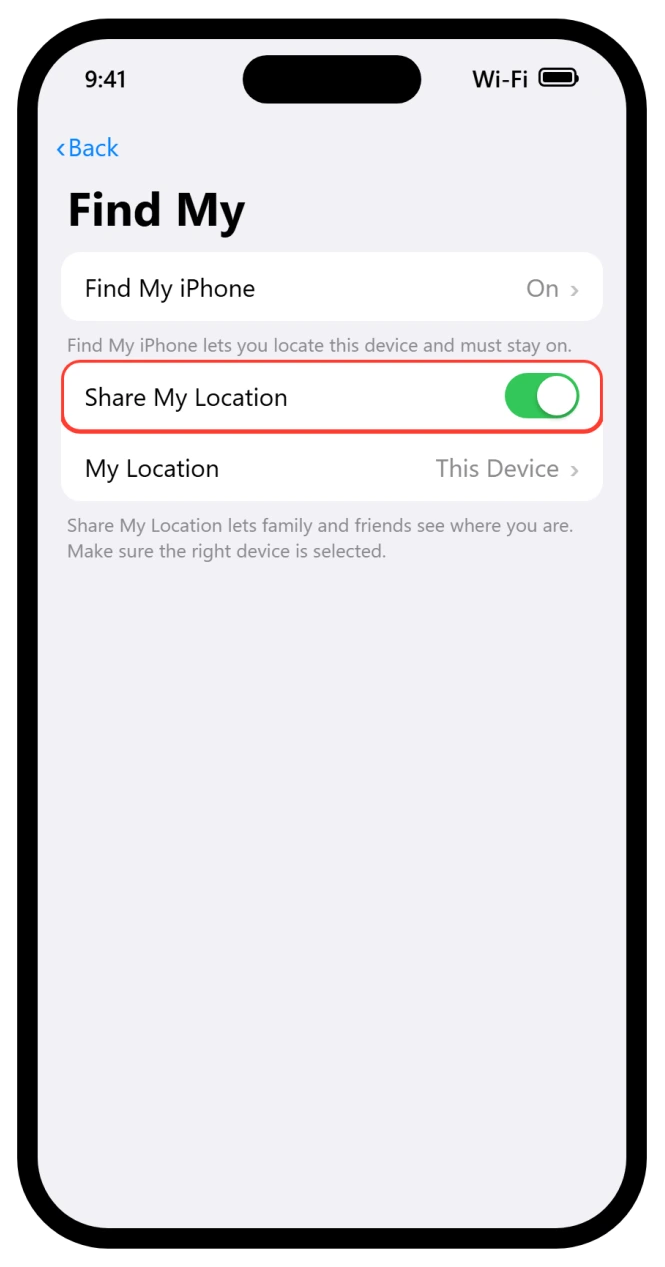
- Go to Settings, tap your name at the top, then Find My.
- Make sure Find My iPhone is on and Share My Location is on, and that the right device is picked under My Location.
Have the Other Person Accept the New Terms
This next one is easy to miss. After a big update, Apple often makes you accept new iCloud Terms and Conditions, and location sharing silently fails until you do.
If a friend cannot see you, they may simply have an unaccepted agreement sitting on their phone.
Here's what to do:
- On the other person's iPhone, open Settings and accept any iCloud Terms and Conditions prompt at the top.
- Then have them re-share their location with you.
Know Where Location Lives Now
A lot of "broken sharing" after iOS 26 is not broken at all.
Apple moved location out of the Messages chat profile, so it looks like it vanished, the same way texts seem to go missing after iOS 26 when they are only filtered.
As one user noticed, "their location used to appear in their contact profile, it is no longer there."
Here's what to do:
- To see someone, open the Find My app and tap the People tab. That is the home for location now.
- To share from a chat, open the conversation, tap the plus button, and choose Location.
To send just your arrival time for one drive, Maps has Share ETA, and it can text a friend before you notice.
Stop and Re-Share From Scratch
If one direction still will not work, tearing the sharing down and rebuilding it clears a stuck link. This fixes a lot of one-way cases like "my friends can still see my location but I can no longer see theirs."
Here's what to do:
- Open Find My, tap People, tap the affected person, and choose Stop Sharing My Location.
- Then add them again through People, Share My Location, the same steps in Apple's location sharing guide.
- After any update or restart, re-share even if your toggle still reads on, because a reboot can quietly drop the live link.
Refresh a Frozen or Old Location
If the map shows where someone was hours ago, the location just needs a nudge to refresh.
Here's what to do:
- Open the person in Find My, close their card, and reopen it. Sometimes it takes a couple of tries to force a live refresh.
- Toggle Airplane Mode on for about ten seconds, then off, to re-register location. If your iPhone keeps losing service or 5G after the update, fix that first, since a phone with no signal cannot report where it is.
- Make sure Date & Time is set automatically (Settings, General, Date & Time). Apple's page on not seeing a friend's location lists a wrong date as one of the causes. If the clock keeps coming back wrong, our page on the two switches behind the automatic clock covers the one that sits under Location Services.
If it is an AirTag rather than a person that sits in the wrong place, the AirTag fixes for iOS 27 start with Precise Location.
The Heavier Resets
If you have genuinely done all of the above on both phones, work through the stronger fixes below, in order.
Here's what to do:
- Sign out of iCloud and back in. Settings, your name, Sign Out, restart, then sign back in. One user celebrated, "I signed out of my Apple ID and signed back in. It worked." If it then keeps asking you to sign in, fix that loop next.
- Force restart both iPhones. Press and release Volume Up, press and release Volume Down, then hold the Side button until the Apple logo appears.
- Remove suspect profiles. Settings, General, VPN and Device Management, delete any VPN or security profile, then restart.
- Reset Location & Privacy. Settings, General, Transfer or Reset iPhone, Reset, Reset Location & Privacy. This does not erase your data, but every app will ask for location permission again.
Important: Apple has acknowledged a location-sharing bug in iOS 26 with engineers working on it, but it has carried across point updates, so do install the latest iOS 26 release, but pair it with the manual System Services step above rather than expecting the update alone to fix it.
The Short Version
Do not trust the obvious switch. iOS 26 hid a second Share My Location toggle under Location Services, System Services, and turned it off during the update.
Flip that one back on, on both phones, confirm the normal Find My settings line up, and the map almost always comes back to life.
If a single direction is still dead, stop sharing and re-share to rebuild the link, and only then reach for the heavier resets like signing out of iCloud and force restarting.
A safety alert rather than a sharing problem: Check In runs on its own chain, not Find My, and our guide to why Check In alerts when nothing is wrong explains what your friend was actually sent.
Where to Next
More iOS 26 help: This fix is part of our iOS 26 problems and fixes guide, a single place that rounds up every common iOS 26 issue.
If something else on your iPhone is acting up after the update, start there.
For Location Sharing problems that are not tied to iOS 26, the general Location Sharing guide has the basic checks.

Isaac Smith is the founder and editor of PC Glance, a website that covers computers, laptops, and technology. He is a tech enthusiast and a computer geek who loves to share his insights and help his readers make smart choices when buying tech gadgets or laptops. He is always curious and updated about the latest tech trends.