
Your M4 Mac mini freezes, restarts itself out of nowhere, or hard-locks on a black screen after the macOS Tahoe update.
How it fails tells you the cause. Most generic fix lists skip that, so people chase the wrong one and lose hours.
A sudden restart is a kernel panic or a hardware issue, never simply "the CPU was busy." A freeze where your cursor still moves is the Spotlight indexer stuck in a loop.
On top of that, two of the loudest M4-specific crashes are unfixed Apple bugs with dead-simple workarounds, the native HDMI port and a 240Hz monitor.
First: Read the Panic Log, It Names the Culprit
This one step points you straight at the cause instead of guessing.
When only one app hangs and macOS still responds, close the frozen app first before treating it as a whole-system crash.
Here's what to do:
- After a restart, if you see Apple's "Your computer restarted because of a problem" message, click Report, then copy the whole thing into TextEdit and save it (on Tahoe these logs sometimes vanish from disk).
- To read one later, open the Console app, choose Crash Reports, and open the kernel or panic entry.
- Look for three things: a third-party name like macFUSE or an antivirus (that is your culprit), the phrase AppleT8122DPTXPort deactivateTimeoutOccurred (the display and HDMI bug), or a watchdog timeout (usually a peripheral).
Pro tip: If there is no panic log at all and the Mac just hard-locks, that empty report folder is a clue, not reassurance.
It points to a hardware fault or a bad accessory, so lean on the peripheral check and the hardware test below.
Stop Using the Native HDMI Port
If your panic log mentions AppleT8122DPTXPort, this is a known, unfixed display bug, and there is a clean workaround. Swapping the HDMI cable does nothing. You have to bypass the port itself.
Here's what to do:
- Connect your monitor with a USB-C or Thunderbolt to HDMI (or DisplayPort) adapter instead of the mini's built-in HDMI port.
- As one user put it, "I left my second monitor connected via USB-C to HDMI adapter and so far no panics, so the problem seems to be the HDMI port."
Drop a 240Hz Monitor to 120Hz
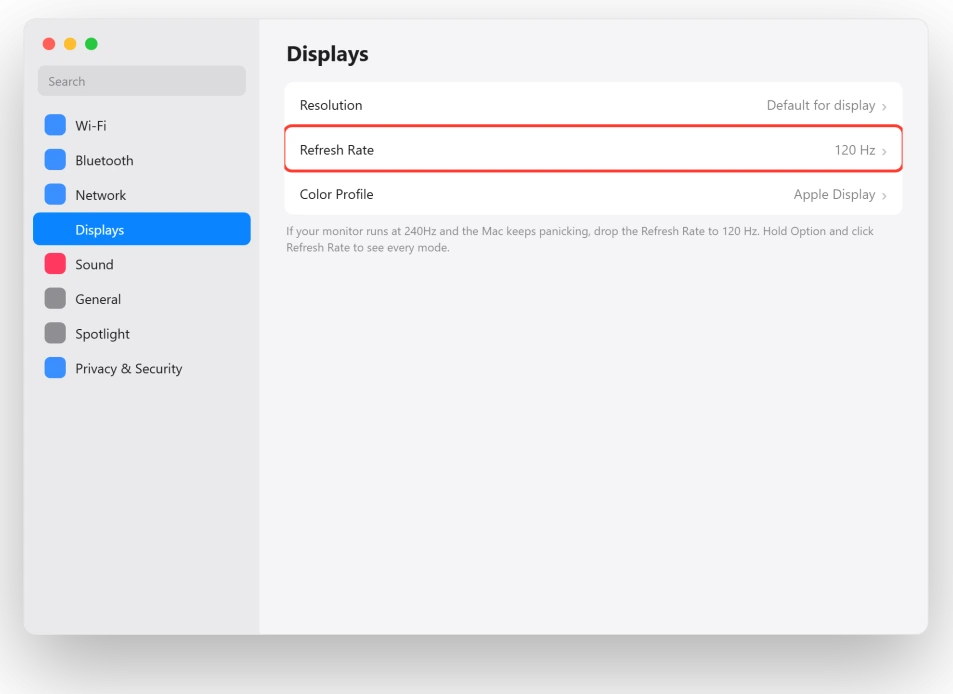
If you run a high refresh rate display, this single change has stopped the freezes completely for a lot of people.
And if Tahoe stops detecting your monitor entirely, that is a separate bug with its own fix.
Here's what to do:
- Open System Settings, then Displays, and select your external monitor.
- Lower the Refresh Rate from 240Hz to 120Hz (hold Option and click Refresh Rate to reveal every mode).
Pro tip: While you are easing the load on the graphics, you can also turn on Reduce Transparency and Reduce Motion under Accessibility, Display, which lightens what Tahoe's new look asks of the GPU.
Kill the Spotlight Runaway
If your Mac freezes but the cursor still moves, or it pauses for a few seconds over and over, a stuck Spotlight indexer is the usual cause.
Turning two switches off has the highest hit rate of anything here.
Here's what to do:
- Open System Settings, then Spotlight.
- Turn off Show Related Content and Help Apple Improve Search.
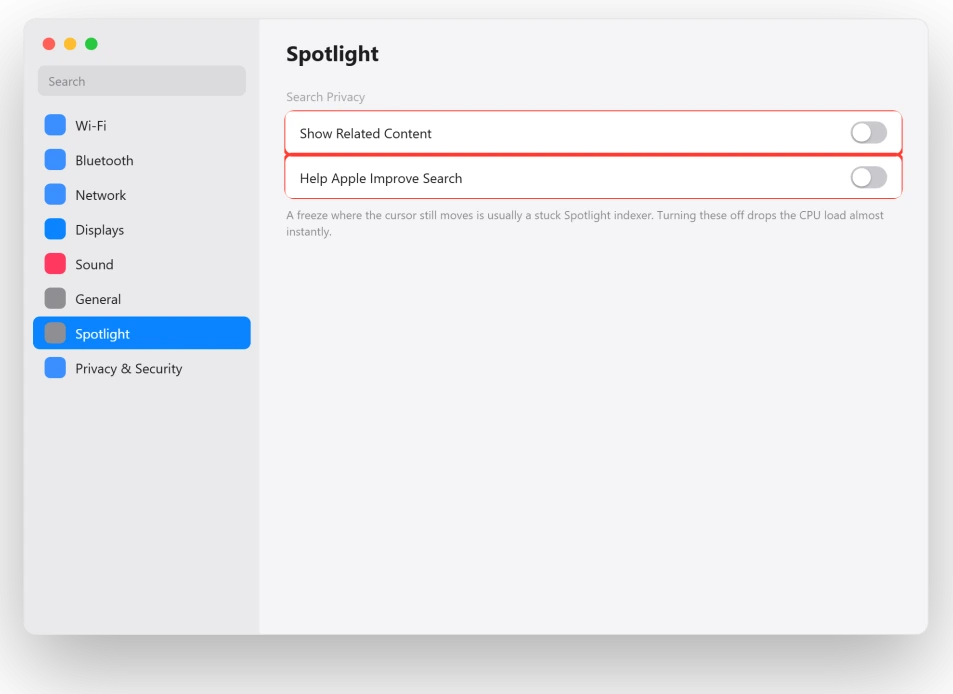
One report described the CPU load dropping "almost instantly" and the pauses stopping within an hour. You can safely turn these back on after a week, once indexing settles.
Strip It to the Bare Essentials
A single misbehaving accessory can trigger a watchdog panic that looks exactly like a software crash. Removing everything but the basics is the fastest way to rule that out.
Here's what to do:
- Unplug every non-essential device: external and backup SSDs, docks, and hubs, so only one monitor, a keyboard, and a mouse remain.
- Try a different cable and a different wall outlet.
- Reconnect one device at a time, restarting after each, to find the offender.
One person summed it up after unplugging a backup drive: "now the only peripherals are monitor, keyboard, mouse, and the machine has not hung once."
Remove Third-Party Kernel-Level Software
Software that runs deep in the system, like antivirus, cleaners, or disk tools, is a top cause of panics after a macOS update. The named offenders include Kaspersky, ESET, CCleaner, Malwarebytes, and macFUSE.
Here's what to do:
- Uninstall these with the maker's official uninstaller, not by dragging them to the Trash.
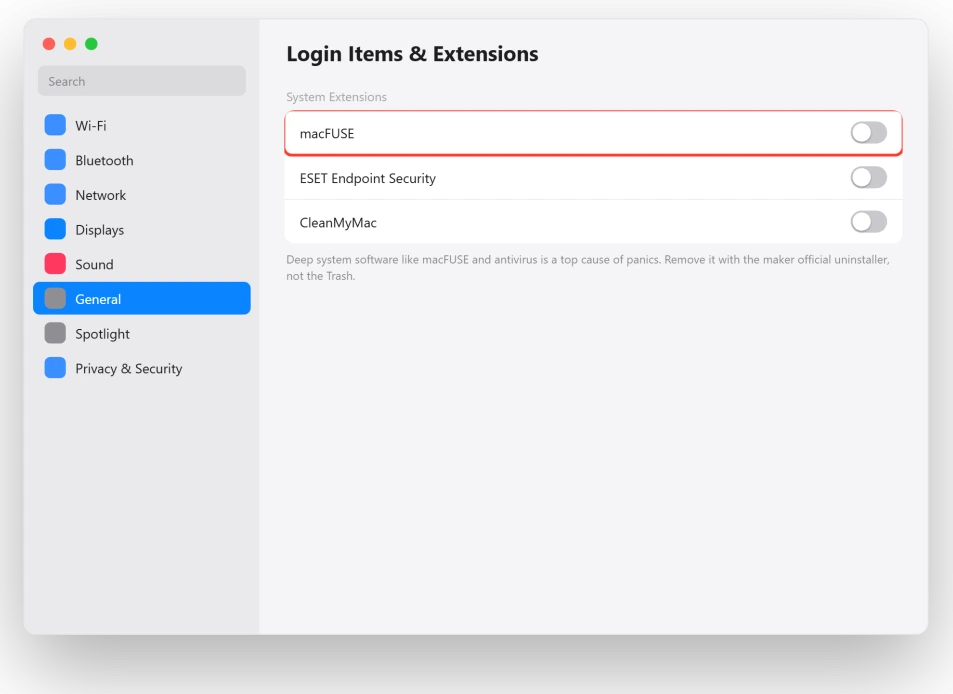
- For macFUSE specifically, remove it, since its panic on Tahoe is unfixed.
- Open System Settings, General, Login Items & Extensions, and disable items one at a time, restarting after each.
Boot Into Safe Mode and Update
Safe Mode loads none of your third-party software, so if the mini is stable there, you have confirmed it is software, not hardware.
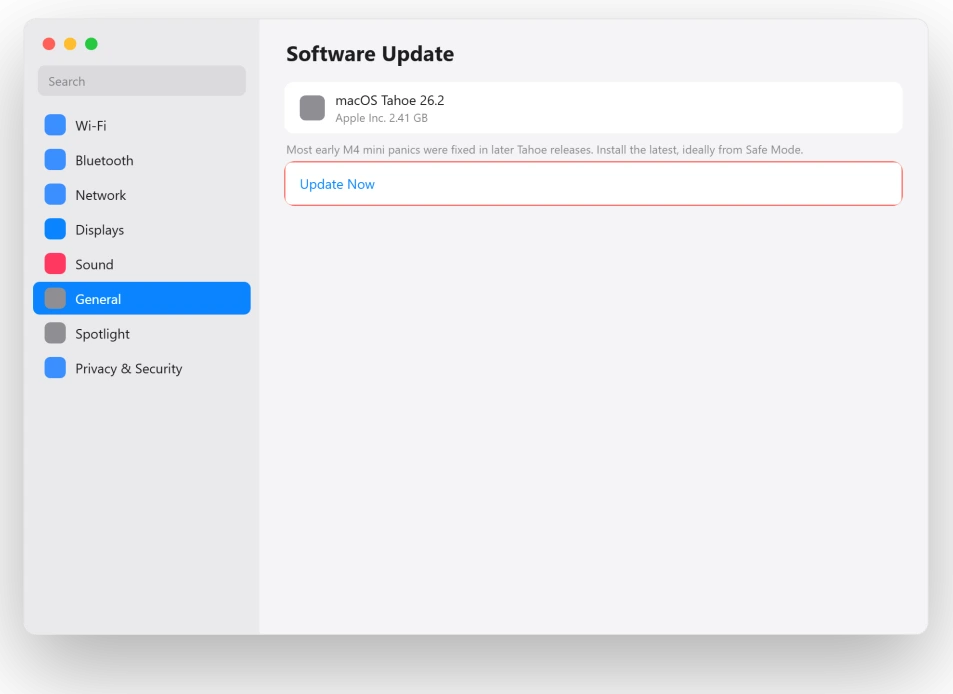
It is also the place to get every update on, since most early Tahoe panics were fixed in later releases.
Here's what to do:
- Shut down. Hold the power button (on the underside, rear-left corner) until "Loading startup options" appears, pick your disk, hold Shift, and click Continue in Safe Mode.
- Then run System Settings, General, Software Update and your App Store updates.
Important: On Apple Silicon there is no SMC or NVRAM key combo. The old Intel "reset PRAM" and "reset SMC" tricks do nothing on an M4, so ignore any guide that tells you to use them.
A full shutdown for 30 seconds is the real equivalent.
Tame Sleep and Wake Crashes
If the panics happen on waking from sleep, changing how the mini sleeps stops the loop.
A mini that refuses to wake from sleep at all is a different Tahoe problem.
Here's what to do:
- In System Settings, Lock Screen (or Energy), set the display to sleep after 5 to 10 minutes, but prevent the whole computer from sleeping.
- Temporarily disconnect any Time Machine drive and let Spotlight finish indexing before reconnecting it, since the two fighting can freeze the Mac.
Test a Fresh Account and the Hardware
Two checks that tell you whether the fault is your setup or the machine itself.
Here's what to do:
- New user account: System Settings, Users & Groups, add an account, log in, and use it for half an hour. Stable there means the fault is in your old account's settings, not the OS.
- Disk and hardware check: run Disk Utility, First Aid on Macintosh HD. Then shut down, unplug accessories, hold the power button to reach startup options, and press and hold Command + D for Apple Diagnostics. Note any reference codes.
Reinstall, Then Revive the Firmware
If it still panics, including in Safe Mode and a fresh account, you are into the deep fixes.
Here's what to do:
- Reinstall macOS over the top. Boot to startup options, Options, Continue, then Reinstall macOS Tahoe. It keeps your files and replaces damaged system parts. Back up first.
- DFU Revive from a second Mac. If panics survive a reinstall, the fault is at the firmware level. Connect to another Mac running macOS 26, open Apple Configurator 2, and choose Revive. This rewrites the firmware without wiping your data, and it fixes panics a reinstall cannot.
- If a recurring panic survives all of this, that is your signal to book a hardware repair with Apple.
The Short Version
Let the failure tell you the fix. Start by reading the panic log so you know whether you are dealing with software, the display, or hardware. A restart is a panic, so read the log.
A freeze with a live cursor is Spotlight, so turn off Show Related Content and Help Apple Improve Search.
If the log names the display, switch off the native HDMI port for a USB-C adapter and drop a 240Hz monitor to 120Hz.
When the cause is not obvious, unplug every non-essential accessory and add them back one at a time, remove kernel-level software like macFUSE and antivirus with their own uninstallers, then boot into Safe Mode and install every update.
Still stuck? Test a fresh account, run Disk Utility and Apple Diagnostics, and only then reinstall macOS or DFU Revive the firmware.
Two of the worst M4 mini crashes are not your fault at all, the HDMI port and a 240Hz monitor, both fixed by changing how you connect your display, not by reinstalling anything.
Where to Next
More macOS Tahoe help: This fix is part of our macOS Tahoe problems and fixes guide, a single place that rounds up every common Tahoe issue.
If something else on your Mac is acting up after the update, start there.

Isaac Smith is the founder and editor of PC Glance, a website that covers computers, laptops, and technology. He is a tech enthusiast and a computer geek who loves to share his insights and help his readers make smart choices when buying tech gadgets or laptops. He is always curious and updated about the latest tech trends.