
Your watch lasted all day, then watchOS 26 landed and now it is begging for a charger by lunch.
After a big update, the watch keeps re-syncing Health data and re-pairing with your iPhone for a day or two, and that quietly burns battery even though nothing is broken.
watchOS 26 even added a new alert for unusual drain. So before you start turning things off, give it a moment, then restart.
Let me give you the ones that actually move the needle rather than a list of twenty tweaks.
Give It 24 to 48 Hours, Then Recheck
The single most common cause fixes itself, so do not start flipping switches on day one. Apple's advice for a battery that drains too quickly is to give the update a few days.
Here's what to do:
- Keep using the watch as normal and charge it as usual. Leave it on the charger overnight so the background work can finish.
- Wait about 48 hours before you judge the battery. After a point update, a few people needed even longer.
- Recheck the drain after a couple of days. If it is still bad past that window, work through the steps below.
Pro tip: There is no per-app battery breakdown on the Apple Watch like the iPhone has.
To see where you stand, open Settings, Battery on the watch for the level, charge history, and Battery Health. Do not waste time hunting for a per-app screen, it does not exist.
Restart the Watch and iPhone (the Fix Most People Missed)
This is the quiet winner. The thing that restored normal battery for the most people was not turning features off, it was a plain restart of both devices.
Here's what to do:
- Restart the watch: hold the side button until the sliders appear, tap the power icon, drag Power Off, then hold the side button to turn it back on. Restart your iPhone at the same time.
- If a normal restart will not work, force restart the watch: hold the side button and the Digital Crown together for at least 10 seconds, until the Apple logo appears.
- Make sure both are fully updated. The watchOS 26.1 update brought battery back to normal for many people on its own. If the watch refuses to install the update, clear that first.
As one person put it after weeks of bad battery: "I rebooted my watch and phone at the same time and battery has been essentially back to pre-update levels. I didn't even disable any features."
Tame the Screen: Always On and Wrist Raise
If recalibrating and the restart did not do it, the screen is the biggest steady drain you control. A display that stays lit, even dimmed, and one that wakes every time you move your arm, both pull power all day.
Here's what to do:
- On the watch, open Settings, Display & Brightness, then Always On, and turn it off. If you want to keep Always On but make it cheaper, in that same screen turn off Show Complication Data, Show Notifications, and Show Apps.
- In Settings, Display & Brightness, turn off Wake on Wrist Raise. You then wake the screen by tapping it or turning the Digital Crown.
- In the same screen, set Wake Duration to Wake for 15 Seconds instead of 70.
- To stop wrist-raise wakes for a while, turn on Theater Mode from Control Center.
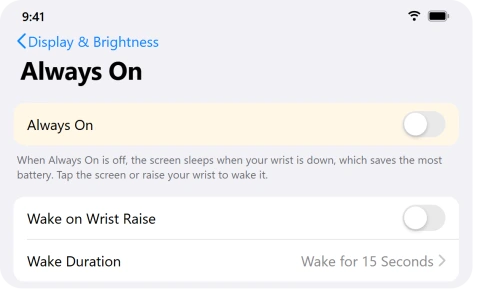
Important: The Apple Watch SE 3 does have an Always On display, so that setting is there. On the older SE 2 and the first SE there is no Always On row at all. The wrist-raise and Wake Duration controls still apply.
The 70-second setting starts from a tap, not a raise, which is why a raised wrist gives you only a few seconds.
Cut the Background Data: Watch Face and Rogue Apps
A face packed with live complications keeps pulling fresh data in the background, and one app stuck refreshing after the update can quietly eat your whole battery. Both are about background data, so handle them together.
Here's what to do:
- Press and hold the watch face, tap Edit, and remove data-heavy complications like weather, stocks, and world clock that you do not really use. Or swipe to a plain face, a simple analog or numbers one, for a day and see how much the battery improves.
- Double-press the Digital Crown to see your recent apps and look for anything you did not leave open. People specifically caught Apple Podcasts draining about 1 percent a minute, and some golf and fitness apps running down the battery in hours.
- Delete and reinstall any app you suspect.
- Then trim background refresh on the watch under Settings, General, Background App Refresh, turning off the apps you do not need.
Important: Turning off Background App Refresh does not stop an app from refreshing if it is a complication on your current face. To actually stop it, remove the complication from the face.
And do not force-quit apps to save battery. On Apple devices that is a myth, reopening an app from scratch actually uses more power than letting it sit.
Only force-quit an app that is genuinely frozen.
For the layout controls themselves, switch or add a watch face before comparing its complication choices.
Use Low Power Mode for Instant Relief
When you just need the watch to make it through today, this one switch does the most, because it turns off the heavy features together.
Here's what to do:
- Press the side button to open Control Center, tap the battery percentage, then turn on Low Power Mode.
- You can choose On for 1 Day, 2 Days, or 3 Days. A yellow circle shows it is active.
- If you got the watchOS 26 "draining faster than normal" alert, just tap its shortcut to switch Low Power Mode on.
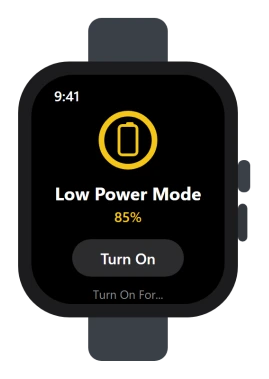
Important: Low Power Mode turns off background heart rate and the high, low, and irregular rhythm alerts while it is on. Apple spells this out on its Low Power Mode page.
That is a real health trade-off, not just a convenience one, so switch it back off when you no longer need the extra hours.
If the watch later stops reading your heart rate, this switch is the first thing to check.
Trim Background Sensing and Notifications, Keep the Safety Alerts
Some sensors run all day. Trimming the optional ones cuts a steady draw, but be careful which ones you touch.
Here's what to do:
- On Series 6 and later (not SE), open Settings, Blood Oxygen on the watch and turn off measurements In Sleep Focus and In Theater Mode.
- Lower the haptics: Settings, Sounds & Haptics, reduce Haptic Strength and turn off Prominent.
- On the iPhone, open the Apple Watch app, Notifications, and turn off mirroring for apps you do not need buzzing your wrist. If alerts you do want stop reaching the watch later, recheck this screen first.
Important: Leave fall detection, Crash Detection, and the heart-rate health notifications on. Those are safety features, not battery settings.
Rule Out the Battery and Charger, Then Re-Pair
If none of that helps, make sure you are not blaming the update for a worn battery or a bad charger, then do the heavy reset.
Here's what to do:
- Check Settings, Battery, Battery Health, Maximum Capacity. If it is below about 80 percent or says it needs service, the battery itself is the issue, so contact Apple.
- Charge only with the original or an Apple-certified charger. A cheap third-party charger was one person's entire problem.
- If the screen has started to lift away from the case, stop charging the watch and read what a lifting Apple Watch screen means first.
- Watch charging slower than Apple promises? The fast charging page covers the cable, the WPT label and the adapter Apple names.
- Never stopping short of 100 percent? The charge limit page lists the three location settings it needs.
- Battery Health under 80 percent? That is a worn battery, not a setting. The battery service page covers AppleCare+ and what comes back.
- As a last resort, open the Apple Watch app, All Watches, tap the i, and Unpair Apple Watch. It backs up first, then you re-pair. If restoring the backup brings the drain straight back, unpair again and choose Set Up as New, since the trouble can hide inside the backup.
The Short Version
Most of the bad battery after watchOS 26 is the update settling in, and the most reliable real fix people found was simply restarting, not switching off every feature.
Give it a day or two, reboot both devices, and get on watchOS 26.1 or later.
If the drain sticks around, tame the screen, cut background data from your watch face and apps, lean on Low Power Mode when you need a quick boost, and only as a last resort check the battery health and charger before you unpair and set up as new.
Where to Next
More Apple fixes: This guide is part of pcglance, your plain-English home for Apple fixes.
And if the sleep figures look wrong rather than the battery, that has its own short list.
For more help with your iPhone, iPad, or Mac after an update, head to the pcglance homepage and pick your device.

Isaac Smith is the founder and editor of PC Glance, a website that covers computers, laptops, and technology. He is a tech enthusiast and a computer geek who loves to share his insights and help his readers make smart choices when buying tech gadgets or laptops. He is always curious and updated about the latest tech trends.