
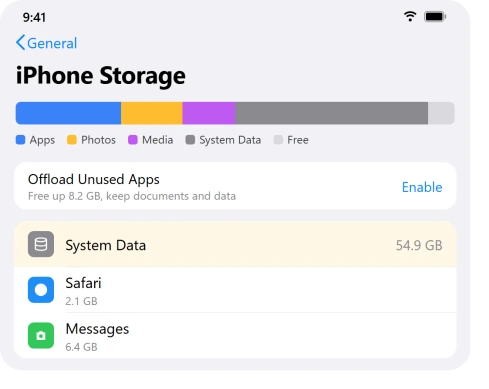
You open Settings to free up space and find "System Data" has swollen to 40, 50, even 60GB, and deleting apps does nothing.
So what is it, and should you panic? Usually no. A big number right after iOS 26 is normal and often shrinks within a day or two.
System Data is iOS's catch-all bucket, the thing Apple used to call "Other": caches, logs, Siri voices, the search index. No button deletes it directly, and any app that claims to wipe it is lying.
iOS 26.0 and 26.0.1 did have a real bug where it runs away and fills the phone. The fixes for both cases are below.
Restart First, Then Give It a Day
A restart clears temporary caches and often reclaims a gigabyte or two with no data loss, and iOS keeps cleaning on its own afterward.
That same background work is behind the battery drain many people see right after iOS 26.
- Open Settings, General, iPhone Storage and note the current System Data number at the bottom, so you can tell if anything actually helps.
- Restart the iPhone (hold the side and a volume button, drag to power off, wait 30 seconds, power back on).
- Keep it charged and on Wi-Fi for a day or two, then recheck. The bar takes a few minutes to recalculate.
Pro tip: A number that is large but the phone still has free space is usually nothing to worry about. Do not erase your phone over a figure that may drop by itself.
Update to iOS 26.1, the Real Fix for the Runaway Bug
If System Data keeps growing several GB a day and refills any space you free, that is the genuine iOS 26.0 and 26.0.1 bug, not your apps.
- Go to Settings, General, Software Update and install iOS 26.1 or later.
- If the phone is too full to download it, plug into a computer, back up, and update from there.
- Afterward, leave it idle on power and Wi-Fi for 10 to 30 minutes and recheck storage.
Important: On this bug, deleting apps actually makes it worse, because System Data instantly refills the space. The fix is the update, not deleting things.
One person watched it fall from about 70GB to 16GB within ten minutes of updating.
Clear Safari History and Website Data
Safari's cache lands inside System Data and can grow to several gigabytes. It is one of the few caches iOS lets you wipe directly.
- Open Settings, Apps, Safari.
- Tap Clear History and Website Data, choose All history, and confirm.
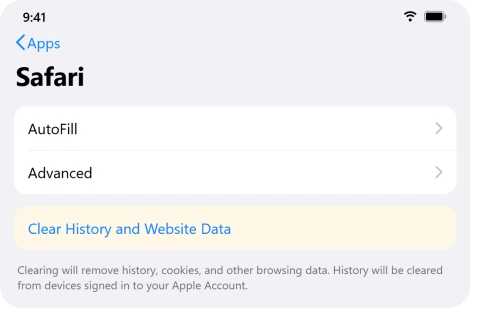
Apple's page on clearing Safari data confirms this does not change your saved passwords or AutoFill.
On a phone hit by the real bug it only helps a little, so pair it with the 26.1 update.
Trim Messages, Your Biggest Hidden Pile
By default iOS keeps every text and attachment forever, so years of photos and videos quietly stack up inside System Data.
- Go to Settings, General, iPhone Storage, tap Messages, then Review Large Attachments, and delete the big ones (they are sorted largest first).
- To stop it rebuilding, go to Settings, Apps, Messages, Keep Messages, and switch Forever to 1 Year.
Important: Shortening Keep Messages permanently deletes older texts and their attachments, so back up anything you want to keep first.
If texts already went missing on their own after iOS 26, that is a separate bug.
Clear Cache-Heavy Apps the Right Way
Streaming and social apps (YouTube, Spotify, Instagram, Netflix) hide big caches that iOS files under System Data. The trick is how you remove them.
A Mac files the same kind of caches under System Data, and quitting Safari freed 70 GB for one owner on macOS 27. The Mac System Data page has the steps.
- Open Settings, General, iPhone Storage and look at the largest apps.
- Offloading an app frees its space but keeps your data. To actually wipe a stuck cache, Delete the app and reinstall it. If the reinstall gets stuck on waiting, that has its own fixes.
- You can let iOS do this automatically with Offload Unused Apps under Settings, Apps, App Store.
Last Resort: Back Up, Erase, and Restore
When System Data is genuinely stuck and nothing moves it, a clean erase forces iOS to rebuild its whole storage index. Results can be dramatic, like 120GB down to under 15GB.
- Make and verify a full backup, an encrypted computer backup is the most complete.
- Go to Settings, General, Transfer or Reset iPhone, Erase All Content and Settings. Apple's erase iPhone guide walks through each screen.
- Restore from your backup, or set up as new for the biggest reduction.
Important: Make sure you are on iOS 26.1 first. On the unpatched bug, some people saw System Data balloon back within two weeks even after a full wipe.
The Short Version
A large System Data number after iOS 26 is usually the normal post-update spike, so restart and give it a day before doing anything drastic.
If it keeps growing daily and refills space you free, that is the real bug, and updating to iOS 26.1 is the fix, not deleting apps.
Beyond that, the safe reducers are clearing Safari data, trimming large Messages attachments, and deleting cache-heavy apps. Ignore any "cleaner" app that claims to delete System Data, none of them can.
Where to Next
- If letting iOS offload apps automatically left you hunting for them: why your iPhone keeps deleting apps.
More iPhone fixes: This guide is part of pcglance.
See the full iOS 26 problems and fixes hub, or head to the pcglance homepage and pick your device.
Where the backup switch itself is greyed out rather than storage being full, six causes explain that.
Where the video is too long to send rather than too big to store, there are seven ways round it.
If the iPhone Storage screen itself will not finish loading, what changed in iOS 26 covers the screen and the setting that moved.
If Maps sits near the top of the list even after you deleted it, offline maps are the likely cause.
If you are on an older iOS version, our earlier System Data guide walks through the general cleanup steps.

Isaac Smith is the founder and editor of PC Glance, a website that covers computers, laptops, and technology. He is a tech enthusiast and a computer geek who loves to share his insights and help his readers make smart choices when buying tech gadgets or laptops. He is always curious and updated about the latest tech trends.