
Your run map looks like someone handed the pen to a toddler.
A straight stretch of road shows up as a zigzag, the line jumps a block ahead and snaps back, and a clean 5K logs as 4.6 or balloons to something that never happened.
This is one of the most reported watchOS 26 regressions, and the symptoms are not consistent. Most people see distance come up short.
A smaller group, often at marathon distance, sees it run long. Some just get a scribbled route map.
Before the fixes, it helps to know how the watch actually measures distance, because the single best fix depends on it.
If indoor walks came up short after watchOS 27
A newer thread with 68 Me too clicks reports indoor walks logging far fewer steps since watchOS 27. The first owner compared two 4-mile walks, and the newer one "recorded only around 2,400 steps", against roughly 6,000 before.
Apple changed this part on purpose. Its September announcement says new machine learning models "improve distance calculations from the very first step of a walk or run" on a treadmill.
Recalibration, the main fix on this page, has not helped so far. Owners in both threads recalibrated with no improvement, and one says watchOS 27.0.1 "has not resolved the issue of indoor step and distance tracking".
Wiping the calibration data is another matter for one owner. On a Series 10 with watchOS 27, they wrote: "I can get around the problem by erasing the calibration data."
They start an Indoor Walk workout each time, and the wipe itself is in the calibration section of this page.
One owner finds outdoor workouts measure as they did before, and says "It is completely broken for indoor workouts." Until Apple fixes it, I would trust an outdoor walk over an indoor one. That advice is ours.
How your watch actually measures distance
Outdoors, your Apple Watch blends two things: GPS from satellites and your calibrated stride learned from arm motion. When the satellite signal is clean, GPS leads.
When it gets blocked, the watch falls back on the stride length it learned about you.
Indoors and on treadmills there is no GPS at all. Distance comes entirely from arm-swing motion measured against that learned stride.
That is why a stale or wrong calibration quietly poisons both indoor and weak-signal outdoor distance.
When distance goes wrong, the cause is almost always one of those two. Either the GPS signal is bad, or the stride calibration has drifted. The fixes below cover both, easiest first.
Start with a restart
Plenty of post-update GPS problems are nothing more than a stuck location process. Press and hold the side button until Power Off appears, drag to power off, then hold the side button again to turn it back on.
Restart the paired iPhone too, since it supplies assisted GPS.
This costs you two minutes and clears the transient glitches that updates love to leave behind. Do it before anything more involved.
Confirm the two switches that GPS depends on
Distance tracking quietly dies if Location Services is off on the iPhone. That is the master switch. On iPhone, open Settings > Privacy & Security > Location Services and make sure Location Services is ON.
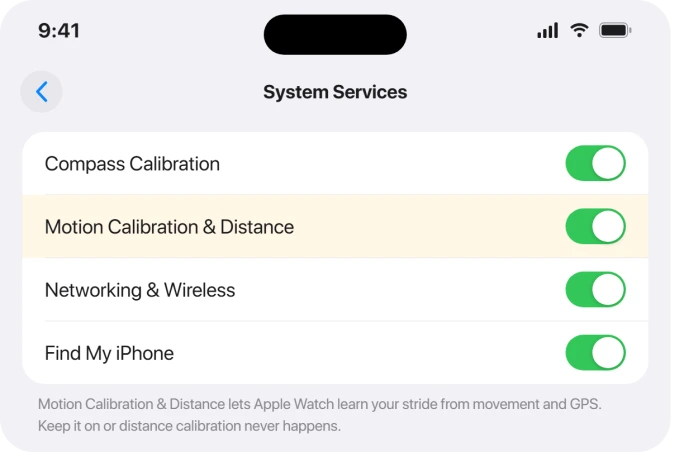
Then scroll to the very bottom of that same list to System Services and turn on Motion Calibration & Distance.
This is the service that lets the watch correlate motion with GPS and learn your stride. With it off, calibration never happens.
While you are here, tap Apple Watch Workout in the Location Services list. Set it to While Using the App and turn Precise Location ON.
Precise Location is what delivers exact coordinates; with it off the watch uses an approximate fix that distorts both route and distance. Third-party apps like Strava or Nike Run Club need the same.
Check fit, arm swing, and your personal info
A loose band is a real cause of bad distance.
Apple's accuracy guidance is blunt about it: a snug fit is needed for the watch to read movement properly, and a loose one can cause inaccurate distance tracking.
Tighten the band a notch for workouts so the watch stays put.
Let the arm wearing the watch swing naturally. When GPS is weak the watch leans on that swing, so a stroller, trekking poles, or a hand in your pocket suppresses it and skews distance.
If both hands are busy, carry your iPhone so its GPS can carry the load.
One more easy win: out-of-date personal info throws off the stride math. In the Watch app on iPhone, confirm your height, weight, age, and sex are correct in your profile and the iPhone Health app.
Recalibrate, the highest-leverage fix
Calibration is the part most people skip, and it is the one most likely to actually fix a drifting distance. Apple puts it plainly:
> "Calibrate your Apple Watch to improve the accuracy of your distance, pace, and calorie measurements. Calibrating your watch can also help it learn your fitness level and stride."
Apple's own calibration steps run like this.
Wear the watch snugly and go to a flat, open outdoor area with clear skies and good GPS, away from tall buildings and dense trees. Bring your iPhone, since it assists the calibration.
> "While wearing your Apple Watch, go to a flat, open outdoor area that offers good GPS reception and clear skies. Open the Workout app, then tap Outdoor Walk or Outdoor Run."
Then keep your normal pace for about 20 minutes. You do not have to do it all at once.
> "Walk or run at your normal pace for about 20 minutes. If you don't have time to finish the workout, you can complete 20 minutes over multiple outdoor Workout sessions."
If you walk and run at very different speeds, calibrate at each one. Apple notes you should also calibrate for 20 minutes at each of the speeds you walk or run.
After that, every qualifying outdoor walk or run keeps refining the accelerometer in the background.
When the calibration itself has gone bad
If distance has been consistently wrong since the watchOS 26 update and a fresh calibration walk has not helped, the stored stride history may be corrupted. You can wipe it and start clean.
Important: this erases your learned stride and fitness baseline.
It does not delete past workouts or Activity rings, but your distance, pace, and calorie estimates will be less accurate until you recalibrate outdoors.
Do not do this casually.
On iPhone, open the Watch app > My Watch tab > Privacy > Reset Fitness Calibration Data, then confirm.
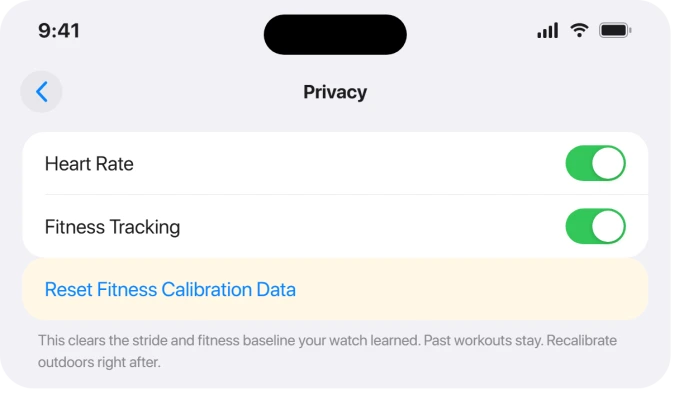
The moment you reset, do a fresh 20-minute outdoor calibration walk or run as described above. Without it, distance gets worse before it gets better.
Turn off the battery savers that throttle GPS
Plain Low Power Mode does not disable workout GPS; Apple says GPS and heart rate during an active workout are unaffected by it.
The setting that actually cuts accuracy is a separate one called Fewer GPS and Heart Rate Readings.
That option reduces how often GPS samples, drops splits and segments, and turns on automatically if you start an outdoor walk, run, or hike while Low Power Mode is on.
For accurate distance, go to Settings > Workout on the watch and turn Fewer GPS and Heart Rate Readings OFF.
If you only lean on Low Power Mode because the battery drains fast on watchOS 26, fix the drain instead.
While you are in Settings > Workout, turn Auto-Pause OFF too. Auto-Pause can leave gaps that read like lost distance.
Make sure you are fully updated
Apple has not acknowledged the distance bug in any release notes, and as of late June 2026 no watchOS 26.x update is documented as fixing it.
But Apple is clearly patching the Workout app in this cycle, so being current matters.
For proof that these fixes ship: the watchOS 26 bug that killed spoken pace and split alerts during runs was confirmed fixed in watchOS 26.4.
One user reported, "I can confirm that things work as expected again with my GPS-only SE2 as well after installing watchOS 26.4."
Update both devices via Watch app > General > Software Update for the watch and Settings > General > Software Update on the iPhone.
If the watch refuses to install the update, clear that first.
The watchOS 26 quirks worth knowing
A specific Series 11 bug makes pace and distance "go haywire for about a kilometer" if you stack a second workout onto a running session before self-correcting.
The workaround is simple: do not add a back-to-back workout mid-session. Start one fresh single workout instead.
If your route map shows only the starting point and refuses to draw the line, that is a separate watchOS 26 report.
Setting Apple Watch Workout to While Using the App with Precise Location on is the suggested fix, though some affected users on Series 11 found re-pairing did not resolve it.
Last resort on the software side: unpair and re-pair
If nothing above helps, unpairing and re-pairing rebuilds the watch from a clean state.
On iPhone: Watch app > My Watch > All Watches > the info (i) button next to your watch > Unpair Apple Watch, confirm, then re-pair and restore from backup.
If the pairing itself fails, our watch not connecting guide covers that.
Unpairing erases the watch, but the iPhone makes a backup automatically during the process and restores it afterward.
One caution: some people report losing the most recent workout or two captured right before the unpair, so do this only after the simpler fixes fail.
When it is the environment or the hardware, not watchOS
Some of this is physics, and no setting fixes it. In cities, satellite signals bounce off tall buildings before reaching your watch, biasing position by more than 10 meters.
Tree canopy and tunnels block the line-of-sight signal entirely. Your route scrambles and the watch falls back to stride estimation.
One runner saw exactly this on a certified 400m track. The first 5K came in slightly long. Running the other direction, "it started measuring wildly," and the lap ended a full 200 meters short.
On open-sky routes the same watch behaves far better.
Hardware matters too. Apple's precision dual-frequency L1+L5 GPS, which it calls its most accurate, specifically cuts those multipath errors in cities.
It debuted on Apple Watch Ultra in 2022 and has stayed an Ultra feature, carried on by Ultra 2 in 2023 and Ultra 3 in 2025.
Every Series watch, including Series 9, 10 and 11, still lists L1 GPS only. So if city routes are your problem, that gap is hardware, not a watchOS 26 bug.
And sometimes it really is a faulty watch. If distance is grossly wrong even after a clean calibration, a re-pair, full updates, and an open-sky test, suspect a GPS antenna or chipset fault.
One Series 8 owner chased a chronic half-kilometer shortfall through every software fix; it ended only when Apple replaced the unit: "it was an issue with the watch and I was able to get a new upgrade."
If you reach that point, book Apple Support.
If it is the stairs count rather than distance that runs wild on your runs, the flights climbed page covers what owners found.
The Short Version
- Restart the watch and iPhone first to clear stuck location processes.
- Confirm Location Services ON and Motion Calibration & Distance ON (Settings > Privacy & Security > Location Services > System Services), plus Apple Watch Workout set to While Using with Precise Location ON.
- Wear the band snug, let your watch arm swing freely, and keep height/weight/age/sex current.
- Recalibrate: a 20-minute Outdoor Walk or Run in a flat, open area with clear skies, iPhone in pocket.
- If distance stayed wrong since watchOS 26, Reset Fitness Calibration Data (Watch app > My Watch > Privacy), then immediately do a fresh calibration walk.
- Turn off Fewer GPS and Heart Rate Readings and Auto-Pause (Settings > Workout). Keep watchOS and iOS fully updated.
- Do not stack a second workout mid-session on Series 11. Re-pair only as a last software resort.
- Cities, trees, and tunnels scramble GPS by design, and only the Ultra line carries the dual-frequency GPS that cuts through it. If it is wildly wrong after everything, suspect hardware and contact Apple.
Where to Next
For more Apple Watch troubleshooting, see our Apple Watch problems and fixes hub, or head back to the PCGlance homepage for the rest of our guides.

Isaac Smith is the founder and editor of PC Glance, a website that covers computers, laptops, and technology. He is a tech enthusiast and a computer geek who loves to share his insights and help his readers make smart choices when buying tech gadgets or laptops. He is always curious and updated about the latest tech trends.