
You blocked a telemarketer back in March, watched the little circle-slash appear, and moved on. This week the same number rang twice before breakfast.
Or you blocked an ex months ago and a fresh green-bubble text just slid in under their name. Two very different things can cause this, and the fix depends on which one you have.
Sometimes the block is working and the number reaching you is not the one you blocked. Sometimes the block stopped sticking after iOS 26.
This article sorts the two apart and fixes each, easiest first.
Let me explain what blocking actually does, because it does less than most people assume.
What blocking actually does (and why that matters here)
Blocking does not stop a call out at the network. Your iPhone quietly rejects the call after it arrives, and the carrier still routes it to voicemail.
Apple's wording in its guide to blocking calls and messages is blunt:
> When you block a phone number or contact, they can still leave a voicemail, but you won't get a notification. Messages that are sent or received won't be delivered. Also, the contact won't get a notification that the call or message was blocked.
So nobody gets told they are blocked, nothing rings, and texts simply do not arrive.
It only applies to the exact number or email you blocked. Block one number on a contact card and their other numbers or their Apple ID email still get through.
First, figure out which problem you have
Look at the number or email that just reached you and compare it to what is on your blocked list.
- It is a different number or email each time, or clearly random spam. That is spoofing or an alternate channel, not a bug. Blocking will never win this race. Skip to the spoofing section.
- It is the exact same number you blocked, under the contact you blocked. That points to the iOS 26 block-list bug. Start with the fixes just below.
When the block itself stopped sticking
iOS 26 shipped a real defect here. People tap Block, the menu briefly reads Unblock, then on reopening it flips back to Block and no circle-slash icon ever appears.
Calls, voicemails, and emails sail through. An Apple support agent confirmed it is a known issue being worked on, with no fixed date. Try these in order.
Re-add the block from the unified list
iOS 26 moved everything into one place. Go to Settings > Privacy & Security > Blocked Contacts (you can also reach the same list at Settings > Apps > Phone > Blocked Contacts).
Tap Add New, pick the person, and confirm.
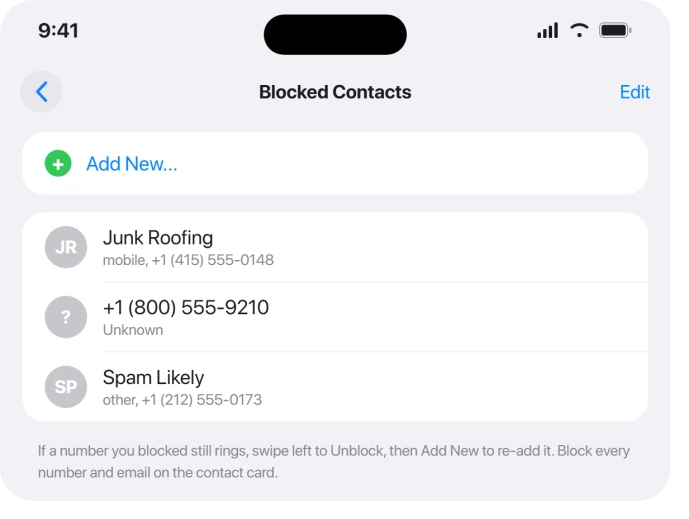
If the entry already sits there but calls still arrive, swipe left on it, tap Unblock, then add it back fresh.
This may help, but on devices where blocking has fully stopped working it often does not stick. If that is your case, jump to the reset step below.
Make sure all of a contact's numbers and emails are blocked
A contact card can hold several phone numbers and an Apple ID email. Blocking one number leaves the rest open, and iMessage or FaceTime often arrives through the email instead.
Open the contact, confirm every number and email on the card is included, and block any that are not. This single gap explains a large share of "still getting iMessages" reports.
Fix the unblock-that-won't-stick loop with iCloud Contacts
A nastier variant auto-blocks people (sometimes family) and refuses to unblock them. Users found contacts re-blocked daily, with one writing that their "wife and Kids are blocked on a daily basis."
It is tied to iCloud sync: viewing the contact on an iPad re-blocks them on the iPhone.
For this loop specifically, swiping left on the contact, tapping Unblock, and re-adding it fresh can help reset the entry, though the sync fix below is what usually holds.
Apple's interim workaround resets the sync. Go to Settings > [your name] > iCloud > See All > Contacts, turn it off (choose Keep on My iPhone), wait about 30 seconds, then turn it back on.
One Apple Store fix went further: turn off iCloud Contacts, delete the Contacts app, power the phone off and on, reinstall Contacts from the App Store, then re-enable sync.
It often works only temporarily and may need repeating.
Restart, then reset settings as a last resort
A force restart clears a lot of the desynced states. If blocking still does nothing afterward, one user restored it via Settings > General > Transfer or Reset iPhone > Reset > Reset All Settings.
Be warned: that erases your existing blocked numbers and all other preferences, so treat it as the final option. Signing out of Apple ID and resetting network settings did not help with this bug.
Update, but do not expect a magic fix
iOS 26.4 broke blocking with the "cannot block" bug, and iOS 26.4.1 fixed it for some people.
Then iOS 26.5, which shipped a longer list of problems, brought it back for others, including on iPhone 17.
iOS 26.5.1 only fixed wired charging on the iPhone 17 series (17e, 17, 17 Pro, 17 Pro Max) and Air.
iOS 26.6 arrived on 27 July 2026 and adds an alert when you hit the blocked-contacts limit, which warns you rather than repairing anything.
If that alert is what brought you, it has its own guide.
Keep current under Settings > General > Software Update, but none of these is a confirmed cure yet.
SE 2 and SE 3: the Block button that won't render
The SE 2 and SE 3 have a separate, milder problem. The Block option fails to draw on screen until you nudge it, so it can look like blocking is broken when the button simply never appeared.
Tap the Home button once to force the menu to render, then tap Block. iOS 26.5 improved this from needing two or three taps down to a single tap.
Switching to Classic view in Contacts also sidesteps the glitch. This is a rendering hiccup, not the "block does nothing" failure seen on iPhone 17.
When it is spoofing, not a bug
If the calls and texts come from a new number every time, blocking is the wrong tool entirely. Spammers rotate or fake their caller ID on each call, so there is no stable number to block.
As Apple's community moderators put it, "calls can come from anywhere and display as any number." The fix is to filter by category, not by number.
Silence or screen everyone who is not in your contacts
This is your strongest defense against spoofed spam, though it is not airtight: some spam calls use spoofed numbers that may not be detected. Go to Settings > Apps > Phone > Screen Unknown Callers and pick one:
- Silence sends every unsaved number straight to voicemail. The call still appears in Recents so you can call back.
- Ask Reason for Calling is the new Call Screening. Apple describes it plainly:
> Call Screening automatically answers calls from unknown numbers without interrupting you. Once the caller shares their name and reason for their call, your iPhone rings and shares their response so you can decide if you want to pick up.
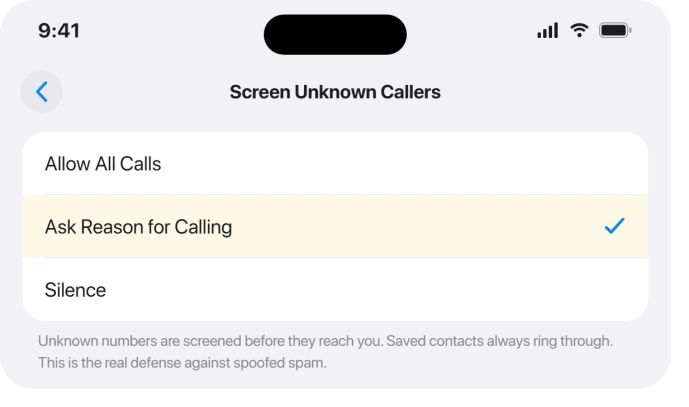
Saved contacts always ring through normally. One design quirk trips people up: this will not silence any number you have ever interacted with, so if you once called or texted them, they still ring.
Two more limits to know: screening does not run while roaming, and it turns off for 24 hours after you dial emergency services.
Filter unknown texts in Messages
For spoofed texts, go to Settings > Apps > Messages > Unknown & Spam and turn on Screen Unknown Senders.
(Apple's current page routes this through Messages, the Filter button, then Manage Filtering.) If it is one person rather than junk, the per-conversation controls filtering never touches are in an iPhone not getting notifications from one person.
Messages from people you have never interacted with move to a separate folder with no notifications, which is also why texts sometimes seem to vanish.
A separate Filter Spam toggle routes detected junk into a Spam folder.
To read anything caught there, open Messages, tap the filter menu icon at the top, and pick Unknown Senders or Spam.
Add carrier filtering for the calls iOS cannot stop
Because your iPhone cannot block a call at the network switch, only your carrier can stop a number from ringing or leaving voicemail at all.
AT&T ActiveArmor, Verizon Call Filter, and T-Mobile Scam Shield label and block known-scam and spoofed numbers before they reach you.
Verizon Call Filter is free, with a paid tier around $3.99 a month. Treat it as a supplement, since iPhone users report it labels inconsistently at times.
Consider a blocking app for relentless spam
Apps like Hiya, RoboKiller, Nomorobo, and Truecaller work through Apple's call-blocking framework and match against crowdsourced databases, so they catch rotating campaigns a personal list never could.
Enable one under Settings > Apps > Phone > Call Blocking & Identification. Many request Contacts access or collect reported numbers, so check their privacy practices first.
A couple of things people mistake for blocking
Do Not Disturb is not blocking. It lives inside Focus, the same system that can stop wanted calls from ringing, and only silences notifications.
A caller still rings if they are in your Allowed People or if Allow Repeated Calls is on, since a second call within 3 minutes breaks through, which spammers exploit by redialing.
Review Settings > Focus > Do Not Disturb > People and turn that off.
Also worth knowing: a blocked caller can still leave a voicemail. Those land silently in a Blocked Messages section at the bottom of the voicemail list, with no alert.
On iOS 26 that list is the Voicemail tab in the Classic layout, or Filter > Voicemails in the default Unified one. Only carrier blocking stops that.
What you can realistically expect
Even authenticated calling has gaps. The FCC's STIR/SHAKEN system signs caller ID, but as the FCC itself states, it "does not authenticate any caller ID per se. Instead, it authenticates the originating carrier."
Scammers route around it on legacy networks. No combination here gets you to zero. The realistic goal is to cut the volume hard, not to silence every last call.
The Short Version
- If the number reaching you matches the one you blocked, that is the iOS 26 bug. Re-add the block at Settings > Privacy & Security > Blocked Contacts, confirm every number and email on the card, and toggle iCloud Contacts off and on.
- If the number is different each time, it is spoofing. Blocking cannot fix it. Use Screen Unknown Callers (Silence or Ask Reason for Calling) plus carrier filtering.
- Block all of a contact's numbers and emails, not just one, and keep iCloud Contacts on so the list syncs.
- Do Not Disturb is not blocking, and a blocked caller can still leave a silent voicemail unless your carrier blocks them.
- Neither iOS 26.5.1 nor 26.6 fixes the core blocking bugs, so do not wait on an update. What 26.6 added is a limit warning, not a repair.
Where to Next
Blocking is not the only thing that shuts a route down, and FaceTime greyed out is usually a restriction rather than a fault.
Where the menu itself has gone rather than misbehaving, call forwarding missing is usually the carrier or the line type.
More iOS 26 fixes are collected on the iOS 26 problems and fixes hub. For everything else, start at the pcglance homepage.

Isaac Smith is the founder and editor of PC Glance, a website that covers computers, laptops, and technology. He is a tech enthusiast and a computer geek who loves to share his insights and help his readers make smart choices when buying tech gadgets or laptops. He is always curious and updated about the latest tech trends.