
You raise the phone, the Lock Screen appears, and the little padlock just sits there closed. No quick flip to unlocked, no haptic, just the keypad sliding up asking for your passcode again.
After an iOS 26 update, that loop is one of the most reported iPhone annoyances out there.
Work top to bottom. The cheap, reversible stuff is first, the heavier resets are in the middle, and the hardware section is at the end.
Let me go through them in order, and I will tell you which ones are worth your time.
First, Rule Out Normal Behavior
Right after any update your iPhone reboots, and Face ID is designed to require your passcode once after a restart. So the very first failed unlock post-update is not a bug, it is the rule.
Apple lists the exact moments it forces a passcode. Enter your passcode once after any of these and Face ID should resume:
- The device was just restarted.
- It has not been unlocked for over 48 hours.
- After five failed face scans.
- After a remote lock.
- After you start Emergency SOS.
Also check the basics. Hold the phone the way you actually look at it, roughly 10 to 20 inches (25 to 50 cm) from your face, in portrait, with the top edge able to see your eyes.
Flat on a desk or held inches away will fail every time, and nothing is wrong.
Clear the Sensor Strip
Apple's own first step is blunt: "Remove anything that's covering the TrueDepth camera, like a smudge, case, or screen protector." That strip lives in the notch or Dynamic Island at the top of the screen.
This is not theory. On Apple's own forums, several iPhone owners with a post-iOS 26 "Face ID issue" warning fixed it just by peeling off a screen protector.
One traced it to a literal bubble in the film: "the problem was my screen protection that had a bubble covering one of the lenses, I removed it."
So before anything else, take off your case and screen protector. Wipe the top sensor strip with a dry microfiber cloth, and make sure no case lip overhangs the top edge.
Newer iOS builds are noticeably fussier about obstructions than older ones.
Restart, Then Force Restart
A normal restart clears a stuck Face ID service. Hold the side button and either volume button until the power-off slider appears, drag it, wait about 30 seconds, then power back on and enter your passcode.
If that does nothing, force restart. Press and quickly release Volume Up, press and quickly release Volume Down, then press and hold the Side button until the Apple logo appears. It does not erase anything.
Forum reports back this up: a force restart, sometimes paired with the next step, brought Face ID's recognition range back to normal after the warning showed up.
Turn Off "Require Attention" (Especially With Glasses)
"Require Attention for Face ID" only unlocks when your eyes are open and looking at the screen.
Helpful for security, but tinted or IR-blocking lenses can defeat it, and sunglasses often block the infrared light the camera relies on.
Multiple users with glasses fixed their post-update failures here. The attention toggles live under Settings > Accessibility > Face ID & Attention, though some builds still show them under Face ID & Passcode.
Toggle Require Attention for Face ID off, test, and turn it back on once you have found the real cause. If you genuinely need it off for tinted glasses, fine, just know it is slightly less secure.
Confirm Face ID Is Actually Switched On
A major update can quietly flip Face ID feature toggles off, like it does with location sharing, so it stops unlocking or signing into apps even though the hardware is perfectly fine.
This is the single most common non-hardware cause.
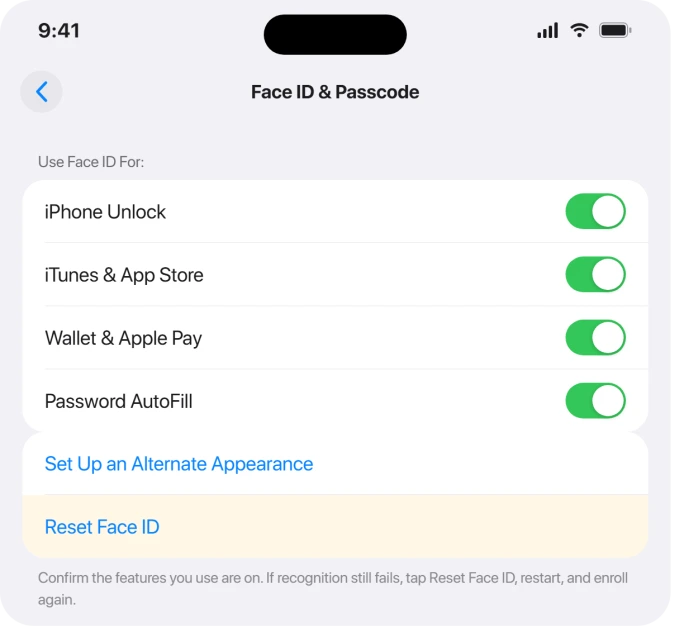
Go to Settings > Face ID & Passcode and enter your passcode. Confirm every switch you use is on: iPhone Unlock, iTunes & App Store, Wallet & Apple Pay, Password AutoFill, and Other Apps.
Apple's guidance: "Make sure that Face ID is set up and that the features you're trying to use Face ID with are turned on."
If the whole Face ID & Passcode menu is missing, that is usually Screen Time or a work profile, not hardware.
In Settings > Screen Time > Content & Privacy Restrictions, set Passcode Changes to Allow. Or remove a management profile under General > VPN & Device Management.
Reset Face ID and Re-Enroll
If the toggles look right but it still fails, delete the stored facial map and rebuild it. The update may have corrupted your enrollment. This resolves a large share of post-update failures.
Go to Settings > Face ID & Passcode > Reset Face ID, then restart the phone.
Tap Set Up Face ID > Get Started, re-enroll in good light at 10 to 20 inches, look straight on, and move your head in a full circle twice.
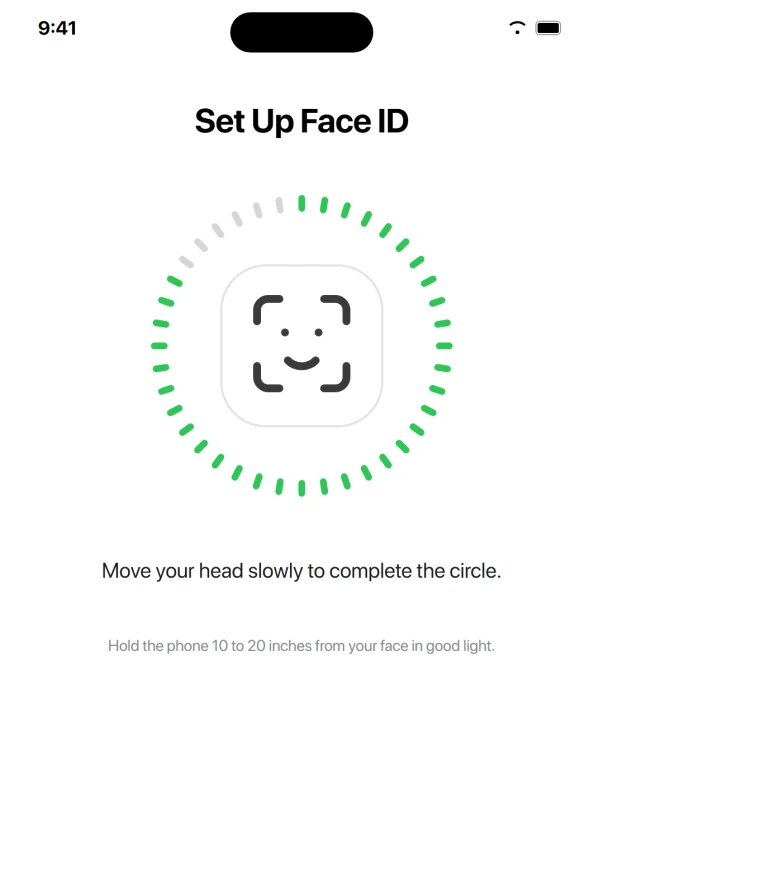
If you sometimes look quite different (glasses, a beard you grow and shave), also add Settings > Face ID & Passcode > Set Up an Alternate Appearance for a second reference scan.
If "Reset Face ID" Is Greyed Out, It's Stolen Device Protection
A common trap: you go to reset Face ID and the option is greyed out and untappable. That is usually Stolen Device Protection adding a security delay, not a dead sensor.
The workaround comes from users who hit exactly this.
One whose phone passed Apple's diagnostics with no hardware fault wrote: "Go to Stolen Device Protection, turn it off, wait the obligatory 1 hour, Reset Face Recognition (now available)… turn Stolen Device Protection back on."
The most-upvoted version adds one critical step, a full power cycle.
Turn off Stolen Device Protection, Reset Face ID, fully power the phone off and back on, Set Up Face ID again, then re-enable Stolen Device Protection.
The user who found it stressed "it didn't work when I skipped the off and on again steps."
Update to the Latest iOS 26 Point Release
Apple's stance is that the newest build is the fix, not the cause.
Its troubleshooting article opens by telling you to update to the latest iOS, so check Settings > General > Software Update and install whatever is offered.
There is precedent. In the prior cycle an iPhone 13 owner stuck with "Face ID is not available" reported a clean fix after a point release: "Now with official 18.2 it seems to work again."
Apple also fixed a Face-ID-adjacent logic bug in iOS 26.2, where restoring from a backup could skip the required passcode after enrollment.
One caution: if you are on iOS 26.2.1, you cannot roll back, because Apple stopped signing 26.2. If a point release made things worse, your realistic options are the software fixes here or waiting for the next release.
Reset All Settings or Restore
Still stuck with correct toggles and a clean re-enroll?
Try Settings > General > Transfer or Reset iPhone > Reset > Reset All Settings. It reverts system settings to defaults, including the network settings behind most post-update Wi-Fi problems, and keeps your photos, apps, and messages.
Some users beat a "works once, then fails" pattern this way, which points to a stuck service rather than dead hardware. Back up first, just in case.
The last software step before service is a restore. Connect to a computer, and if needed use recovery mode to reinstall iOS.
Restoring "as new" without your backup rules out corrupted data behind a Face ID loop. Treat this as the end of the software road.
When It's the TrueDepth Camera Hardware, Not Software
Software fixes stop helping here. If you see "A problem was detected with the TrueDepth camera. Face ID has been disabled," or the Face ID & Passcode options go fully greyed out and survive a reset, restart, and update, that is hardware.
iOS disables the camera on purpose when it cannot verify the module is safe.
This is especially likely after a drop, water exposure, or a third-party screen or battery repair. Those Face ID parts are cryptographically paired to your phone's logic board.
A torn flood-illuminator flex during a screen swap can kill Face ID even though the selfie camera still works.
Check Settings > General > About for Parts and Service History. A "Face ID Issue" flag or a non-genuine front camera means calibration is incomplete.
As Apple notes, "until the calibration process is complete, you won't be able to use Face ID to unlock your device…"
Be realistic about cost. Genius Bar TrueDepth replacement quotes vary widely, from around $169 on the right model up to roughly $270 to $595, and some owners were told to replace the phone entirely.
One wrote "we need to pay to replace the phone and there's nothing they can do." Another, whose 12 Pro Max got the module swapped, reported "everything is still working great" five days later.
One nuance worth knowing: people disagree about whether 26.2-era failures are software or coincidental hardware.
An Apple Community expert argued "if iOS 26.2 had a way to render Face ID inoperable, it would have rendered it inoperable for every user."
Frustrated owners pushed back hard, with one writing "this is apple at its worst, stop saying it is coincidental hardware failure." With real hardware faults in the mix, the cause is genuinely hard to call from forum posts alone.
The practical test is simple. If greyed-out options do not come back after the full software cycle above, stop troubleshooting and book Apple service.
The Short Version
- The first failed unlock after an update is normal: enter your passcode once to re-enable Face ID.
- Remove your case and screen protector, wipe the top sensor strip, and hold the phone at arm's length.
- Restart, then force restart (Volume Up, Volume Down, hold Side button).
- Turn off Require Attention for Face ID if you wear glasses, then re-test.
- Confirm every toggle is on in Settings > Face ID & Passcode, then Reset Face ID and re-enroll after a restart.
- If Reset Face ID is greyed out, turn off Stolen Device Protection, reset, fully power-cycle, re-enroll, then turn it back on.
- Update via Settings > General > Software Update, then try Reset All Settings, then a restore.
- A persistent "problem detected with the TrueDepth camera" or permanently greyed-out options, especially after a drop or third-party repair, means Apple service.
Face ID refusing right after something odd happened: Apple lists an Emergency SOS attempt among the conditions where Face ID will not work, and our guide to an iPhone that called emergency services explains how a pocket can start one.
Where to Next
Where the message says Face ID has been disabled rather than simply failing, that wording means something specific.
More iOS 26 headaches sorted out one at a time on our iOS 26 problems and fixes hub, or start fresh from the PCGlance homepage.

Isaac Smith is the founder and editor of PC Glance, a website that covers computers, laptops, and technology. He is a tech enthusiast and a computer geek who loves to share his insights and help his readers make smart choices when buying tech gadgets or laptops. He is always curious and updated about the latest tech trends.