
macOS Tahoe finished installing, you restarted, and now every song stutters and every call breaks up. It was perfect the day before, which makes it feel like the update wrecked something. Let me show you what it really did.
Your speakers are fine. So is your Bluetooth and your audio interface. What broke is Core Audio, the engine macOS uses to push sound to every output, and Tahoe shipped with it in a fragile state.
There are two layers to fixing it. A one-line reset that brings the sound back in about thirty seconds, and a real fix that depends on where the crackle starts. Both are below.
The thirty-second reset
When the audio is glitching right now, this clears it fast. It restarts the Core Audio engine without touching anything else.
Open Terminal (in Finder, go to Applications, then Utilities, then Terminal, or press Command-Space and type Terminal). Then type this and press Return:
sudo killall coreaudiod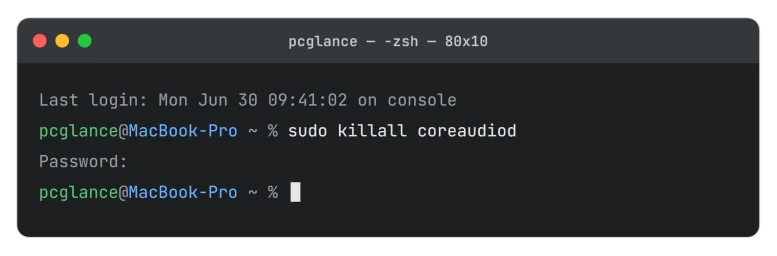
It asks for your Mac password. The letters do not appear as you type, that is normal, so just type it and press Return.
The sound cuts out for a second, then comes back clean as macOS relaunches the audio engine on its own.
This is a reset, not a cure. For most people the crackle creeps back in minutes or hours, so the steps below are about making it stop for good.
Update macOS before anything else
The first Tahoe release, 26.0, carried the worst of this. It shipped several Core Audio bugs at once, including audio breaking up when a second device ran at a different sample rate.
Apple fixed a batch of them in macOS 26.1, confirmed by Rogue Amoeba, the company behind well-known Mac audio tools. So if you are still on 26.0, updating is the single highest-value move you can make.
Go to Apple menu > System Settings > General > Software Update and install the latest version.
The update cleared the headline bugs, but not every case, and some people still hit crackle on later point releases. Update because it fixes the most common cause, not because it is guaranteed.
Narrow down where the crackle lives
If updating did not fully settle it, the fix now depends on two questions. Each answer points somewhere different.
- Which output crackles? Built-in speakers, Bluetooth, a USB audio interface, or sound going through a dock or HDMI display.
- Is it everywhere, or just one app? System-wide points at Core Audio itself. One app points at that app.
Match your situation to the section below.
Match the sample rate
This is the most reliable system-wide fix after updating, and it takes a minute.
Open Audio MIDI Setup (Command-Space, type its name, press Return).
Pick your output device in the left list, then click the Format pop-up menu, the same panel covered in Apple's Audio MIDI Setup guide.
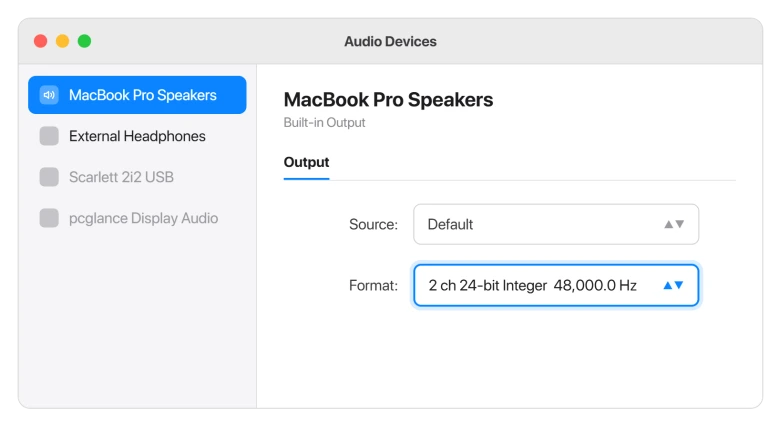
Set it to 48,000 Hz. If the crackle is still there, switch it to 44,100 Hz, then back. Tahoe has a bug negotiating sample rates, and nudging it by hand often settles the stutter.
If you use a real audio interface, set the interface and your app, like a DAW or a browser, to the same rate so they are not fighting.
If it is Bluetooth or AirPods
Bluetooth audio rides the crowded 2.4GHz band, and Tahoe leans on Wi-Fi harder than before, the same strain behind MacBook Wi-Fi dropping on Tahoe, so the two can clash and break your sound into static.
Move closer to the Mac, away from the microwave and a busy router. If your router broadcasts separate 2.4GHz and 5GHz names, join the 5GHz one, since Bluetooth and 2.4GHz Wi-Fi fight over the same airspace.
Then forget the device in System Settings > Bluetooth and pair it again. In System Settings > Sound, selecting the device, turning off spatial audio and ambient noise options can also steady it.
One more Bluetooth quirk. The moment a call app like Zoom or Teams grabs the microphone, the audio can drop to a thin, tinny quality and stay there.
Apple documents that drop in sound quality as a Bluetooth limit.
For calls, set the input to your Mac's built-in mic instead of the Bluetooth headset.
The same squeeze is why an AirPods microphone sounds muffled on calls from an iPhone.
If it is a USB audio interface
Interfaces from the likes of Focusrite, Universal Audio, MOTU, and RME need drivers built for Tahoe, and an old driver pops and drops out.
Plug the interface straight into a port on the Mac, not through a hub, dock, or adapter, which is a common source of dropouts on its own. Then install the latest Tahoe-ready driver from the maker's site.
After that, match the sample rate between the interface and your app as in the step above.
If only a dock or HDMI display crackles
When your built-in speakers and Bluetooth are clean but sound through a dock or an external display crackles, the high-bandwidth connection is the weak link, the same one behind an external monitor not being detected on Tahoe.
Try a different cable and a different port, and if you can, run the audio straight out of the Mac rather than through the dock. Setting that output to 48,000 Hz in Audio MIDI Setup helps here too.
If it only happens in one app
If quitting one app makes the crackle vanish, the problem lives in that app, not in macOS.
The biggest culprit for developers is the iOS Simulator or Xcode running in the background, which reliably garbles audio until you close it.
Heavy combos like a lossless music app plus a game do the same by pinning the processor.
Open Activity Monitor and watch coreaudiod and your suspect app. If audio dies when the processor is slammed, closing the heavy app, or giving it less to do, is the real fix.
When the reset stops working
There is a nastier version where the sound degrades over hours and `sudo killall coreaudiod` only fixes it for a second before it slips again.
For that case, a full restart of the Mac is the reliable reset. If you would rather not reboot, the more thorough Terminal version clears every audio process at once:
sudo killall -9 coreaudiod audiomxd audioclocksyncd audioanalyticsdThat is heavier and aimed at advanced users. If you are not comfortable in Terminal, just restart the Mac, which does the same thing cleanly.
What not to waste time on
A couple of popular suggestions do not apply here.
Resetting NVRAM is an Intel-Mac thing. On an Apple Silicon Mac, an M1, M2, M3, or M4, there is no NVRAM or SMC reset to do, so a normal restart is all you have and all you need.
And this is not a blown speaker or failed hardware. It appeared the day you installed Tahoe and it clears on a software reset, which tells you it is the operating system, not your Mac.
The Short Version
- Glitching right now? Open Terminal and run `sudo killall coreaudiod`. It resets Core Audio instantly, but it is temporary.
- The real fix for most people is to update macOS. Apple fixed a batch of Core Audio bugs in 26.1, so get off 26.0.
- Ask which output crackles and whether it is one app or everything. That decides the fix.
- System-wide: match the sample rate (48,000 Hz) in Audio MIDI Setup.
- Bluetooth: move to 5GHz Wi-Fi, re-pair, and use the built-in mic for calls. USB interface: plug in direct, no hub, and update the driver. Dock or HDMI: swap the cable or run audio straight from the Mac.
- One app, like the iOS Simulator, is often the trigger. Quit it to confirm.
- If the reset stops holding, restart the Mac. Skip NVRAM resets on Apple Silicon, they do not exist there.
Where to Next
Where the crackle is on AirPods rather than the Mac's own output, podcasts in particular have a known pattern.
- More Mac fixes: macOS Tahoe problems and fixes
- Related radio issue: MacBook Pro Wi-Fi dropping on macOS Tahoe
- Back to the start: pcglance home

Isaac Smith is the founder and editor of PC Glance, a website that covers computers, laptops, and technology. He is a tech enthusiast and a computer geek who loves to share his insights and help his readers make smart choices when buying tech gadgets or laptops. He is always curious and updated about the latest tech trends.