
Could Not Add Card almost never means something is broken on your iPhone. Adding a card is a handshake between four parties: your phone, Apple, the card network, and your bank. It usually fails on the bank's side.
That is why restarting and resetting rarely help. The fastest fixes are a short call to your bank and a few iPhone settings, in that order.
Call your bank first
Most checklist guides skip this step, and it clears more Could Not Add Card errors than any iPhone setting. Ask your bank two things:
- Is the card set up for Apple Pay in your bank's app? Many cards must be verified inside the bank's own app before Wallet will accept them. Open your banking app, look for an Add to Apple Wallet or Manage digital card option, and add it from there.
- Are there too many device tokens on the card? Every device you add a card to creates a token, and cards have a token limit. When it is full, new adds fail until old tokens are removed. Ask them to clear the ones you no longer use.
Banks also run a fraud check on every Apple Pay setup, and if yours declined it, only the bank can wave it through.
Apple is blunt about this: it does not approve or decline cards for Apple Pay, the issuer does.
A manual approval or a reissued card from their side often clears a stubborn one.
To tell where you stand, try adding the same card to your Apple Watch or iPad.
If it goes on another device but not this iPhone, the block is on the phone or your Apple Account, so work the iPhone settings next. If it will not add anywhere, it is the card or the bank.
The iPhone settings that block a card
If the card is good and the bank is clear, a few iPhone conditions still stop an add:
- Sign in and set a passcode. Wallet needs you signed in to your Apple Account with two-factor turned on, plus a passcode and Face ID or Touch ID set. If you are stuck in constant Apple Account sign-in prompts, fix those first, because they block card setup too.
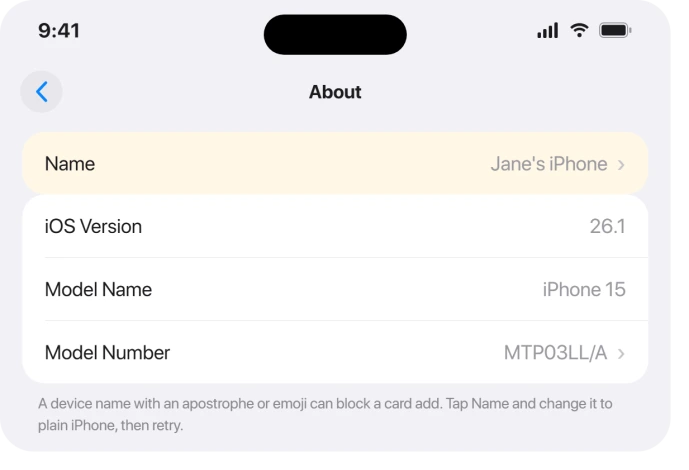
- Take special characters out of your device name. In Settings > General > About > Name, change something like "Jane's iPhone" to plain iPhone. An apostrophe or emoji in the name has stopped card adds for some people, and it is easy to overlook.
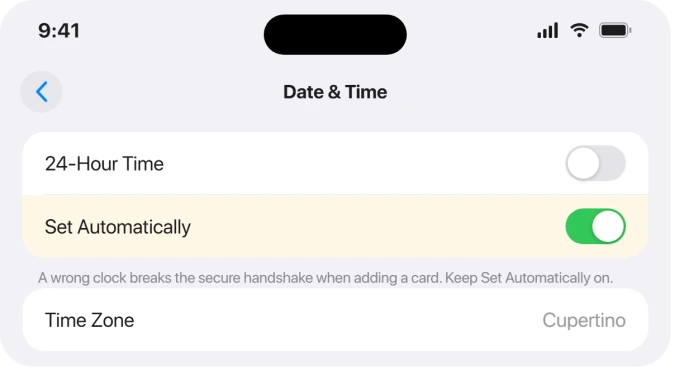
- Set Date & Time to Automatic in Settings > General > Date & Time. A wrong clock breaks the secure handshake.
- Turn off Stolen Device Protection and any Screen Time limits while you add, then switch them back on. Both can quietly block provisioning.
- Drop any VPN or content blocker for the attempt, and add over stable Wi-Fi rather than a weak cellular signal.
Add it from the Wallet app, and retry the smart way
Apple adds cards from the Wallet app, not a Settings button.
Open Wallet, tap the plus in the top corner, choose Debit or Credit Card, then hold the card in view to scan it or tap Enter Card Details Manually.
If the card once lived in Wallet and disappeared, tap the plus and look under Previous Cards to put it back in one step.
A few people only get it to work from Settings, where the section is named Wallet & Apple Pay. It can work when the Wallet app keeps failing.
If you have tried several times in a row, stop. Too many failed attempts triggers a temporary provisioning freeze, and you have to wait a day before Apple will let the card through again.
About the "iOS 26 flags cards as fraud" claim
You will see people say iOS 26 sends banks bad data that trips a fraud block, and some report their bank told them exactly that. It is worth knowing, but treat it as unconfirmed.
An Apple Community moderator disputed it, and Apple has not acknowledged any such bug or published a fix for one.
The practical takeaway holds either way: keep iOS current in Settings > General > Software Update, because if the block really is on Apple's side, only an update clears it.
This is the same shape as other iOS 26 server-side snags like iMessage refusing to activate, where the fix is Apple's, not yours.
What will not fix it
- Erasing your iPhone. A factory reset is the sledgehammer some guides reach for early, and it does nothing for a bank decline or a full token list. Exhaust the bank and settings fixes first.
- Paid "system repair" apps. Tools like Dr.Fone and Tenorshare only reflash iOS. They cannot touch a bank rejection, a card-network block, or an Apple server, which is where this actually fails. Skip the upsell.
- Assuming Wallet is full without checking. Wallet does cap how many cards it holds. It was eight, then sixteen, and newer iPhones appear to allow more, with Apple no longer publishing a fixed number and the count including Apple Cash. If Wallet is packed, remove one and retry, but do not assume that is the block until you have counted.
How many cards can Apple Wallet hold on an iPhone?
Historically eight, then sixteen on newer models, and recent iPhones seem to allow more. Apple no longer states a fixed number, and the limit counts Apple Cash and any Apple Pay in installments.
If you are near the old sixteen and hitting Could Not Add Card, remove a card you do not use and try again.
Why can I add my card to my Apple Watch but not my iPhone?
Because the block is tied to that specific iPhone or its Apple Account, not the card.
Confirm you are signed in with two-factor on, your clock is Automatic, Stolen Device Protection is off for the moment, and your device name has no special characters.
If it still fails only on the iPhone, sign out of your Apple Account and back in, then retry.
Why does Wallet say Could Not Add Card when my bank says the card is fine?
The setup passes through Apple and the card network before it reaches the bank, so it can fail without the bank ever seeing a decline.
It can also be a full token list, a wrong clock, a special character in your device name, or too many rapid attempts.
Work the bank-token check and the iPhone settings above, then retry once after a short wait.
The Short Version
- Could Not Add Card is usually a bank or account issue, not a broken iPhone, so resets rarely help.
- Call your bank: set the card up for Apple Pay in their app, and have them clear old device tokens if its token list is full.
- On the iPhone: sign in with two-factor, set a passcode, set Date & Time to Automatic, turn off Stolen Device Protection and Screen Time while adding, and strip apostrophes or emoji from your device name.
- Add from the Wallet app with the plus button, and check Previous Cards for one that vanished. Do not hammer retries, which triggers a temporary freeze.
- Skip the factory-reset and paid-repair advice. The "iOS 26 fraud-flag" story is unconfirmed, so just keep iOS updated.
Where to Next
- Apple Account prompts blocking the add: constant Apple Account sign-in pop-ups
- Another iOS 26 server-side activation bug: iMessage won't activate
- More iOS 26 fixes: iOS 26 problems and fixes
- Back to the start: pcglance home

Isaac Smith is the founder and editor of PC Glance, a website that covers computers, laptops, and technology. He is a tech enthusiast and a computer geek who loves to share his insights and help his readers make smart choices when buying tech gadgets or laptops. He is always curious and updated about the latest tech trends.