
Your AirPods will not translate anything, and the app gives you very little to go on. There are four reasons for it, and I will take you through them in order.
When AirPods Live Translation refuses to work, it is almost always one of four things: your iPhone cannot run it, your Apple Account is in a blocked region, your two languages are not both downloaded, or you have hit a setup bug Apple is still chasing.
The first two decide whether it can work at all, so start there. If your gear qualifies, the rest is usually a language download or one workaround that clears the pop-up that keeps closing.
First, make sure your gear can run it
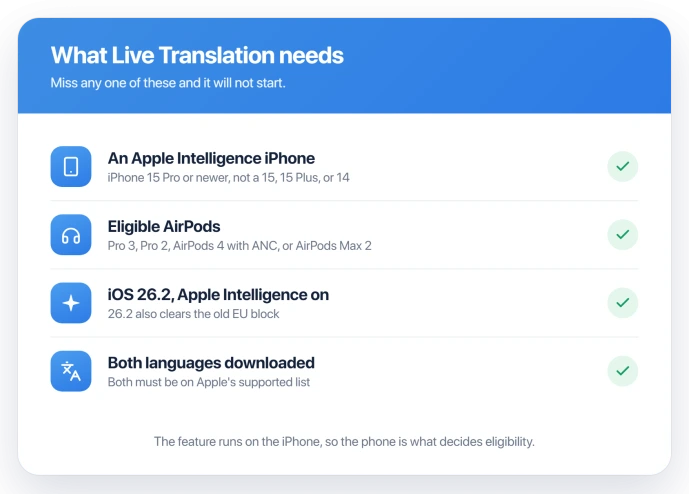
Live Translation is fussy about hardware, and a lot of "not working" is really "not eligible." You need all of these:
- Eligible AirPods: AirPods Pro 3, AirPods Pro 2, AirPods 4 with Active Noise Cancellation, or AirPods Max 2, the model with the H2 chip. Standard AirPods 4 without ANC, and any earlier AirPods Max including the 2024 USB-C one, do not qualify.
- An Apple Intelligence iPhone: iPhone 15 Pro or 15 Pro Max, or any iPhone 16 or 17. An iPhone 15, 15 Plus, 14, or older will never show the feature.
- iOS 26 or later, Apple Intelligence turned on, and the latest AirPods firmware.
The whole thing runs on the iPhone, not the AirPods, so the phone is what decides eligibility. To check your firmware, open Settings, tap Bluetooth, tap the i next to your AirPods, and look for Firmware Version.
The region catch, and the update that lifted it
Live Translation was blocked at launch for anyone whose Apple Account was set to an EU country while they were also physically in the EU. That was an EU rules matter, not a fault with your AirPods.
Apple lifted that block in iOS 26.2. So if you are in the EU and it still will not appear, update to iOS 26.2 or later first.
It is also not offered in mainland China and a few other places, so check Apple's availability list if you are unsure.
Download both languages, the right way
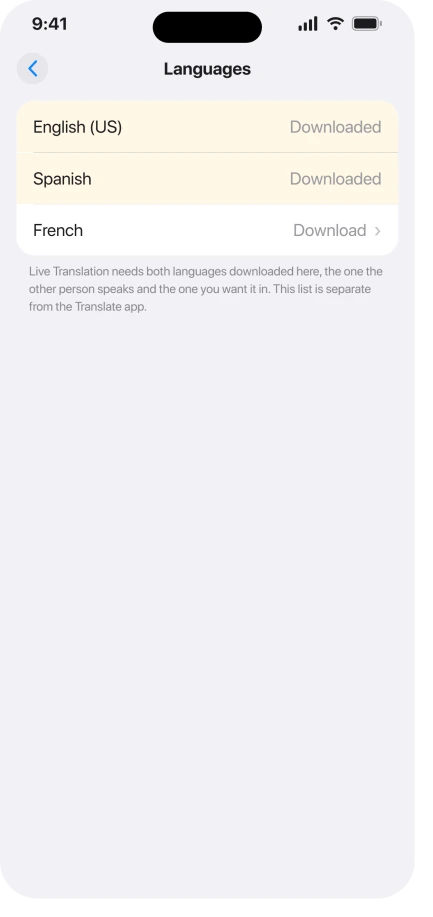
This is the fix most eligible people actually need. Live Translation wants the language the other person speaks and the language you want it in, both downloaded, and it keeps its own list separate from the Translate app.
Open Settings, tap your AirPods at the top, tap Translation, then Languages, and download both sides.
Apple spells out the whole feature in Use Live Translation with your AirPods.
Both languages also have to be on Apple's supported list. Right now that is English, French, German, Italian, Japanese, Korean, Portuguese, Spanish, and Chinese.
If either side speaks something not on the list, the Live flow will not begin.
When the pop-up opens then shuts
A common bug shows the setup pop-up, lets you pick a language, then closes with nothing, or it keeps nagging you to download languages you already have.
An Apple support technician confirmed this is a known software issue that was escalated to engineering, and it hits people whose setup is otherwise correct.
The workaround that clears it for a lot of people is in the Translate app. Set the same two languages across every tab along the bottom, Translate, Camera, Conversation, and Live.
Once all four match, start Live Translation again.
A few people also got it going only after switching their language to English (U.S.) rather than English (U.K.). If you are on U.K. English and stuck, it is worth a try.
How to actually start it
Once your setup is right, start a translation like this:
- AirPods Pro 3, Pro 2, or AirPods 4: press and hold the stem on both AirPods at the same time.
- AirPods Max 2: press and hold the noise control button, not the Digital Crown.
You can also open the Translate app, go to the Live tab, and tap Start Translation, set the Action button to Translate, or ask Siri to start Live Translation.
Your AirPods pick up the other person's voice and translate it into your ears. In a noisy place, move your iPhone closer to whoever is speaking, since its mics back up the AirPods.
The other person reads your reply on screen or hears it from the iPhone speaker, unless they have their own AirPods set up too.
What will not fix it, and what is not this bug
- Buying a fix-it app. Nothing third-party grants eligibility or a region. If your iPhone or AirPods are not on the list, no app changes that.
- Blaming the AirPods mic. If it seems to hear the wrong person, the mic is fine, just aim the iPhone at the speaker. If your mic is genuinely muffled on calls, that is AirPods microphone muffled on calls, a separate problem.
- Mixing it up with the volume dipping. If your AirPods drop the volume whenever you talk, that is AirPods keep lowering the volume, which is Conversation Awareness, not translation.
Status: Most Live Translation failures are eligibility or setup. Confirm your iPhone and AirPods qualify, clear the EU block with iOS 26.2, and download both languages in the AirPods settings.
Why does Live Translation keep asking me to download languages?
Because it has lost track of them, not because they are missing. Your downloads are fine, and an Apple technician has confirmed this pop-up loop is a known bug.
Re-downloading the languages will not stop it. Re-syncing them will, by matching the same two languages across all four Translate app tabs.
Which AirPods and iPhones support Live Translation?
The AirPods must be AirPods Pro 3, Pro 2, AirPods 4 with Active Noise Cancellation, or AirPods Max 2. The iPhone must run Apple Intelligence, so an iPhone 15 Pro or newer.
Older AirPods, standard AirPods 4 without ANC, and any iPhone before the 15 Pro will never offer it.
Does AirPods Live Translation work in the EU?
It does now. Apple blocked it at launch, then lifted that in iOS 26.2, so an EU account on 26.2 or later gets it.
If you have already updated and it is still missing, the region is no longer the problem.
Check the ordinary causes instead, an eligible iPhone and AirPods with Apple Intelligence on and both languages downloaded. It is also still off in mainland China.
The Short Version
- Most failures are eligibility: it needs an iPhone 15 Pro or newer, plus AirPods Pro 3, Pro 2, AirPods 4 with ANC, or AirPods Max 2.
- The EU block from launch is gone as of iOS 26.2, so update if you are in the EU and it is missing.
- Download both languages under Settings, your AirPods, Translation, and make sure both are on Apple's supported list.
- If the pop-up opens then closes, or it keeps asking for languages, set the same two languages on all four Translate app tabs.
- Start it by pressing and holding both stems, and in noise, point your iPhone at the person speaking.
Where to Next
- Another AirPods feature that stalls at setup: AirPods hearing test won't start
- Sound dropping out mid-song: AirPods cutting out on iOS 26

Isaac Smith is the founder and editor of PC Glance, a website that covers computers, laptops, and technology. He is a tech enthusiast and a computer geek who loves to share his insights and help his readers make smart choices when buying tech gadgets or laptops. He is always curious and updated about the latest tech trends.