
Your Express Transit stopped working and now you are being asked to unlock at the gate, which rather defeats the point of it. Let me get it back.
Express Transit is meant to be the one tap that asks for nothing: no Face ID, no unlock, working even on a dead battery.
This is rarely one problem. It is usually a card set wrong, a second card fighting for the tap, or the reader waking too slow.
Let me go through what Express Transit actually needs, because when it stops asking for nothing it is usually one condition.
Set one Express Transit card
Start here, because a card that is not actually chosen as your Express card is the most common reason nothing happens at the gate.
Open Settings, tap Wallet and Apple Pay, then Express Transit Card. Pick the card you tap with so a checkmark sits next to it. If it reads None, that is your answer, and choosing a card turns the feature back on.
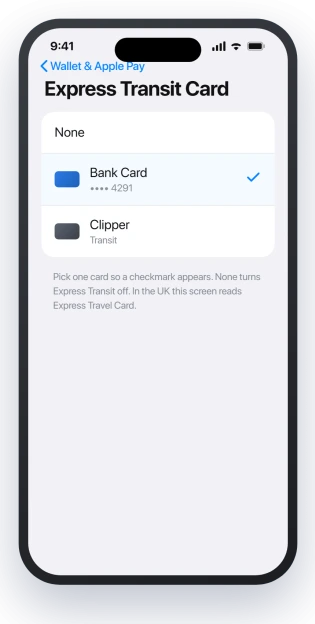
One label note. In the UK and some regions the option reads Express Travel Card rather than Express Transit Card, but it is the same setting, so choose a single card there too.
Apple explains the feature in Use Express Mode with transit cards and passes.
Stop a second card fighting for the tap
A second card competing for the tap is one of the most common reasons the first tap fails, and it is easy to rule out.
On an open network like London or New York, your Express Transit card is an ordinary bank card, so it shares the tap with anything else your phone or pocket puts near the reader.
Give the gate a single credential and the first-tap failures often ease.
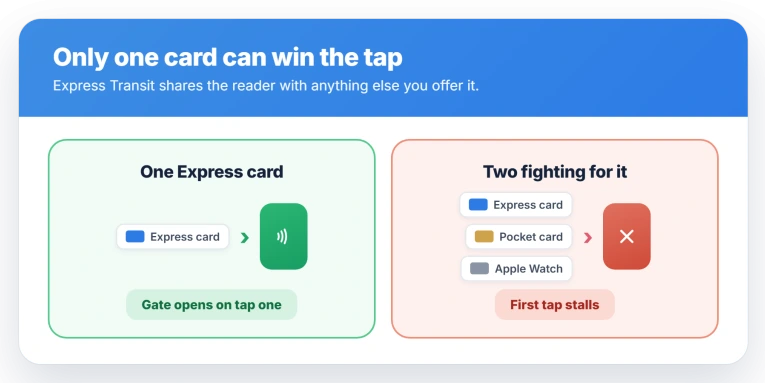
- Do not also pay by hand. If you double-click the side button and pick a card to pay at the gate, that second payment path competes with Express Transit and the reader can stall. Let the Express card work on its own, with no double click.
- Keep other contactless cards away. A physical bank card in the same pocket, or an Apple Watch on your other wrist, can reach the reader at the same moment. Present only the phone.
- Set the card deliberately. Choose the one card you ride with as your Express Transit card, so a single credential answers the gate instead of the reader picking between several.
If the trouble is that the card will not add or set in the first place, that is a different issue covered in Apple Wallet could not add card.
When the gate asks for Face ID
Express Transit is built to skip authentication, so a Face ID or passcode prompt at the gate means Express Mode has switched itself off.
It drops after you restart the phone and have not unlocked it once, after a long stretch locked, or after a failed Face ID.
Unlock the phone one time with Face ID or your passcode, and Express Mode arms again for the next tap.
While you are checking, open Settings, tap Face ID and Passcode, and make sure Wallet is turned on under Allow Access When Locked. If Wallet is off there, Express Transit cannot fire.
None of this is a broken Face ID sensor. If Face ID genuinely fails to unlock the phone elsewhere, that is a separate fault in Face ID not working on iOS 26.
The first tap does nothing, the second works
Plenty of riders find the first tap dead and the second one fine. That points at the phone's tap chip sitting idle while the screen is off.
The first tap wakes it, but not quickly enough for the gate's short window, so the handshake lands on tap two.
The reliable fix is to wake the screen just before you tap. A raise to wake, or a tap on the display, gets the chip live so the very first gate tap goes through.
This reading comes from the pattern riders describe rather than an Apple note, so treat it as the likely cause, not an official one.
It is reported more often on iOS 26 than on iOS 18, and updating has not settled it, so the wake-first habit is worth keeping.
Status: on iOS 26, Express Transit still fails on the first tap for many riders, with no confirmed Apple fix. Set one Express Transit card, drop a rival card, and wake the screen before tapping.
A few more checks
If the gate still refuses you, work through these before giving up.
- Toggle Express Mode off and on. Open Wallet, tap the card, open its details, and switch Express Transit off then back on. It resets a stuck state.
- Mind the dead-battery rule. Express keeps working for up to about five hours after the battery dies on its own, on iPhone XS and later. It does not work if you powered the phone off by hand, so charge before you count on it.
- Update, but do not wait on it. Install the latest iOS in case a later release helps, though none has fixed this yet, so the settings fixes are what actually holds.
Why does my iPhone not work on the first tap at the gate?
Usually the phone's tap chip is asleep with the screen off, so the first tap only wakes it and the second completes. Reports of this rose on iOS 26.
Wake the screen with a raise or a touch just before you tap, so the chip is live for the gate.
How do I set my Express Transit card on iPhone?
Open Settings, tap Wallet and Apple Pay, then Express Transit Card, and choose the card you ride with so a checkmark appears. In the UK and some regions it reads Express Travel Card.
Pick only one card. Setting it to None turns Express Transit off completely.
Why does Express Transit ask for Face ID?
A Face ID or passcode prompt means Express Mode has switched off, usually after a restart you have not unlocked from, a long lock, or a failed Face ID.
Express Transit is meant to need no authentication. Unlock the phone once to arm it again, and confirm Wallet is enabled under Face ID and Passcode.
Does Express Transit work with a dead battery?
Yes, for a while. On iPhone XS and later, Express cards keep working up to about five hours after the battery dies on its own, through Power Reserve.
That reserve only arms when the battery drains by itself. If you turned the phone off by hand, Express Mode does not run.
The Short Version
- Express Transit is meant to tap with no Face ID and no unlock. When it fails on iOS 26, it is usually one of a few settings, not a broken phone.
- Set exactly one Express Transit card in Settings, Wallet and Apple Pay, Express Transit Card. None means the feature is off.
- Your Express Transit card shares the tap with any other contactless card or device nearby. Keep a single credential in play and present only the phone.
- A Face ID prompt at the gate means Express Mode dropped. Unlock once to arm it, and check Wallet is on under Face ID and Passcode.
- If the first tap is always dead, wake the screen just before tapping so the tap chip is live for the gate.
Where to Next
- The card will not add to Wallet in the first place: Apple Wallet could not add card on iOS 26
- Face ID failing to unlock the phone at all: Face ID not working on iOS 26
- Bars vanish and calls drop after the update: iPhone No Service on iOS 26

Isaac Smith is the founder and editor of PC Glance, a website that covers computers, laptops, and technology. He is a tech enthusiast and a computer geek who loves to share his insights and help his readers make smart choices when buying tech gadgets or laptops. He is always curious and updated about the latest tech trends.