
Your Shared Albums have disappeared and you are scrolling through Photos wondering whether they took your pictures with them. They did not.
iOS 26 moved them, and Apple documents the change in a place you would only find if you already knew.
Open Photos, tap Collections, and scroll down. I will show you the second route as well.
Apple's checks, in Apple's order
For an album you cannot see or that will not sync, Apple's troubleshooting page lists five things, and the order is its own.
- Check your device meets the minimum requirements for Shared Albums.
- Check the internet connection on every device, which Apple suggests doing by loading apple.com or iCloud.com.
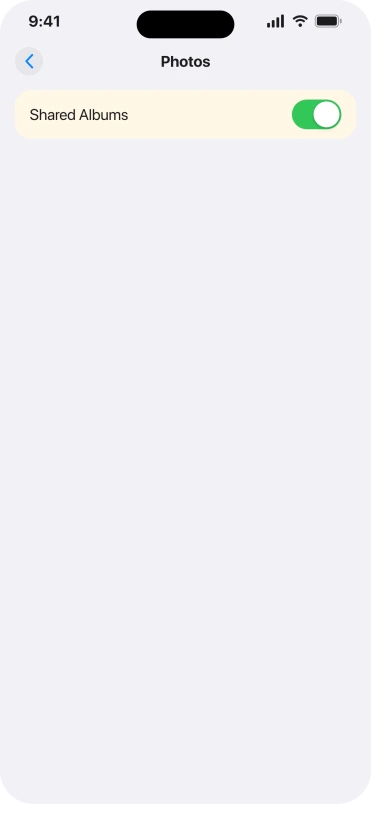
- Turn the feature on: Settings, tap your name, tap iCloud, tap Photos, then turn on Shared Albums. Apple's troubleshooting page reaches the same setting through Settings > Apps > Photos.
- Check whether the album loads on a different device, or for another subscriber.
- Then, and only then, the off and on reset covered next.
That fourth check splits the problem in half. If another subscriber can see the album, the fault is on your device. If no one can, it is the album or the account.
The reset, and the step Apple puts first
Apple's wording, with the route restored:
> "Back up the photos in your Shared Album. Then, turn Shared Albums off and back on again: Go to Settings, tap Apps, then tap Photos. Then turn off Shared Albums. Wait 10 minutes. Turn Shared Albums back on again."
Ten minutes, not ten seconds.
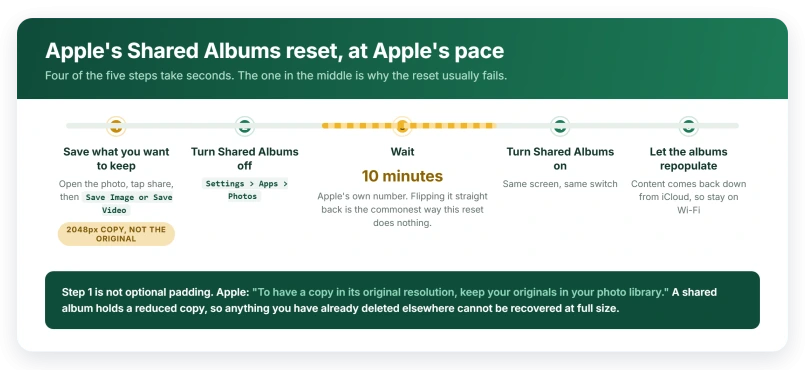
To save something before you start, open the photo, tap the share button, then tap Save Image or Save Video.
One caution while you are on the iCloud route.
That screen also holds Sync this iPhone, the master switch for your whole photo library, and our guide to iCloud Photos stuck on syncing paused quotes Apple telling you not to turn that one off when things look stuck.
Shared Albums is a separate row further down.
A shared album is not a backup
This is the part that costs people photographs.
> "Shared Album content isn't automatically backed up. When shared, photos are reduced to 2048 pixels on the long edge, panoramic photos can be up to 5400 pixels wide, and videos are delivered at up to 720p resolution."
Apple's instruction follows immediately, and it is the one to act on: "To have a copy in its original resolution, keep your originals in your photo library."
Read that carefully, because saving a photo out of a shared album does not undo the reduction. Apple is blunt elsewhere: "Shared Albums upload a copy of your data. Downloaded content may not contain the same information as the original." What you pull back out is the smaller copy.
The consequence Apple spells out: "If you delete content from your photo library after uploading to a shared album, you no longer have access to the full resolution file."
There is good news attached, and it is the whole reason to save first: "Any photos that you saved or downloaded from a shared album to your Photos library stay in your library even if the shared album is deleted or the person who created it stops sharing it."
If someone's photos never appear in the album
Before anyone deletes anything, check the switch that governs this, because it is on the owner's device and not the contributor's.
Apple: "If a participant can't add their photos or videos: In iOS 18 or later, tap the More button, then tap the Shared Album name. Check that you turned on Participants Can Add Photos."
On iOS 17 or earlier the same control is called Subscribers Can Post.
That single toggle can stop one person's photos arriving while the rest of the album works normally, and no amount of resetting will move it.
Limits that look exactly like a sync failure
Apple publishes a page of them, and every one of these stops things silently.
- 5000 photos and videos in any one album, counted across all contributors together.
- 1000 items per hour and 10,000 per day from a single contributor across all their shared albums. Upload a wedding and you can simply run out.
- Videos up to fifteen minutes, and GIFs of 100MB or smaller.
- 200 comments per photo or video, where Apple counts a like as a comment, and 1024 characters per comment.
- 100 subscribers per album, 200 albums you can own or subscribe to, and 200 invitations a day.
Apple also notes that Shared Albums do not support spatial photo or video.
None of this uses your iCloud storage.
Apple: "The photos and videos in your Shared Albums are kept in iCloud, but they don't count against your iCloud storage limit." Our guide to an iPhone that says storage is full while iCloud has space covers the same do-not-buy-storage conclusion from the other direction.
If an invitation never arrived
Apple gives three places an invitation can be, and the first is the only one people tend to check.
- Notification Center, where Apple says invitations show up.
- The Photos app: scroll to Shared Albums, tap Activity, then tap Accept.
- iCloud.com/photos, where you click Shared Albums in the sidebar and accept there.
Rule out two causes before anything else. The recipient needs Shared Albums turned on themselves, or the invitation never appears at all.
And Apple suggests asking the sender which email address they used, then searching your mail for that album name, since invitations often go to an address the recipient forgot they own.
To send one again from the owner's device, tap the album, tap the More button, tap the album name, select the person, then tap Resend Invitation.
If that person was removed from the album, resending is not the route. On iOS 18 and later, under Participants, tap Add Participants, enter the name, then tap Done.
Apple's troubleshooting page still prints the older name for this, Invite People, which is what iOS 17 and earlier used.
The opt-out that blocks the emails
There is one more cause, and it is invisible from both ends.
Apple's invitation emails carry a link reading Don't Send Me Shared Album Emails. Anyone who has clicked it stops receiving those emails.
Apple's way back needs an old invitation: open one, click that same link, and on the page that opens click Undo this change.
If no such email survives, Apple's answer is not a setting: "contact Apple Support and ask to receive Shared Album invitations."
This blocks the email route specifically. Notification Center, the Photos app and iCloud.com are quicker to check, so start there.
If it says the album is no longer shared
That message comes from the other end, and there is nothing to repair on your device.
Apple: "contact the owner of the shared album to ask whether it was deleted, or if they can re-send the invitation."
The two roles differ here, which matters before anyone panics.
An owner can Delete Shared Album, and Apple warns that "deleting a shared album permanently deletes all of its photos." A subscriber only gets Unsubscribe, which removes nothing from anyone else.
Deleting individual items has the same split. Apple: "If you're the owner of a shared album, you can delete any photos, videos, or comments from anyone. Subscribers can delete anything that they personally added. Anything you delete is automatically deleted from the album on all your devices and the devices of subscribers."
Anything already saved into your own library survives all of it.
If an invitation arrives from someone you do not recognize, Apple's route is Report Junk, in the email or in the Photos app.
What does not help
- Buying more iCloud storage. Apple states Shared Album content does not count against your iCloud storage limit.
- Turning Shared Albums off and straight back on. Apple asks for a ten minute wait, and for you to save anything you want first.
- Deleting photos to make room before checking the switch. If one person's uploads are being refused, Participants Can Add Photos is the likelier cause, and deleting removes items for every subscriber.
- Saving a photo out of a shared album to recover the original. It comes back at the reduced size, because that is the only copy the album holds.
- Resending an invitation over and over. Check the recipient's own Shared Albums switch and which email address you sent it to first.
Status: current for iOS 26.6. Apple's Shared Albums troubleshooting page was published 27 March 2026 and its limits page 27 February 2025, and both still end at contacting Apple Support.
Why are my Shared Albums not showing on iOS 26?
They moved. In iOS 26 you open Photos, tap Collections, then scroll to Shared Albums, and Apple's user guide also reaches them through Collections, Albums, then Shared. If they are genuinely absent, turn on Shared Albums at Settings, your name, iCloud, Photos, which Apple's troubleshooting page also reaches through Settings, Apps, Photos.
How do I fix a shared album that is not syncing?
Apple's order is: check the device meets the requirements, check every device is online, confirm the Shared Albums switch is on, then see whether the album loads for another subscriber. Only after those does Apple suggest saving your photos, turning Shared Albums off, waiting ten minutes, and turning it back on.
Why can one person not add photos to a shared album?
Because the album's owner controls it. Apple documents a toggle called Participants Can Add Photos, reached by tapping the More button then the shared album name, and called Subscribers Can Post on iOS 17 or earlier. If it is off, that person's photos will never post no matter what they try on their own device.
Does a shared album keep the original photo?
No. Apple reduces shared photos to 2048 pixels on the long edge, panoramas to 5400 pixels wide, and video to 720p, and says to keep your originals in your photo library if you want full resolution. Saving a photo back out of a shared album returns the reduced copy, not the original.
The Short Version
- iOS 26 moved them. Photos > Collections > Shared Albums, or Collections, Albums, then Shared.
- The switch: Settings > your name > iCloud > Photos > Shared Albums, also reachable at Settings > Apps > Photos.
- Apple's fourth check is the useful one. If another subscriber can see the album, the fault is your device.
- The reset needs ten minutes between off and on, and save anything you want first.
- A shared album is not a backup. Photos drop to 2048 pixels and video to 720p, and saving one back out returns the reduced copy.
- Saved photos survive the album being deleted or unshared.
- One person's photos not posting? The owner's Participants Can Add Photos toggle.
- Limits that look like faults: 5000 per album, 1000 uploads an hour, fifteen minute videos, 200 comments per photo.
- Invitations land in Notification Center, in Photos under Activity, and at iCloud.com.
Where to Next
Photos, then Collections, then scroll to Shared Albums. Nothing was deleted, it just moved, and Apple documented the change somewhere you would never look.
Once you know the route, the syncing problems separate out cleanly from the where-did-it-go problem.
If your album is in the right place and still not updating for one person, tell me whether they are on an older iPhone, because that catches people out.

Isaac Smith is the founder and editor of PC Glance, a website that covers computers, laptops, and technology. He is a tech enthusiast and a computer geek who loves to share his insights and help his readers make smart choices when buying tech gadgets or laptops. He is always curious and updated about the latest tech trends.