
You go to change a setting for one app, you scroll to where its name has always been, and it simply is not there. I know that feels like the update broke something.
It did not, and it was not the update you just installed either.
Your per-app settings moved one level deeper. Apple does not flag the change anywhere in Settings, and it never appeared in a release note, which is why nobody remembers it happening.
So which update did this?
Not the one you just installed
Apple puts the date on record in one sentence, and it is not on a page any iPhone owner would open.
It sits on a developer page about European regulation: "These releases include improvements to the Apps area in Settings first introduced in iOS 18 and iPadOS 18."
Its own user guide agrees.
The Safari settings page reads "Go to Settings > Safari > Downloads" in the iOS 17 guide, "Go to Settings > Apps > Safari." in the iOS 18 guide, and "Tap Apps, then tap Safari." in the iOS 26 one, where the single line has become a numbered walk.
So the move landed in iOS 18. What changed in iOS 26 was only how Apple writes the instruction down.
If it turned up for you with iOS 26, that is because you skipped iOS 18. Plenty of people went from iOS 17 straight to iOS 26, which lands two years of rearranging in one sitting and makes it all look like last week.
Not in any release note you were shown
Apple's "What's new in iOS 18" page does not contain the word Settings in a single feature paragraph. Neither does the iOS 26 version.
Both were checked for "Apps section", "Apps area", "tap Apps" and "reorganiz", and none of those strings appears on either page.
Nothing on the consumer support site dates the change either. The phrases Apple uses for it in its own developer note, "Apps section" and "Apps area", appear on no consumer page.
So that one sentence, on a developer compliance page two years after the fact, is the only place anyone has found it written down.
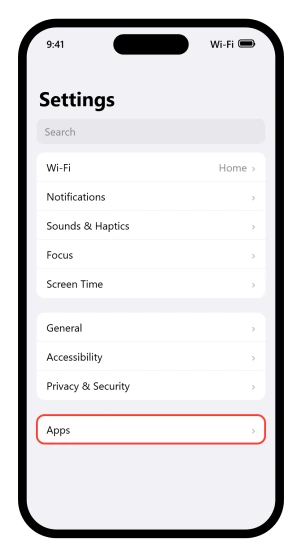
Open Settings, scroll past General, and tap Apps
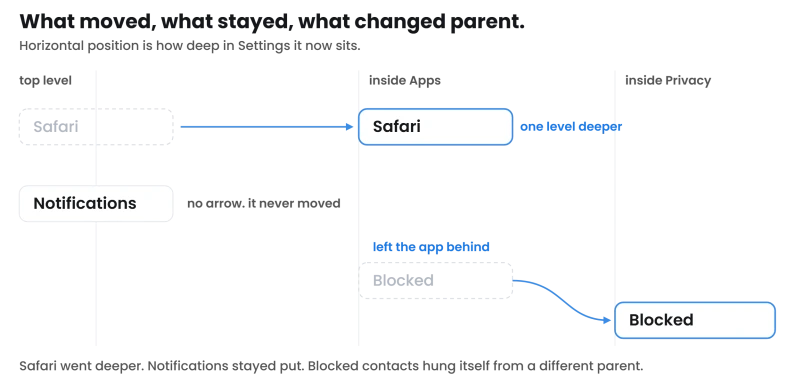
Everything that used to have its own row is in there, one level down. What was Settings > Safari is now Settings > Apps > Safari. Same settings, same order, one extra tap.
Two things people go hunting for never left, and a third is a name collision that sends people the wrong way.
- Notifications. Still its own row near the top, and per-app notification settings never left it. This is the one that catches people out, because notifications are the per-app setting anyone changes most often. Apple routes you through Notifications on its notifications page and through Apps on others, so both doors reach the same switches.
- The system rows. Wi-Fi, Sounds & Haptics, Focus, Screen Time, Accessibility, Privacy & Security, General. All exactly where they were. Keyboard settings sit inside General too, which is where people most often look under Apps by mistake, and our guide to autocorrect changing words covers that screen.
- Per-App Settings, under Accessibility. Confusingly close in name and nothing to do with any of this. It adjusts text size and motion for one app, and people hunting for the Apps section land there and get more confused.
One thing the list will not tell you: an app only appears under Apps if it ships settings of its own. Plenty of third-party apps never did and keep everything inside the app instead.
If you scroll that alphabetical list and a name simply is not there, that is why, and nothing on your phone is wrong. Some controls are not in Settings under any name either.
Maps keeps its offline map downloads inside the Maps app entirely, which our guide to offline maps not working covers.
You cannot switch the Apps section off, reorder it, or put the old rows back.
Blocked contacts went somewhere nobody would guess
This one did move in iOS 26, and it left the app behind entirely.
It used to sit under the app it belonged to. In iOS 17 that was Settings > Phone > Blocked Contacts. In iOS 18 it became Settings > Apps > Phone > Blocked Contacts.
In iOS 26 it consolidated into one system-wide list at Settings > Privacy & Security > Blocked Contacts, covering Phone, Messages and FaceTime together.
Apple's own pages have not caught up with each other. Two of them give the Privacy & Security route.
Two others still send you through Apps first: the call screening page routes you to Apps, then Phone, and the FaceTime blocking page routes you to Apps, then FaceTime.
All of them work, and the Privacy & Security pages are the newer ones.
If you are chasing a blocked number that still gets through, that is a separate problem and our guide to blocked numbers still calling and texting covers it.
For notifications from one person going quiet, that has its own set of controls, and most of them sit on the contact card or inside Messages rather than anywhere in Settings.
"Tap the search field"
That is how Apple's page on finding a setting now begins, and at iOS 17, iOS 18 and iOS 26 it has never pointed anyone at the Apps list.
Its answer has always been to search.
What changed in iOS 26 is that the field stopped hiding. At iOS 17 and iOS 18 the first step was to swipe down to reveal it.
That step is gone, because the field now sits permanently at the top of the Settings screen, which Apple's screenshot description of that screen confirms.
So type what you want rather than trying to remember where Apple filed it. It works from the Home Screen and the Lock Screen too, which is quicker than opening Settings at all.
Apple never frames search as the answer to the move, though. That connection is ours.
If search comes up empty, the setting is probably inside the app rather than in Settings, which is where most third-party apps keep theirs.
Status: written against iOS 26.6. Apple dates the Apps section to iOS 18 in one sentence on a developer page, and its guide prints a different route for one setting at iOS 17, 18 and 26.
Where did app settings go in iOS 26?
Into a row called Apps, near the bottom of the main Settings list. What used to be Settings then the app name is now Settings, Apps, then the app name. The move actually happened in iOS 18, so it will already have been there if you updated last year.
Why does my Settings app look different after the update?
Because per-app settings were pulled out of the main list into one Apps row, and the search field at the top no longer hides behind a swipe. The first change came in iOS 18 and the second in iOS 26, so updating from iOS 17 delivers both at once.
Why can I not find Safari settings on my iPhone?
Because Safari is no longer a top-level row. Go to Settings, tap Apps, then tap Safari. Note that Safari also has a separate set of accessibility options at Settings, Accessibility, Per-App Settings, which is a different feature with a name close enough to send you the wrong way.
Did iOS 26 change where notifications are?
No. Notifications is still its own row near the top of Settings, and per-app notification settings never left it. Apple sends you there on its own notifications page. A Notifications row does also appear inside each app under Apps, and Apple uses that door on some pages too, so either route reaches the same switches.
The Short Version
- Per-app settings live at Settings > Apps > [the app], one level deeper than they used to be.
- It happened in iOS 18, not in the update you just installed.
- Apple put it on record once, in a developer page about EU regulation, and in no release note you were shown.
- Notifications did not move, and neither did Wi-Fi, Focus, Screen Time, Accessibility or General.
- Per-App Settings under Accessibility is a different feature, despite the name.
- An app only appears under Apps if it ships settings of its own, so a missing name is normal.
- Blocked contacts did move in iOS 26, to Settings > Privacy & Security > Blocked Contacts, and two of Apple's own pages still route through Apps.
- Search from the top of Settings beats remembering the new layout, and in iOS 26 the field no longer hides behind a swipe.
Where to Next
Once you know they live at Settings, then Apps, then the app, the whole thing stops being a mystery. Every per-app setting is a level deeper than it used to be.
Nothing was removed, and nothing you did caused it.
If an app you use is missing from that list altogether, that is worth a comment, because the list only shows apps that have settings to show.

Isaac Smith is the founder and editor of PC Glance, a website that covers computers, laptops, and technology. He is a tech enthusiast and a computer geek who loves to share his insights and help his readers make smart choices when buying tech gadgets or laptops. He is always curious and updated about the latest tech trends.