
Your screen has gone blank behind a message telling you the phone is too close to your face, and tapping Continue does nothing at all. Nothing is broken.
That is Screen Distance, and the switch that turns it off is not anywhere you would think to look.
Not Display, not Accessibility, not Face ID. I will take you straight to it.
The Continue button is not broken
It is waiting for you.
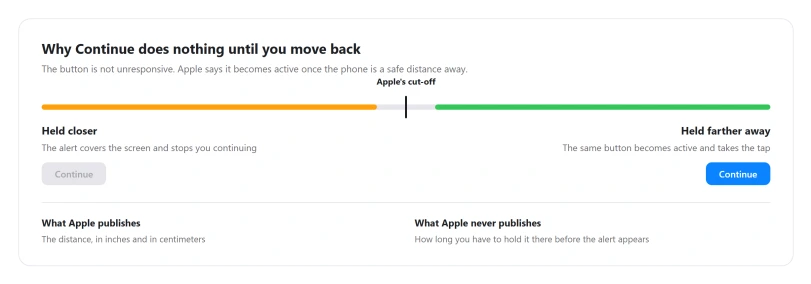
Apple describes the alert on its Screen Distance page: it "covers the screen, preventing you from continuing. When you move iPhone more than 12 inches away, you can tap Continue to resume using it."
There is one more detail, and it sits in Apple's description of the picture on that page. The Continue button "becomes active when you've moved your iPhone a safe distance away".
So it is not that your tap failed. The button is not live until the phone is far enough back, which is why tapping it repeatedly from the same position gets you nowhere.
One button, one label. A block carrying a Continue button and nothing else is this feature. A block with two or three buttons, or with no button at all, is one of the look-alikes at the foot of this page.
Apple's UK page gives the distance in metric as well: "a distance greater than 30 cm (12 inches) from your face".
The switch, and why you could not find it
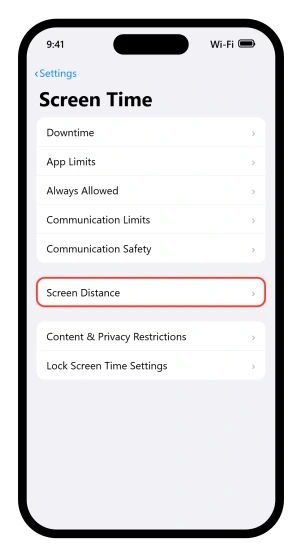
Settings > Screen Time > Screen Distance, then turn it off.
Apple prints it as four steps: open Settings, tap Screen Time, tap Screen Distance, then turn it off. It is not filed under Display and Brightness, Accessibility, or Face ID and Passcode.
No Screen Distance row on that screen means the phone cannot run the feature. It needs a Face ID camera, iOS 17 or later, and Face ID actually set up, which the requirements further down cover.
If you are turning it off for a child, tap their name first, then Screen Distance.
Before you turn it off for a child
Apple files this under vision health. Its page is titled "Help protect your vision health with Screen Distance", and Apple switches it on by default for children under 13.
Turning it off removes the only prompt iOS gives about holding a screen too close, and nothing replaces it. If the phone belongs to a child and the alert is doing its job, leave it on.
If it is your own phone and the alert keeps interrupting you, that switch is yours to use.
Apple's iOS 26 pages do not print a Limit Usage step anywhere, and those four steps are the whole of what its current documentation gives.
What Apple publishes, and the number it does not
Apple is precise about the distance: "closer than 12 inches". It is completely silent on how long.
Every Apple page uses the same hedge, "for an extended period", and none of them ever puts a figure on it. No figure in minutes appears on this page, because no Apple page publishes one.
That matters practically. You cannot predict when it will fire, and the Screen Distance screen carries one switch and no sensitivity control. It is on or off.
Whether the phone is watching you
Apple publishes one sentence about the mechanism and nothing at all about the data. Take both halves together.
The mechanism, from its support article: "The Screen Distance feature in Screen Time uses the TrueDepth camera to detect when you hold your iPhone closer than 12 inches", the same camera Face ID uses.
Apple describes the job as detecting distance.
Twelve Apple pages were read looking for a privacy statement about Screen Distance, and none of them carries one.
That covers the three feature pages, both copies of the support article, the iOS 17 press release, four of Apple's legal privacy pages and two entries in its platform security guide.
Apple does write that kind of sentence elsewhere. For Communication Safety, a few rows away on the same Screen Time screen, it states plainly: "Photos and videos are analyzed on the device. Apple does not receive an indication that nudity was detected and does not get access to the photos or videos."
That sentence is about Communication Safety. It does not describe Screen Distance, and Apple has published no equivalent for it.
The two features also do different jobs, one reading image content and one measuring distance, so the gap is not proof of anything on its own.
So the position is this. Apple has named the camera, described the job as distance detection, and published nothing about how that detection is handled.
An absence of documentation is not evidence in either direction, and this page will not treat it as either.
If the camera watching you is the part that bothers you, Attention Aware Features is the other one that uses it, and our guide to an iPhone screen that keeps dimming covers what it does.
If that was the part that worried you, I hope that settles it, because it is the question most people actually came here with.
It came back after an update
There is a documented reason for that, and it applies to children's devices: "Each time your child updates a device signed in with their Apple Account, Screen Distance is turned back on for all their devices."
So an update re-enables it, every time.
Apple also asks you to get the whole family group onto the same software version before changing anything: "To make sure that your Screen Distance settings sync across devices, update all of the devices in your Family Sharing group to the latest software version before changing your Screen Distance settings."
If the switch will not move
That is usually the Screen Time passcode rather than a fault. Apple: "When you set up a Screen Time passcode, it must be entered before you can change the settings you've chosen for yourself or a child."
Screen Distance is a Screen Time setting, so the passcode gate covers it. That is our reading rather than a sentence Apple writes about this feature specifically.
If you are the parent and have forgotten it, Apple's Screen Time Passcode Recovery resets it with your Apple Account, on that same screen.
Our guide to Screen Time not working on iOS 26 covers the rest of that screen.
If this is your phone but a parent set it up, the passcode is theirs and so is the setting. Ask them rather than hunting for a way round it.
Who gets this at all
Three requirements, and the third one is easy to miss.
"Screen Distance is only available on devices with a TrueDepth camera, the same camera used for Face ID, updated to iOS 17 or iPadOS 17 or later."
And from the iOS 26 guide, a line the support article leaves out: "Face ID must be set up in order to use Screen Distance." So a phone with the hardware but no face enrolled will not produce the alert.
If your iPhone has no Face ID at all, or Face ID is not set up on it, this is not what covered your screen. The look-alikes further down are where to go next.
On defaults, Apple states only the positive case: "Screen Distance is turned on by default for children under 13 in a Family Sharing group. (Age varies by country and region.)" It never states the default for anyone else, so if you are an adult meeting this alert, Apple's pages will not tell you whether it arrived switched on or was switched on later.
Either way the switch is in the same place.
Other things that cover your whole screen
These also cover the whole screen, and none of them is this one.
- The temperature warning. No dismiss button at all. Apple's advice is to turn the phone off and move it somewhere cooler.
- Guided Access, which locks the phone to one app. Escape by triple-clicking the side button and entering its passcode.
- A Sensitive Content Warning, which asks "Are you sure you want to view?" with Cancel, View Ways to Get Help and I'm Sure.
- A Screen Time app limit or Downtime, where restricted apps appear dimmed with an hourglass icon.
If your screen is going dark or dim rather than being covered, that is a different set of controls again, and our guide to an iPhone screen that keeps dimming sorts those out.
Status: checked on iOS 26.6. The iOS 26 What's New page does not mention Screen Distance, so nothing about it changed in this cycle.
How do I turn off the move farther away message on iPhone?
Go to Settings, tap Screen Time, tap Screen Distance, then turn it off. For a child's device, tap their name first. If the switch will not move, a Screen Time passcode is probably set, and it has to be entered before any Screen Time setting will change.
Why will the Continue button not work?
Because it is not active yet. Apple describes the button in the caption on its own screenshot: it becomes active once you have moved the iPhone a safe distance away. Apple puts the release at more than 12 inches, or 30 cm. Hold the phone farther back and the button will take the tap.
Does Screen Distance record anything?
Apple says it uses the TrueDepth camera, the same one Face ID uses, to detect when the phone is closer than 12 inches. It describes the job as distance detection and publishes no statement about how that data is handled, on any of the twelve pages we read. That is an absence of documentation rather than evidence of anything.
How close is too close, and for how long?
Closer than 12 inches, which Apple also prints as 30 cm. The duration is the gap: every Apple page says only "for an extended period" and none of them gives a number. Apple publishes no figure, so this page gives none.
Why did Screen Distance turn itself back on?
On a child's device it is documented behavior. Apple says that each time a child updates a device signed in with their Apple Account, Screen Distance is turned back on for all their devices.
The Short Version
- The route is Settings, Screen Time, Screen Distance. Not Display, not Accessibility, not Face ID.
- Continue does nothing until you move back. Apple puts the release at more than 12 inches.
- Apple publishes the distance and never the duration. No Apple page puts a figure on it.
- It needs a TrueDepth camera, iOS 17 or later, and Face ID set up. No enrolled face, no alert.
- On by default for under 13s in Family Sharing, and Apple states no default for anyone else.
- Updates switch it back on for children's devices, every time.
- A Screen Time passcode will stop you changing it, and on a child's phone that passcode belongs to a parent.
- None of the twelve Apple pages we read carries a privacy statement about it, though Apple writes one for Communication Safety on the same screen.
Where to Next
The switch is at Settings, Screen Time, Screen Distance, and I would not blame anybody for never finding it there.
Turn it off if it is not helping you, and leave it on for a child who needs it.
If the message keeps appearing with Screen Distance already off, say so below with the iPhone you are using, because that is not the documented behaviour.

Isaac Smith is the founder and editor of PC Glance, a website that covers computers, laptops, and technology. He is a tech enthusiast and a computer geek who loves to share his insights and help his readers make smart choices when buying tech gadgets or laptops. He is always curious and updated about the latest tech trends.