
Your iPhone is showing the wrong time, which is a small thing right up until it makes you late for something. One question sorts it.
Is your clock out by a few minutes, or by a whole hour?
That decides everything, and I will tell you why. Your iPhone works out the time and the time zone using two separate switches, in two separate menus, and most people only ever find one of them.
Where the switch is, and what it really does
The iOS 26 user guide for date and time opens with the mechanism rather than the steps: "The time zone on your iPhone is set automatically, but if you don't have Location Services turned on or you don't have service, you can change it manually."
Read that sentence twice, because it names both of the things that break it. Not a wrong setting. No Location Services, or no service.
The route to the switch itself, from Apple's guide: "Tap General, then tap Date & Time." That screen carries the automatic switch, the Time Zone row and a 24-Hour Time toggle, and nothing else you need for this.
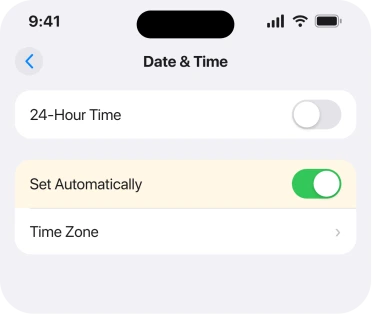
If the switch is already on and the time is still wrong, the switch is not your problem, and flicking it off and on will not help. The next section will.
The other half lives in Location Services
Wrong hour and right-hour-wrong-place are two different faults. This is the one that fixes the second, and it lives in a completely different menu.
Apple, on not being able to change the time or time zone: "Open Settings. Tap Privacy & Security, tap Location Services, scroll to the bottom and tap System Services, then turn on Setting Time Zone. This allows your device to use its current location to determine the correct time zone."
Setting Time Zone is buried at the bottom of a list inside another list, under Privacy rather than under Date & Time.
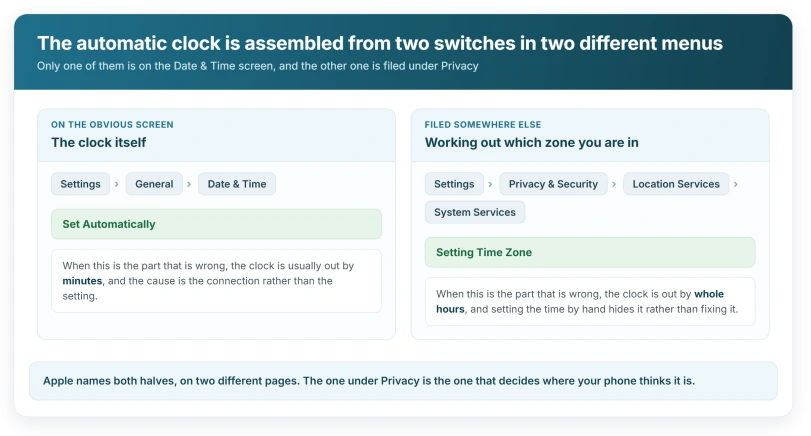
Which gives you the rule. A clock out by a whole number of hours is a zone problem, so it points at this switch. A clock out by minutes is not, and points at the connection.
That distinction matters. People turn the switch off and set the clock by hand, which fixes the display and nothing else. The zone underneath stays wrong, and every app that asks the phone where it is gets the wrong answer.
What this switch costs you when it is off
Worth being straight about, since half the advice on this subject is to turn it off.
A hand-set clock does not follow you. No daylight saving. No correction when you land somewhere new. And it drifts.
More to the point, several unrelated things lean on the clock being right.
A wrong date can break the secure handshake behind signing in, which is why our page on the Apple Account sign-in loop treats the clock as one of its first checks, and why location sharing quietly failing does the same.
Apple states it plainly: "Making manual adjustments to time settings in order to change app behavior (like game timers) isn't recommended."
So treat manual as a diagnostic step and a travel workaround, not somewhere to leave the phone parked.
If the switch is dimmed, nothing is broken
A greyed-out switch reads like a fault and is almost never one.
Apple: "The option to turn Set Automatically on or off might not be available with all carriers or in all countries and regions. If the device has a Screen Time passcode or a corporate profile with device restrictions installed, the setting might be dimmed (grayed out)."
Three separate causes in one sentence, and two of them are somebody else's decision rather than yours:
- A Screen Time passcode, which locks the setting until the passcode is entered.
- A corporate profile with device restrictions, on a work or school phone.
- Your carrier or your region, where Apple says the option may not exist at all.
On a work phone the third is the likely one, and no amount of resetting will shift it. It is a policy, and the person who set it is the way out.
The same sentence explains a lot of other dead controls, and our page on a greyed-out Cellular row works through the sweep Apple asks for.
Status: iOS 26.6, checked 16 August 2026. Apple names this switch two different ways on its own pages, and the iOS 26 guide is the one that matches the screen.
The message that means restart, not retry
This one is easy to skim past. Apple: "If a message says that updated time zone information is available, restart your device and any paired Apple Watch."
That is a specific instruction attached to a specific message. The phone has fetched new time zone data and wants a restart to apply it, and no other step on the page substitutes for that.
The Apple Watch half of that instruction matters. A watch left unrestarted carries on showing the old zone long after the phone has moved on.
Setting it by hand, properly
If automatic genuinely cannot work, because there is no service and no Location Services, Apple's manual route is short.
From the iOS 26 guide: "Turn off Set Automatically, then tap Time Zone", then "Enter a location in the search field, then tap the result to change the time zone."
Set the zone rather than the hands wherever you can. Entering a city keeps the phone's model of where it is coherent, and dragging the clock to the right number does not.
Why is my iPhone an hour out?
An hour, or a whole number of hours, is almost always the time zone rather than the clock. Apple's route for that is Privacy & Security, Location Services, System Services, then Setting Time Zone, which is the switch that lets the phone work out its zone from where it is. The Date & Time screen on its own does not control that.
Why is the Set Automatically switch greyed out?
Apple names three reasons: a Screen Time passcode, a corporate profile with device restrictions, or a carrier or region where the option is not offered. None of them is a fault, and Apple's wording is that the setting "might be dimmed (grayed out)" rather than that anything has gone wrong.
Does the wrong time break anything else?
It can. A wrong clock breaks secure connections. Signing in, syncing, sharing your location, all of it. That is why so many unrelated fixes start by asking you to check the time, and it is the argument against leaving it set by hand.
Should I just set the time manually?
Apple advises against it for the common reason people do it, saying that "making manual adjustments to time settings in order to change app behavior (like game timers) isn't recommended". Manual is reasonable when there is no service and no Location Services, and in that case set the time zone by entering a city rather than adjusting the clock.
The Short Version
- The control is at Settings, General, Date & Time, and Apple names it two different ways.
- The iOS 26 user guide calls it Set Automatically, which is the name on the screen.
- Being out by whole hours is a time zone problem, not a clock problem.
- The time zone half lives under Privacy & Security, Location Services, System Services, Setting Time Zone.
- Apple names two things that break automatic time: no Location Services, or no service.
- A dimmed switch means a Screen Time passcode, a corporate profile, or your carrier or region.
- A message about updated time zone information means restart the phone and the watch.
- Apple advises against manual adjustment for changing app behaviour.
Where to Next
Check the size of the error before you check any setting. Minutes is one problem and a whole hour is another, and they live in different menus.
Once you have set both switches to automatic, leave them alone. The phone handles travel on its own, and a manually set clock only hides the problem until the next trip.
And if Guided Access refuses to start at all, there are six ways around it.
If a Windows PC in Alberta or British Columbia shows the wrong hour after 1 November, the Windows time zone page covers the new zones.
If yours is out by something odd, like half an hour or a fixed number of days, tell me in the comments and I will help you place it.

Isaac Smith is the founder and editor of PC Glance, a website that covers computers, laptops, and technology. He is a tech enthusiast and a computer geek who loves to share his insights and help his readers make smart choices when buying tech gadgets or laptops. He is always curious and updated about the latest tech trends.