
Your screen is opening apps, typing letters and scrolling on its own, and using the phone has turned into a fight. That one is genuinely unnerving.
Take the case and the screen protector off, then try it again. That is the first thing Apple checks too, it costs nothing, and it is a real cause rather than a warm-up step.
If the screen behaves itself without them, you already have your answer, and I have saved you a repair bill.
There are three kinds, and they are not the same fault
Apple never uses the phrase ghost touch. Its repair guidance splits the behaviour into six named faults. Telling yours apart is the whole diagnosis, because they do not share a fix.
Apple's display troubleshooting guidance lists these six under Multi-Touch:
- "Multi-Touch or Haptic Touch responds slowly or doesn't respond"
- "Specific areas aren't responding to Multi-Touch or Haptic Touch"
- "Erratic response to Multi-Touch or Haptic Touch"
- "Unexpected Multi-Touch response"
- "Overly sensitive Multi-Touch or Haptic Touch response"
- "Low sensitivity to Multi-Touch or Haptic Touch"
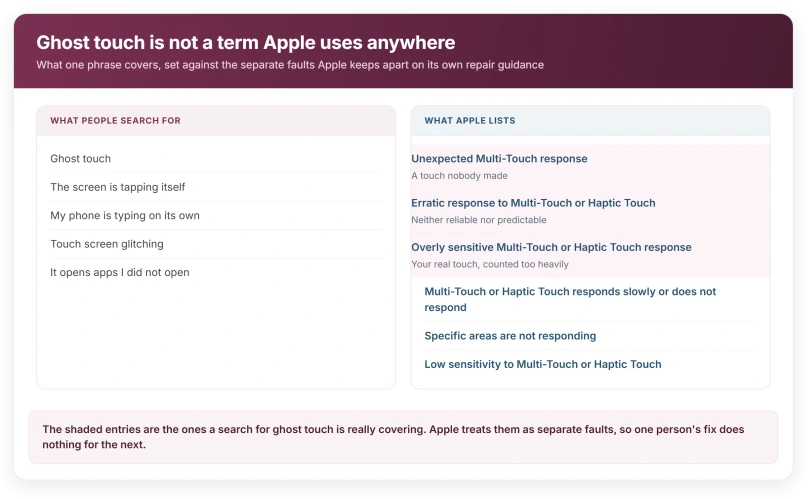
What gets called ghost touch is spread across three of those. Unexpected Multi-Touch response is the phone registering a touch nobody made. Overly sensitive is your real touch counted too heavily. Erratic is neither of those reliably.
They feel identical to use. They are not the same fault. Which is why the fix that worked for somebody else does nothing for you.
Work out which of those three describes your screen. I cannot give you one fix that covers all of them, and neither can anybody else.
Take the case and the protector off first
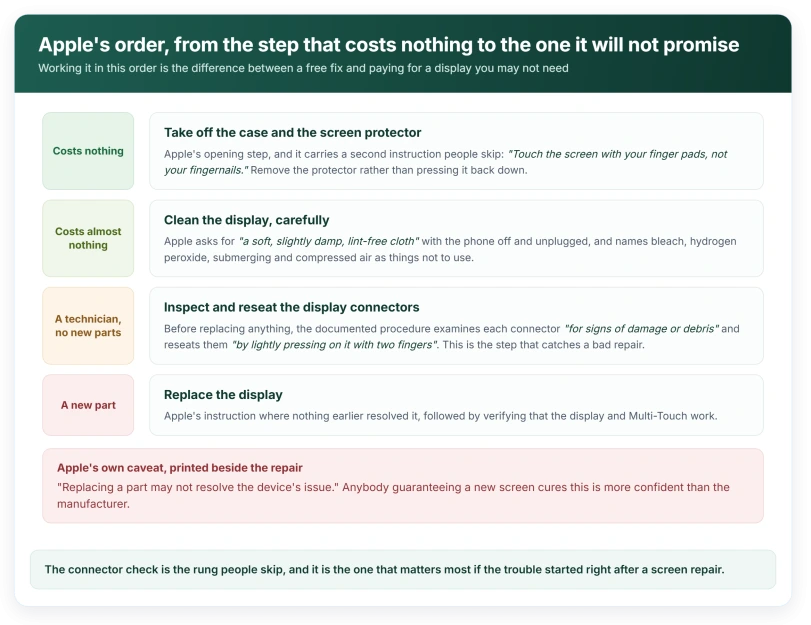
Apple's opening move: "Remove any cases or screen protectors. Touch the screen with your finger pads, not your fingernails."
Two separate instructions in one line, and the second one gets ignored.
A fingernail touches far less glass than a fingertip. The screen has less to read, so it reads inconsistently. That looks like a fault and is not one.
The protector half matters more. Trapped air, a lifted edge, or one thicker than the phone expects. Whatever the reason, it sits between your finger and the glass on every single touch.
Take it off entirely and test, rather than pressing it down.
Give it a proper try without them, not a quick tap. I would use the phone normally for a few minutes before deciding they were not the cause.
Clean the screen, and what never to use on it
Apple: "Clean the display with a soft, slightly damp, lint-free cloth."
And the warning attached to it, which is worth taking literally: "Unplug all cables and turn off the iPhone first. Don't use products containing bleach or hydrogen peroxide. Avoid getting moisture in any openings and don't submerge the iPhone in any cleaning agents. Don't use compressed air."
Compressed air is the one people reach for. It is on the do-not list. And note the word slightly, because a wet cloth pushes moisture straight into the openings Apple has just warned you about.
What a technician checks before replacing anything
This answers the question most people are really asking. It is buried in a page written for repairers, not owners.
Before any part is replaced, Apple's procedure is to open the device, "Disconnect the group of flex cables connecting the display to the logic board", then "Examine each connector for signs of damage or debris."
And where nothing looks wrong: "If display flex connectors appear normal and not damaged, reconnect the group of flex cables. Gently reseat each connector by lightly pressing on it with two fingers."
This is not a do-it-yourself instruction and it is not presented as one. Apple's own note on that section says it "requires ordering parts and tools", and opening a phone yourself risks the display, the battery and any water resistance it has left.
The reason to know this exists: a reseated connector is a real documented outcome, and it involves no new parts.
If ghost touch started right after a screen repair, a connector that was not fully seated is the first thing Apple's own procedure looks at. That is a conversation to have with whoever did the work.
Will a new screen fix it?
A qualified yes, and the qualification comes from Apple rather than from us.
Where the earlier steps do not resolve it, Apple's instruction is to "replace the display", and afterwards to "turn on the device and verify that the display and Multi-Touch are functional."
And then, on the same page, the sentence to hold onto: "Replacing a part may not resolve the device's issue."
That is Apple's own caveat, printed beside its own repair instruction. Read it twice. Anybody guaranteeing a new screen cures this is more confident than the manufacturer.
Your phone records the display as a replaced part afterwards. Our page on what Parts and Service History reports covers what those labels mean.
Status: iOS 26.6, checked 16 August 2026. Apple's display troubleshooting guidance was published on 22 June 2026 and does not use the phrase ghost touch anywhere.
Before you assume it is hardware, check one setting
One software setting mimics part of this. It takes seconds to rule out.
Touch Accommodations changes how the iPhone counts a touch, including how long you must hold and whether repeated touches are ignored.
Our page on long presses not opening menus covers where that setting lives and what each option does to a normal tap.
Rule it out first. It is free, instant and reversible. And a screen deliberately set to respond slowly reads exactly like a screen behaving oddly.
If your display goes dark rather than tapping itself, that is a different sensor entirely. Our page on a screen stuck after a call ends covers that one.
What is ghost touch on an iPhone?
It is not an Apple term. Apple describes the behaviour as an "Unexpected Multi-Touch response", and lists it alongside an erratic response and an overly sensitive one as three separate faults. All three feel like the screen acting on its own, and Apple's troubleshooting treats them as distinct.
Can a screen protector cause ghost touch?
Apple's first troubleshooting step is to remove cases and screen protectors, before any diagnostic or repair. A protector with a lifted edge or trapped air sits between your finger and the sensor on every touch, so it is worth removing completely rather than pressing down and retesting.
Why did ghost touch start after a screen replacement?
Apple's own repair procedure checks the flex cables connecting the display to the logic board before replacing anything, examining each connector for damage or debris and reseating them if they look normal. A connector that was not fully seated during a repair is the case that procedure exists to catch.
Does replacing the display always fix it?
Apple does not say so. Its guidance names the display as the part to replace, and on the same page states that "replacing a part may not resolve the device's issue." That caveat is worth quoting to anybody who offers you a guarantee.
The Short Version
- Apple does not use the phrase ghost touch and lists six Multi-Touch faults instead.
- Three of the six cover a screen registering things you did not do.
- Apple's first step is removing cases and screen protectors, and using finger pads not fingernails.
- Cleaning is a soft, slightly damp, lint-free cloth, with the phone off and unplugged.
- Apple names bleach, hydrogen peroxide, submerging and compressed air as things not to use.
- Before replacing parts, the documented check is the display flex connectors, reseated by hand.
- Ghost touch starting right after a repair points straight at that connector check.
- Apple names the display as the part, and says replacing a part may not resolve the issue.
Where to Next
Take the case and the protector off first, and give it a proper try without them. That is Apple's own opening move and it is a real cause rather than a warm-up.
After that it is about naming which of the six faults you have, because the fix for a screen that is too sensitive is not the fix for one that responds on its own.
If it started right after a screen repair, that is worth saying out loud to whoever did it. Let me know how that conversation goes.

Isaac Smith is the founder and editor of PC Glance, a website that covers computers, laptops, and technology. He is a tech enthusiast and a computer geek who loves to share his insights and help his readers make smart choices when buying tech gadgets or laptops. He is always curious and updated about the latest tech trends.