
You take the phone away from your ear at the end of a call and the screen stays black. It looks like it has frozen solid, and I can tell you it usually has not.
That is the sensor that blanks your display while the phone is against your face, and it has not let go.
There is a test that settles it in about ten seconds using nothing but your hand, so let us start there.
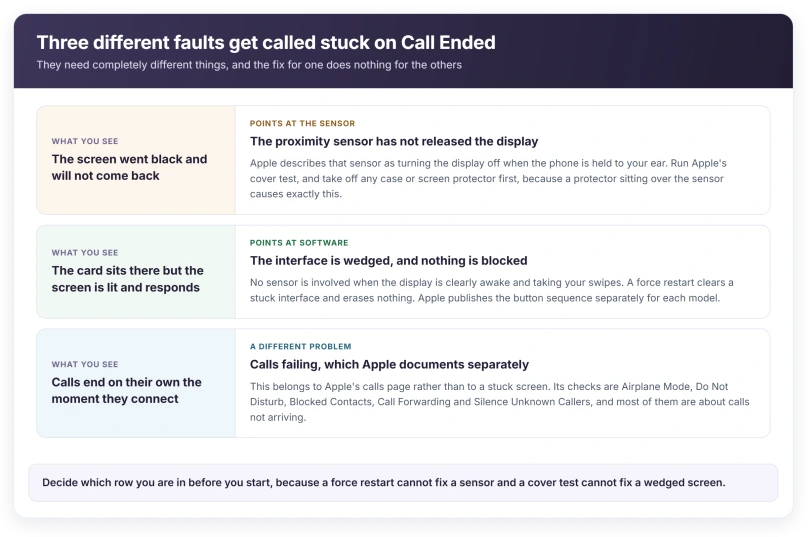
If the screen went black and will not come back
Start here, because this is the version that feels most like a frozen phone and is least likely to be one.
Apple, on its display troubleshooting page: "The proximity sensor detects when the iPhone is held to your ear and immediately turns off the display to save power and prevent unintended touches."
That sensor blanks your screen mid call. If it sticks, the screen stays off after you take the phone away. The call screen you cannot see is still sitting there underneath.
Apple lists both failure directions as known issues: "Screen stays on during a call when the iPhone is held to your ear" and "Screen immediately turns off when making a call".
So a screen that goes dark and stays dark after a call is a documented sensor symptom, not a crash. The phone is wide awake. It just thinks it is still against your face.
A screen registering touches nobody made is the other half of that same Apple page, and our page on what Apple calls ghost touch works through it.
The ten second test, using only your hand
This is the useful part, and it needs no tools.
Apple, word for word: "To check the proximity sensor, answer a call on the affected iPhone. Then cover the top of the display. The display should turn off, and it should turn on again when you uncover the display. If it doesn't turn off and on as expected, continue troubleshooting."
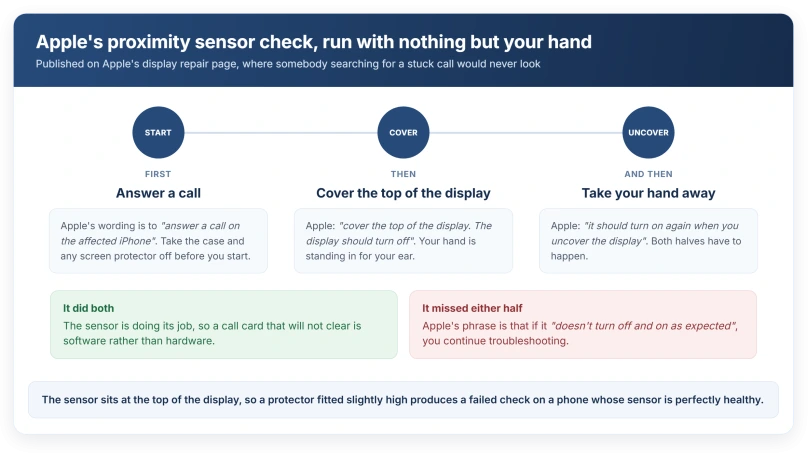
Run it on a call to somebody who will not mind, and watch the top of the phone rather than the screen. A sensor that never turns the display off, and one that turns it off and never brings it back, have both failed.
The first thing Apple asks you to rule out is simpler still: "Remove any cases or screen protectors."
This is the cheapest fix here by a mile. The sensor sits at the top of the display, and a protector fitted slightly high, or one with a misaligned cutout, covers it.
That produces exactly this symptom on a phone whose sensor is perfectly healthy.
If the sensor really has failed, the part is not the screen
Worth knowing before anybody quotes you for a display.
In Apple's repair guidance, where its proximity test fails, the instruction is to "replace the front camera in all iPhone 17 models and iPhone Air."
The front camera. The proximity sensor is part of that assembly on those models, which is why a working display can still fail this test.
That sentence names iPhone 17 models and iPhone Air and no others, and that scope is worth taking literally.
Apple does not publish a part for a failed proximity test on any earlier iPhone, so if yours is older, the page tells you the test and stops short of telling you the answer.
If a repair does happen, the front camera is one of the components your phone will then list, and our page on what Parts and Service History actually reports covers what those labels mean afterwards.
If the Call Ended card stays put and everything else works
A different problem, and a much less interesting one.
Screen lit, swipes working, and the call card just will not clear? That is software, not a sensor. No hardware is involved.
A force restart clears a wedged interface, and Apple publishes the button sequence per model because it differs between them. It does not erase anything.
If the phone is restarting itself rather than needing you to do it, that is a separate question with its own causes, and our page on an iPhone that keeps restarting sorts those out.
If calls end on their own the moment they connect
This one gets filed with the others and belongs somewhere else entirely.
Apple's page on calls failing opens by naming the three places to look: "You might not be able to make or receive calls on your iPhone if you have certain settings turned on, if your software isn't up to date, or if there's a problem with your network."
Its settings checks are specific and worth working through in order:
- Turn Airplane Mode on and off, and Apple asks you to "Wait five seconds between turning Airplane Mode on and off."
- Check Do Not Disturb under Focus.
- Check Blocked Contacts, under Apps then Phone.
- Check Call Forwarding, and "make sure Call Forwarding is off."
- Check Silence Unknown Callers, which Apple says routes a caller away unless they are in Contacts or Recents.
Four of those five are about calls not arriving rather than about a stuck screen, which tells you what that page is really for.
If blocked numbers are the part you are chasing, our page on blocked numbers still getting through covers where that goes wrong.
Status: iOS 26.6, checked 16 August 2026. Apple's call troubleshooting page was republished on 15 July 2026 and does not mention the call screen failing to clear.
What does not work
Three fixes get repeated everywhere for this symptom, and none of them touches the commonest cause.
Turning off Call Forwarding. Apple lists that check, but under calls that do not arrive. Forwarding decides where a call goes. It has nothing to do with a screen that stays dark after the call is over.
A force restart, when the screen is black. It clears a jammed interface, which is a real but different problem. It cannot help a sensor that a screen protector is sitting on top of, and you can restart all evening without changing that.
Reset All Settings. Nothing about a covered or failed sensor lives in your settings, so there is nothing there to reset. You lose your preferences and keep the fault.
Do the cover test first. It tells you which of these is even worth trying.
Why is my iPhone stuck on the Call Ended screen?
Most often the proximity sensor has not released the display. Apple describes that sensor as turning the screen off when the phone is held to your ear, and lists a screen that stays off or stays on at the wrong moment as known issues. A screen protector covering the sensor produces the same result on a phone that is otherwise fine.
How do I test the proximity sensor?
Apple's method is to answer a call, then cover the top of the display. The display should turn off, and turn back on when you uncover it. If it does not do both, the check has failed. No app or tool is needed.
Does a failed proximity sensor mean a new screen?
Not according to Apple's own repair guidance. Where its proximity test fails, the part it names is the front camera, and only for iPhone 17 models and iPhone Air. It names no part for that test on earlier models, so a quote for a display on this symptom is worth questioning.
Will a force restart fix it?
It clears the case where the interface is wedged but the screen is lit and responsive. It will not fix a proximity sensor that a screen protector is covering, and it is not a repair. Apple publishes the sequence per model because the buttons differ.
The Short Version
- Three separate faults get called stuck on Call Ended, and they need different things.
- A screen that goes black and stays black points at the proximity sensor.
- Apple publishes an owner-runnable test: answer a call, cover the top of the display.
- The display should switch off and come back on. Failing either half is a fail.
- Remove cases and screen protectors first, because covering the sensor causes this.
- Where the test fails, Apple names the front camera, for iPhone 17 models and iPhone Air only.
- A lit, responsive screen with a stuck card is software, and a force restart clears it.
- Calls dropping the instant they connect is a different problem on a different Apple page.
Where to Next
Sort it by what you can see before you touch anything. A black screen, a stuck card and calls that end themselves are three different faults wearing the same name.
The ten second test costs nothing and it settles the commonest one outright.
A call that never connects and reports User Busy is a different message with a different set of causes.
Where the call connects fine and it is the recording that fails, there are six things to check first.
And if the setting you went looking for is not there at all, call forwarding disappears for six reasons.
Where the call is fine but Hold Assist keeps failing, that feature has conditions worth knowing.
If your screen comes back the moment you cover and uncover the top of it, the sensor is fine and we are looking at the other two. Tell me which and I will help.

Isaac Smith is the founder and editor of PC Glance, a website that covers computers, laptops, and technology. He is a tech enthusiast and a computer geek who loves to share his insights and help his readers make smart choices when buying tech gadgets or laptops. He is always curious and updated about the latest tech trends.