
You tried to let your iPhone wait on hold for you, and instead of holding the line it flashed SmartHolding Failed, an error occurred while smart holding. Tap it again and you often get the same thing.
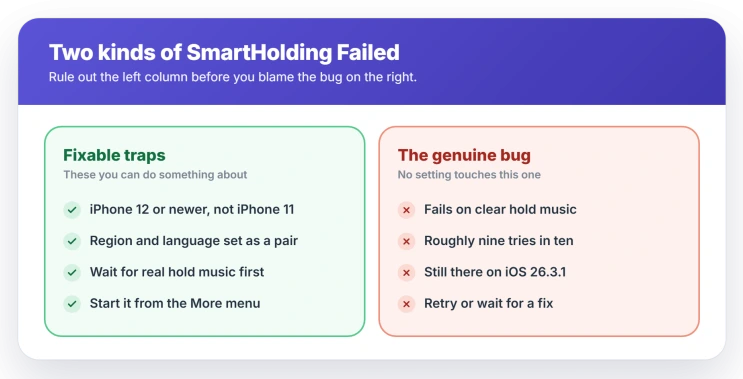
Hold Assist is one of the rougher corners of iOS 26 right now. It fails for two kinds of reasons: a handful of fixable traps, and a genuine bug that no setting touches.
Rule out the traps first, since those are the ones you can actually do something about. I will be clear about which is which.
Make sure your iPhone can run it at all
Hold Assist needs an iPhone 12, an iPhone SE from 2022, or newer.
On an iPhone 11, the Hold Assist Detection switch still shows up in Settings, so it looks available, but the feature never runs, because the hardware is under the cutoff.
There is no fix for that beyond a newer iPhone. If you are on an iPhone 12 or later, move on to the next checks.
Check your region and language line up
Hold Assist is limited to a set of countries, and it is fussier than most about it. Even in a supported country, it can go dark if your iPhone's language and region are not a matching pair.
Setting your language to English United States while your region is Germany, for instance, can switch both Hold Assist and Call Screening off.
Open Settings, General, then Language and Region, and make sure the two belong together, such as English United States paired with the United States.
Only start it once real hold music is playing
Hold Assist works by listening for hold music. It waits through the music, then rings you when it hears a person speak instead. So it needs actual music to lock onto.
Trigger it during a voice menu, a silent line, or a spoken you are number four in line loop, and it has nothing musical to hold. It can fail outright or misfire.
Some people get rung every couple of minutes because an automated voice keeps tripping the come-back-now signal.
Wait until you are past the menu and the hold music is playing, then start it.
If no prompt appears, start it by hand
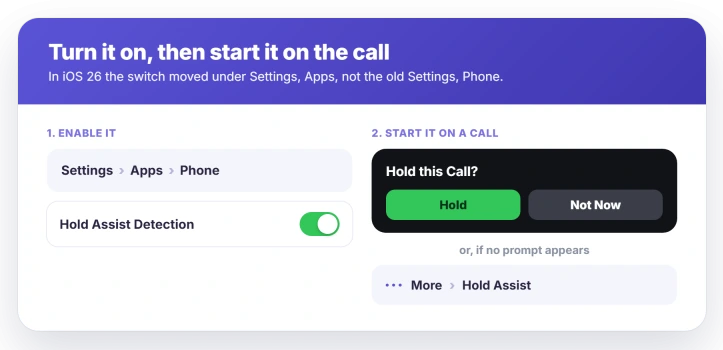
On a supported iPhone, a Hold this Call prompt is meant to appear about ten to fifteen seconds into a hold. If it never shows, two things help.
First, turn the feature on: open Settings, Apps, then Phone, and switch on Hold Assist Detection.
These moved under Settings, Apps in iOS 18, not the old Settings, Phone, which is a change Apple never announced.
Second, start it yourself. During the held call, tap the More button, the three dots, then tap Hold Assist. Apple's own steps are in Use Hold Assist on iPhone.
When it fails on real hold music, that is the bug
You are on a supported iPhone, in a supported region, with clear hold music playing, and it still throws SmartHolding Failed. This is the part no setting fixes. It reads as a genuine iOS 26 bug.
People report it failing far more often than it works, even triggered by hand on obvious hold music, and it was still doing it as of iOS 26.3.1.
Retrying sometimes gets it to catch, so it is worth another tap or two, but there is no reliable cure yet.
A few people also see the call freeze or drop when the agent returns, or the alert never sounds.
If it rings you back but you cannot hear the agent, that is a separate no sound on iPhone calls problem, and a silent alert can be Focus Mode holding your calls.
Status: SmartHolding Failed is an unfixed iOS 26 bug, still there through 26.3.1. Hold Assist also needs an iPhone 12 or later and a supported region. Retrying sometimes works; no setting does.
What will not fix it
When the failure is the bug rather than a trap, none of the standard fixes help.
- Toggling Hold Assist Detection off and on. People report the error carries straight on afterward.
- Restarting the iPhone. It does not clear the bug.
- Updating iOS. Through 26.3.1 the failure is still there, so a newer build has not solved it yet.
- Turning the Detection prompt off. It stops the automatic Hold this Call prompt, but does nothing for the error when you start Hold Assist by hand.
What does SmartHolding Failed mean on iPhone?
It means the background hold session that Hold Assist runs could not start or hold. Sometimes that is because there was no real hold music for it to lock onto, such as during a voice menu.
More often, on genuine hold music, it is the current iOS 26 bug firing for no good reason.
Why is Hold Assist not showing on my iPhone?
Often the giveaway is an iPhone 11, where the Hold Assist Detection switch appears but does nothing, because the feature needs an iPhone 12, an iPhone SE from 2022, or later.
It can also be missing if your country is not supported, or if your language and region are not a matching pair.
How do I turn on Hold Assist in iOS 26?
Open Settings, Apps, then Phone, and switch on Hold Assist Detection.
On a call, wait for the Hold this Call prompt about ten to fifteen seconds into a hold, or tap the More button and choose Hold Assist to start it yourself.
Is Hold Assist SmartHolding Failed fixed?
Not yet. People still report it on iOS 26.3.1, and Apple has not shipped a documented fix.
Retrying, using the manual trigger, and confirming your device and region are eligible are the only levers you have until an update sorts it.
The Short Version
- Hold Assist needs an iPhone 12 or an iPhone SE from 2022 or later. On an iPhone 11 the toggle shows but does nothing.
- It only works in supported regions, and your language and region must form a supported pair, so English United States with a non-US region can silently break it.
- Trigger it only once real hold music is playing. A voice menu or a spoken queue can misfire or fail it.
- If no prompt appears, enable Settings, Apps, Phone, Hold Assist Detection, and start it by hand from the More menu on the call.
- When it fails on genuine hold music, that is an unfixed iOS 26 bug through 26.3.1. Retry, or wait for an update.
Where to Next
- The alert comes but you cannot hear the agent: No sound on iPhone calls
- A Focus silencing the Hold Assist alert: Focus Mode blocking your calls
- Calls dropping or losing service mid-hold: iPhone no service or 5G dropping

Isaac Smith is the founder and editor of PC Glance, a website that covers computers, laptops, and technology. He is a tech enthusiast and a computer geek who loves to share his insights and help his readers make smart choices when buying tech gadgets or laptops. He is always curious and updated about the latest tech trends.