
Your ordinary phone calls are silent or full of static while a WhatsApp or FaceTime call on the very same iPhone sounds perfectly clear. That contrast is the useful part, and I will show you why.
On iOS 26 the cause is rarely your speaker. It is usually the cellular call path or one audio setting, and the exact fix depends on how the sound fails.
Start with two quick tests
Two thirty-second checks tell you which problem you have before changing a thing.
Speaker test. On a call with no sound, tap the audio button on the call screen and switch to Speaker.
If speakerphone works but the earpiece stays dead, the fault is the earpiece or its routing, not the whole phone. If both are silent, it points at the iOS 26 call path.
App-call test. Place a call in WhatsApp, FaceTime, or Messenger.
If those are clear and only normal cellular calls fail, your microphone and speaker are physically fine, and the trouble sits in the cellular calling that iOS 26 changed.
When cellular calls are silent or full of static
Status: this is a widely reported iOS 26 bug on cellular calls, not internet calls like FaceTime or WhatsApp. Apple has not acknowledged it or shipped a confirmed fix as of iOS 26.2.
The pattern people describe is consistent. No ringtone, then white noise, and the other person can hear you while you cannot hear them, on ordinary calls only.
Because app calls stay clean, your hardware is not the problem.
Two stopgaps bring the sound back for a while:
- Open Control Center, turn Airplane Mode on, wait a few seconds, turn it off, then redial. Re-registering on the network is the fastest temporary fix.
- Restart the iPhone. Same effect, a little slower.
For something that lasts longer:
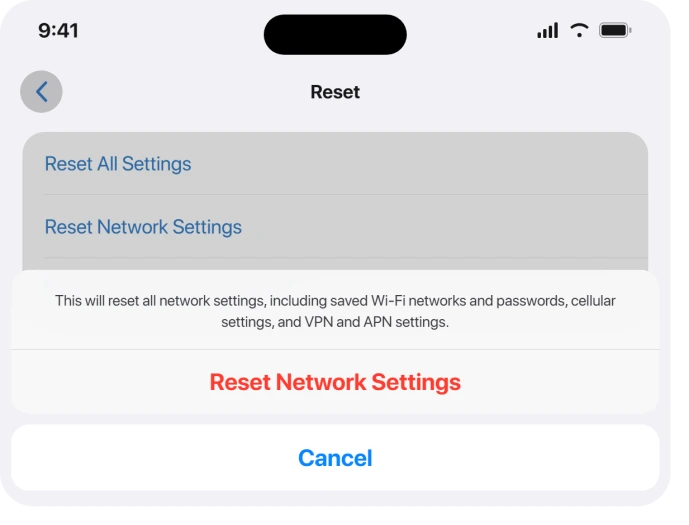
- Go to Settings > General > Transfer or Reset iPhone > Reset > Reset Network Settings. This keeps your photos and apps and clears a corrupted carrier registration, which is a common trigger. You will re-enter Wi-Fi passwords afterward.
- Install the latest update under Settings > General > Software Update. Point releases have quietly fixed call-audio regressions before.
- If it survives all of that, report it through Apple Support, because only a carrier or iOS update can close the bug itself.
A crackle that comes and goes in the earpiece of a new iPhone 18 Pro is a separate iOS 27 report. A restart clears that one for a while, and it has its own test.
When they cannot hear you
In this case the earpiece is fine and you hear them, but your voice does not reach the other end. First find out where it breaks: open Voice Memos and record a few seconds.
Clear playback means your microphone hardware works and the call path is at fault. A silent or faint recording means the microphone itself is the problem.
When the mic records fine:
- During a call, open Control Center, tap Mic Mode, and choose Voice Isolation. It lifts your voice above background noise and is supported on cellular calls since iOS 16.4.
- Check that a case or screen protector is not blocking the bottom microphone, and wipe the mic openings clean.
- Run Reset Network Settings if it only happens on cellular calls.
If you only sound muffled on calls made through AirPods, that is a separate fault with its own steps in AirPods microphone muffled on calls.
When the call is too quiet or muffled
- During the call, press Volume Up on the side of the phone. Call volume is stored separately from ringer and media volume, so it can sit low on its own.
- Clean the earpiece slot at the top of the screen. Lint packed into that mesh is the most common cause of a muffled earpiece, and a thick case lip or screen protector over it does the same thing.
- Rule out one specific app. If audio also stutters or pauses elsewhere, that is a different iOS 26 quirk covered in iPhone audio keeps pausing.
One model-specific cause is worth knowing. On an iPhone 12 or iPhone 12 Pro where speakerphone works but the earpiece is truly dead, this is often a known hardware defect rather than iOS 26.
Apple ran a free repair program for no-sound receiver failures on units built between October 2020 and April 2021.
That coverage lasts three years from the sale date and has likely lapsed by now, but it tells you the fix is a receiver repair, not a setting.
When call audio goes to the wrong place
Some people find call sound routing itself to a speaker, a car, or even another device in the house. Two things to check:
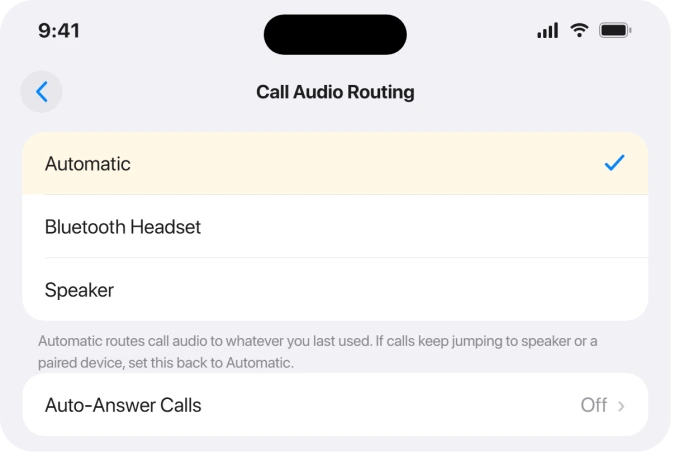
- Open Settings > Accessibility > Touch > Call Audio Routing and set it to Automatic. If it already reads Automatic, switch it to Speaker and back to reset it.
- Turn Bluetooth off for a test call. A paired watch, car, or speaker can grab the audio silently. If a set of AirPods keeps stealing it, AirPods cutting out on iOS 26 covers that routing problem.
On iOS 26 with Family Sharing, the on-call audio list has also shown other people's unlocked Macs and iPads as targets. Updating to the latest iOS 26 or running Reset All Settings has cleared that for most people.
When the phone does not ring at all
That is a different problem from call audio.
No ringing usually traces to a Focus or Do Not Disturb schedule, Silence Unknown Callers, the ringer volume set to zero, or a paired Apple Watch taking the alerts instead.
The full walkthrough is in iPhone not ringing after iOS 26.
What will not fix it
- Phone Noise Cancellation gets recommended everywhere, but it only exists on iPhone 12 and earlier, so on an iPhone 13 or newer there is no such switch to find. Where it does exist, it trims background noise in the earpiece and has no effect on the iOS 26 cellular bug.
- Paid "system repair" apps that promise to fix call audio cannot touch a carrier-side or iOS-side calling bug. Skip them.
- Erase All Content and Settings as an early move is far more than this needs. Reset Network Settings and Reset All Settings both keep your data and come first.
Why can I hear FaceTime but not regular calls on iOS 26?
Because the fault is in the cellular calling path, not your speaker or microphone.
FaceTime and WhatsApp carry audio over the internet, so they sidestep the part of iOS 26 that is failing on normal calls. Reset Network Settings, toggle Airplane Mode, and install the latest update.
Why do I hear static or white noise during iPhone calls?
On iOS 26 this is a known cellular-call bug, not a hardware fault, especially when it comes with no ringtone and one-way audio.
A reboot or an Airplane Mode toggle clears it for a while, and Reset Network Settings plus the newest iOS 26 update are the steps that last longer.
How do I stop iPhone call audio going to speaker on iOS 26?
Open Settings > Accessibility > Touch > Call Audio Routing and set it to Automatic, then turn Bluetooth off for a test call to rule out a paired device grabbing the sound.
If the switching started after the update, Reset All Settings clears the glitchy routing.
The Short Version
- Place a call in FaceTime or WhatsApp. If that is clear and only normal calls fail, it is the iOS 26 cellular bug, not your hardware.
- For that bug, toggle Airplane Mode or restart for a quick fix, then Reset Network Settings and install the latest iOS 26 update. Report it to Apple if it stays.
- If they cannot hear you, record a Voice Memo to test the mic, turn on Voice Isolation, and clear anything covering the bottom microphone.
- If it is quiet or muffled, turn call volume up and clean the earpiece slot. On an iPhone 12 or 12 Pro with a dead earpiece, suspect the known receiver defect.
- If audio lands on the wrong device, set Call Audio Routing to Automatic and turn Bluetooth off. Phone Noise Cancellation is not the fix, and it does not exist on iPhone 13 or newer.
Where to Next
Where the video plays silently rather than the call, six causes explain it and playback comes first.
Where the phone stops recognising sounds rather than losing call audio, that is sorted by symptom.
- Muffled only on AirPods calls: AirPods microphone muffled on calls
- Audio dropping in other apps too: iPhone audio keeps pausing
- Phone not ringing at all: iPhone not ringing after iOS 26
- More iOS 26 fixes: iOS 26 problems and fixes
- Back to the start: pcglance home

Isaac Smith is the founder and editor of PC Glance, a website that covers computers, laptops, and technology. He is a tech enthusiast and a computer geek who loves to share his insights and help his readers make smart choices when buying tech gadgets or laptops. He is always curious and updated about the latest tech trends.